Start with desk fit: LG UK lists one 34-inch model at 809 mm wide and 260 mm deep with its stand, while the Health and Safety Executive recommends placing a work screen directly in front of you, about an arm’s length away. If a 34-inch ultrawide leaves room for that setup, a 3440 × 1440 display offers one workspace for slides and notes; choose USB-C charging only after checking laptop compatibility, and look for KVM controls only if you use two computers.
Who this setup suits
Small-desk presenters
You want slides and notes visible together, but need enough desk width and depth to position the screen comfortably. The Health and Safety Executive recommends a centred screen with its top near eye level and roughly an arm’s length away.
One-cable laptop users
You want to connect a laptop for video and charging through a monitor’s USB-C port. Check that the laptop supports the required video output and accepts the monitor’s charging power; a USB-C connector alone does not establish either.
Two-device presenters
You switch between a work laptop and another computer or source. A monitor with KVM controls and Picture-by-Picture may help when both devices need to share the screen or a keyboard and mouse.
What matters when choosing
Measure the space available for the panel and stand before choosing a screen format. Then decide whether your notes and slides come from one laptop or from two separate devices.
| Concern |
What to check |
Who this matters to |
| Desk fit and placement |
Compare the exact panel width and stand depth with your clear desk space. Check the height range or mounting option if the supplied stand will not put the screen at a comfortable level. |
If my keyboard and notes need to stay on a shallow desk, the stand cannot take up the space needed to sit comfortably in front of the screen. Roughly 36% of consumers would put desk fit first. |
| Side-by-side workspace |
Compare resolution and aspect ratio; the cited 34-inch WQHD examples use 3440 × 1440 and 21:9. Check that your presentation and notes apps can be arranged at a readable text size. |
I need to read notes without covering the presentation or constantly switching windows. Around 29% of consumers would make readable side-by-side space their primary concern. |
| Laptop connection |
Check video-over-USB-C support on the laptop and monitor, then compare the monitor’s power delivery with the laptop’s charging requirements. |
When connecting my laptop at a cramped desk, I want fewer cables without losing video or the charging arrangement I need. About 21% of consumers would prioritise that connection. |
| Two-device control |
If you use separate source devices, check the exact model’s KVM and Picture-by-Picture modes and the ports needed for each device. |
If slides run from one computer while material stays on another, I want to switch controls or view both sources without adding a second monitor. Roughly 14% of consumers would put two-device control first. |
Mistakes to avoid
-
Choosing by diagonal size without measuring the stand
LG UK lists the 34WR55QC-B at 809 mm wide and 260 mm deep with its stand; BenQ UK lists the PD3420Q at 825.8 mm wide and 244.3 mm deep. Those are model-specific dimensions, and the stand can reduce the space left for a keyboard and notes.
Measure the usable surface and compare it with the selected model’s full dimensions. Check its height adjustment and mounting pattern if an alternative position may be needed.
An alternative mounting arrangement may be necessary if the supplied stand takes up too much depth.
-
Assuming a USB-C socket handles both video and charging
These functions depend on the particular monitor port and laptop. Dell UK specifies DisplayPort Alternate Mode and up to 90 W power delivery for the P3425WE, but that does not establish compatibility with every laptop.
Check the laptop’s video-output and charging specifications against the exact monitor connection before planning a one-cable setup.
A separate charger or video cable may still be needed.
-
Choosing KVM for a single-computer setup
A KVM switch addresses control of separate devices; it is not needed simply to put two windows from one laptop beside each other.
Count the computers you will connect and decide whether they need to share a keyboard and mouse. Check Picture-by-Picture separately if both video sources must be visible at once.
-
Expecting monitor adjustments to fix an awkward workstation
The Health and Safety Executive’s display-screen guidance considers the whole workstation, including furniture and working conditions, rather than the monitor alone.
Position the screen directly in front of you, check its height and viewing distance, and account for glare and the space needed to work.
Brands and models to consider
Dell
Dell’s Pro 34 Plus P3425WE is a 34-inch-class USB-C hub monitor for a laptop-centred desk.
- Dell UK specifies 3440 × 1440 at 100 Hz, USB-C power delivery up to 90 W and an RJ45 connection. The stand offers height, tilt, swivel and slant adjustment.
- Check laptop video and charging compatibility, then measure the exact monitor and stand against your desk.
LG
LG’s UltraWide range includes 34-inch WQHD models with USB-C, including the curved 34U640B-B.
- LG UK specifies 3440 × 1440, 65 W USB-C power delivery and height adjustment for the 34U640B-B.
- Measure the model you intend to buy: the 809 mm width and 260 mm stand depth published for the discontinued 34WR55QC-B do not describe every LG ultrawide.
Samsung
Samsung’s ViewFinity S6 S65UC is aimed at a desk using more than one source device.
- Samsung Business UK specifies a built-in KVM for controlling two sources with one keyboard and mouse, alongside Picture-in-Picture and Picture-by-Picture modes.
- Those controls offer little for slides and notes from one laptop; check both devices’ connections and the monitor’s physical fit first.
BenQ
BenQ’s flat 34-inch PD3420Q combines ultrawide workspace with documented colour specifications for presentation work involving design.
- BenQ UK specifies 3440 × 1440, USB-C power delivery at 65 W, KVM, Picture-by-Picture and a 100 × 100 mm VESA mounting pattern.
- Its published 825.8 mm width and 244.3 mm depth need checking against the desk; colour-oriented features need not drive a choice made chiefly for viewing notes.
Ultrawide monitors on Joybuy
These 29-inch and 34-inch ultrawides are relevant to placing slides and notes side by side. Their formats and connection needs differ, so compare the exact desk fit and laptop setup before choosing.
 No image available
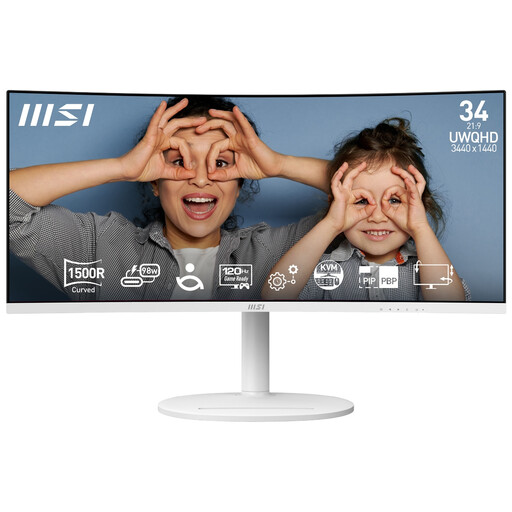
Modern MD342CQPW 34-inch curved monitor, white
For placing slides and notes on one ultrawide screen, provided the monitor and stand fit your desk.
The stated display specifications are 3440 × 1440, 120 Hz and 1500R curvature. Check the laptop’s video and charging compatibility if a one-cable setup matters to you.
View on Joybuy
 No image available
LG UltraGear 34GX900A-B 34-inch OLED monitor
A 34-inch ultrawide to consider if you can accommodate its stand while keeping slides and notes visible together.
The title specifies WQHD and 240 Hz. For prolonged static slides or notes, consider the stated OLED burn-in warning and check the screen-protection guidance before choosing it.
View on Joybuy
 No image available
Dahua 34-inch 3440 × 1440 curved monitor, 200 Hz
Its ultrawide format is relevant to arranging presentation content and notes on one screen; confirm the full footprint of the supplied stand for a small desk.
The title specifies a VA panel and two HDMI and two DisplayPort 1.4 connections. Check that the connection arrangement suits your laptop.
View on Joybuy
 No image available
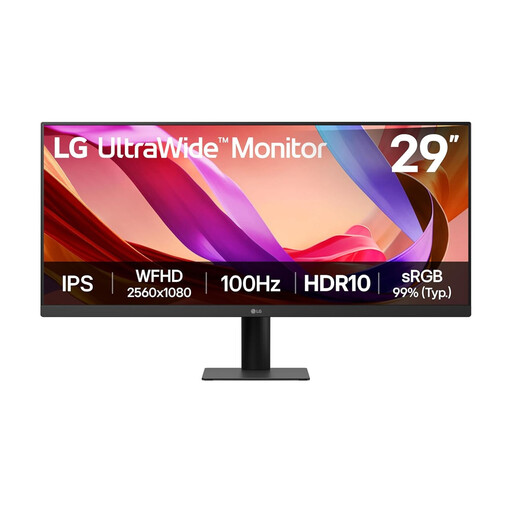
LG UltraWide 29U511A 29-inch IPS monitor, black
Consider this 29-inch option if a 34-inch screen is difficult to accommodate, but check that slides and notes remain readable at your preferred window sizes.
The title specifies UWFHD 1080p, 100 Hz, HDMI and DisplayPort. Its stated format differs from the 3440 × 1440 WQHD models discussed above.
View on Joybuy
 No image available
Lenovo R34w-30 34-inch UWQHD gaming monitor
The 34-inch ultrawide format is relevant to a slides-and-notes layout if the screen can be positioned comfortably on your desk.
Check the exact dimensions with the stand and the connections required by your laptop before buying.
View on Joybuy
Common questions
How much desk space does a 34-inch ultrawide need?
Allow for the exact model and its stand, not just the 34-inch diagonal. LG UK lists the 34WR55QC-B at 809 mm wide and 260 mm deep with its stand, while BenQ UK lists the PD3420Q at 825.8 mm wide and 244.3 mm deep; neither footprint applies to every 34-inch monitor. Leave space for your keyboard and notes and for a comfortable viewing position.
Will USB-C connect and charge any laptop?
No: check video output and charging compatibility on both the laptop and the monitor. Dell UK specifies DisplayPort 1.4 Alternate Mode and up to 90 W power delivery on the P3425WE’s USB-C upstream port, but your laptop must support the relevant functions and power arrangement.
Do I need KVM to keep notes beside a presentation?
Not when both windows run from one laptop. KVM is relevant when two computers need to share a keyboard and mouse; Samsung Business UK specifies that function for the ViewFinity S6 S65UC, along with Picture-by-Picture for viewing separate sources.
Who should check a work monitor’s setup under UK display-screen guidance?
The Health and Safety Executive says UK display-screen equipment rules apply to employers whose workers use it daily for continuous periods of an hour or more. Its guidance calls for assessment of the whole workstation, including furniture and working conditions; it does not make a particular ultrawide size a requirement.


