What to check before buying
Start with the window and desk position, then decide how much material must remain readable at once; check the laptop connection before settling on a monitor.
| Concern |
What to check |
Who this matters to |
| Window glare |
Check the screen finish and brightness specification, then work out whether you can reposition the display or control daylight with blinds. |
If window reflections obscure my notes, I need to change the desk setup rather than rely on brightness alone; around 42% of consumers put glare control first. |
| Room for notes and slides |
Compare 3440 × 1440 with 5120 × 2160 at a text size you can use, and measure the space available for the screen. |
When I keep a slide deck, detailed notes and references open, I need enough usable space without constant window switching; roughly 33% of consumers prioritise working area and detail. |
| Laptop setup |
Confirm native-resolution video output through your intended port and compare any monitor power delivery with the laptop’s charging requirement. |
If my laptop also runs meetings and peripherals, I want its display connection and charging arrangement to work at my desk; about 25% of consumers place that setup need first. |
Brands to consider
These model lines illustrate different ways to build a notes-and-presentation workspace; check the particular model rather than treating a brand name as a screen specification.
Dell
Dell’s UltraSharp range includes 34-inch and roughly 40-inch curved monitors for laptop-centred desks.
- Dell specifies 5120 × 2160 at 120 Hz and USB-C power delivery up to 90 W for the U4025QW; it lists anti-glare treatment and an ambient-light sensor for the smaller U3425WE.
- Choose the U4025QW’s larger format only if its extra working area fits your material and desk; its specifications do not replace window-glare control.
HP
The Series 7 Pro 734pm combines a 34-inch WQHD ultrawide with conferencing features.
- HP specifies 3440 × 1440 resolution, 400-nit brightness, a 5MP HDR webcam and an ambient-light sensor.
- Its 3440 × 1440 workspace has fewer native pixels than a 5120 × 2160 display; confirm that your computer can provide the required native-resolution output.
BenQ
The Creative Pro PD3420Q is a 34-inch ultrawide for people who want a matte screen and multiple-device workspace controls.
- BenQ specifies a matte 3440 × 1440 IPS display, 350-nit typical brightness, KVM and picture-by-picture or picture-in-picture functions.
- Its stated 65 W USB-C power delivery needs checking against your laptop’s charging requirement. A matte finish does not remove the need to manage direct window light.
LG
LG’s 40U990A-W is a 40-inch 5120 × 2160 option for a workspace with room for detailed material.
- LG specifies Thunderbolt 5 and DisplayHDR True Black 600 for this model alongside its 5K2K resolution.
- Check host-computer compatibility before choosing it for Thunderbolt 5. HDR certification alone does not establish how reflections from your window will appear.
Joybuy monitors for this setup
These ultrawides offer 34-inch options for a notes-and-slides layout and a wider 49-inch option. The 49-inch model’s stated 5120 × 1440 resolution is not the same as the 5120 × 2160 format discussed above. For any of them, check the screen finish and your planned window position before buying.
 Image unavailable
LG UltraGear 34G630A-B 34-inch VA WQHD 240Hz monitor
Consider this 34-inch ultrawide if you want notes and slides alongside each other in a more compact setup than a roughly 40-inch screen.
The title identifies a VA WQHD panel and a 240Hz refresh rate. Check the screen finish for your window position, and confirm the laptop’s video and charging needs against the connection you plan to use.
View on Joybuy
 Image unavailable
Dahua 34-inch 3440 × 1440 200Hz curved monitor
This 34-inch ultrawide is an option for placing notes beside presentation content when a 3440 × 1440 workspace suits your text size.
Its title specifies a 200Hz refresh rate, a VA panel, two HDMI inputs and two DisplayPort 1.4 inputs. Check that your laptop can output the native resolution through your chosen connection, and inspect the screen finish for the bright-window setup.
View on Joybuy
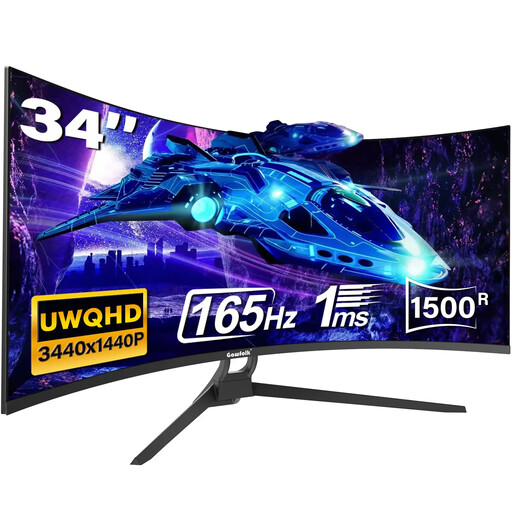 Image unavailable
Gawfolk 34-inch UWQHD 165Hz 1500R curved monitor
Consider its 34-inch 21:9 format if your main aim is to keep notes and slides visible together.
The title specifies a 165Hz refresh rate and 1500R curvature. Check the screen finish and confirm what the listed Type-C connection can do for video and charging before relying on it for a laptop setup.
View on Joybuy
 Image unavailable
CRUA 49-inch 5120 × 1440 165Hz curved monitor
This 49-inch 32:9 model is for a desk where you want a particularly wide arrangement of notes and presentation windows.
Its stated 5120 × 1440 resolution differs from 5K2K’s 5120 × 2160, so compare the vertical space you need as well as width. Measure the desk and support arrangement, confirm your computer’s output, and check the finish before placing it beside a window.
View on Joybuy
 Image unavailable
Lenovo R34w-30 34-inch UWQHD gaming monitor
Its 34-inch ultrawide format is relevant if you want notes beside a presentation without moving to a larger screen.
Check that your computer and chosen connection support the monitor’s native resolution. Also confirm its brightness and screen finish against the light at your desk rather than assuming the gaming label answers the glare question.
View on Joybuy
Common questions
Will a brighter ultrawide solve glare from a window?
No, brightness alone will not prevent reflections. The Health and Safety Executive recommends repositioning the screen or using blinds to avoid glare; once you have planned the desk layout, compare screen finishes and brightness specifications.
Can any USB-C laptop run an ultrawide and charge from it?
No. Check video output and native-resolution support separately from charging, then compare the monitor’s power delivery with the laptop’s requirement. Dell specifies up to 90 W for the U4025QW, while BenQ specifies 65 W for the PD3420Q; neither figure establishes compatibility with a particular laptop.
Should I choose 34-inch WQHD or roughly 40-inch 5K2K for slides and notes?
Choose 34-inch 3440 × 1440 if two main windows meet your needs and desk space is limited. Consider 5120 × 2160 at roughly 40 inches if detailed notes, slides and references must remain visible together, after checking desk dimensions and your computer’s native-resolution output. Dell, LG, HP and BenQ publish specifications for the respective models discussed here; the resolution alone does not tell you how they will handle window reflections.


