What to check before buying
For reading a script beside a call on a small desk, establish the screen layout and physical fit before deciding whether docking or call hardware would simplify your particular setup.
| Concern |
What to check |
Who this matters to |
| Script and call workspace |
Check for a 21:9, 3440 × 1440 display and whether your call and script apps remain readable side by side at your preferred scaling. |
I want to see the script without repeatedly covering the call window; around 42% of consumers would put that shared workspace first. |
| Desk fit and viewing position |
Compare the model’s dimensions with its stand against usable desk width and depth, including rear cable clearance. Ergotron advises at least 51 cm viewing distance, with more for larger screens. |
On a shallow desk, I need space to position the screen without crowding my keyboard or sitting too close; roughly 33% of consumers would prioritise physical fit and viewing position. |
| Connections and call hardware |
Match USB-C video and power delivery to your laptop; check KVM and picture-by-picture for two computers, or camera and microphone features if the monitor will handle calls. |
I want to reduce the cables or separate call accessories I actually use; about 25% of consumers would make connection and call-hardware simplicity their primary concern. |
Ultrawides for a script-and-call setup
These 34-inch ultrawides offer screens to consider for a script beside a call. Compare their stand dimensions, laptop connections and screen characteristics against your desk and daily call setup.
 No image available
LG UltraGear 34GX900A-B 34-inch OLED monitor
Consider this ultrawide if you also want an OLED display, but weigh the risk of burn-in when a script or call interface stays in the same place for long periods.
The product name specifies WQHD and 240 Hz. Its stated approximate dimensions with stand are 784.1 mm wide and 291.8 mm deep; confirm the assembled footprint and rear clearance against your desk.
Check the stated screen-protection guidance. Before relying on USB-C for your laptop, confirm video support and whether the stated power delivery of up to 65 W meets its charging needs.
Joybuy
 No image available
Dahua 34-inch UWQHD curved monitor, 200 Hz
For a script-and-call layout from one computer, check whether its adjustable stand lets you position the screen on your desk.
The product name specifies 3440 × 1440 resolution, a VA panel, two HDMI inputs and two DisplayPort 1.4 inputs. Height, tilt and swivel adjustment are stated for this model.
Check its assembled dimensions and rear cable clearance rather than using panel-only dimensions to judge fit. If you need laptop docking or charging, confirm those functions separately.
Joybuy
 No image available
Lepow HC-SJ34MZ5 34-inch curved ultrawide monitor
Consider its wide screen for keeping a script alongside a call from one computer, subject to your apps’ window layout and text size.
The product name specifies 3440 × 1440 resolution and a 165 Hz refresh rate; DisplayPort and HDMI connections are stated for this model.
Check the dimensions with stand, adjustment options and cable clearance before deciding whether it suits a shallow desk. Confirm any USB-C docking or charging requirement separately.
Joybuy
 No image available
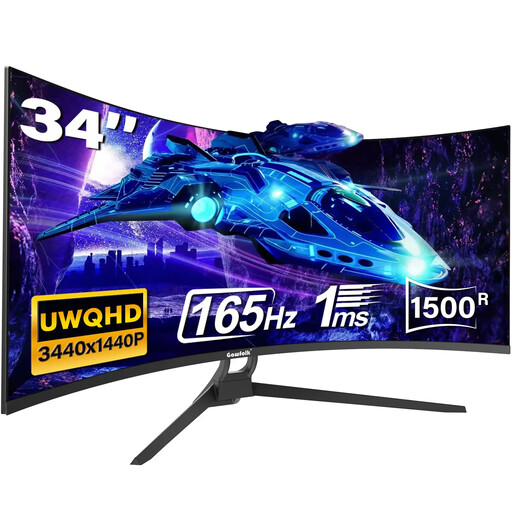
Gawfolk 34-inch curved ultrawide monitor, 165 Hz
Its 21:9 format is relevant if you want to assess a side-by-side script and call layout, but check readability in your own apps.
The product name lists a 1500R curve and HDMI 2.1 and DisplayPort 1.4 connections. Confirm the exact native resolution: the detailed description gives 3440 × 1440 but uses inconsistent resolution labels.
Type-C appears in the product name but not the detailed ports list, so confirm its functions before relying on USB-C video or charging. Check dimensions with stand, adjustment and cable clearance for your desk.
Joybuy
Frequently asked questions
Will a 34-inch ultrawide fit on a small desk?
It may fit, but measure against the exact model’s dimensions with stand. For scale, Dell UK lists the P3424WE at 81.57 cm wide and 23.74 cm deep with its stand; also allow space for cables, your keyboard and a suitable viewing position.
How far should I sit from an ultrawide monitor?
Allow enough desk depth to position the screen comfortably rather than pushing it close to your seat. Ergotron advises at least 51 cm, approximately arm’s length, and more distance for a larger screen; check what you can read comfortably at your chosen text size.
Do I need USB-C to read a script beside a call?
No: HDMI or DisplayPort can serve a one-laptop layout if the laptop and monitor provide a suitable connection. Prioritise USB-C when you want compatible video, data and charging through the monitor, and check its power delivery against your laptop’s requirements.
When would KVM or picture-by-picture help?
They are most relevant when your script and call workflow involves two computers. Picture-by-picture can display separate sources, while a KVM can let them share a keyboard and mouse; Samsung Business UK specifies these functions for its S65UC. Check the chosen model’s inputs and switching behaviour.
What should I check when replacing an old monitor in the UK?
Check the seller’s electrical-waste take-back instructions before ordering. GOV.UK says qualifying in-store take-back for waste of the same type as a purchased item must be free, while a retailer collecting from your home may charge for transport; confirm which arrangement applies to your purchase.


