Small-desk document comparers
If you regularly put drafts, contracts, spreadsheets or translations alongside one another, you need room for both windows without pushing the screen too close or crowding the rest of the desk.


A 34-inch ultrawide with 3440 × 1440 resolution is a sensible starting point for comparing detailed documents side by side, provided its stand and screen fit the desk at a comfortable viewing distance. If desk width is the deciding constraint, a 29-inch 2560 × 1080 model takes less space but leaves less room for each document. Choose docking or two-computer features only if they match the devices you use.
If you regularly put drafts, contracts, spreadsheets or translations alongside one another, you need room for both windows without pushing the screen too close or crowding the rest of the desk.
If a laptop is your main computer, a monitor with compatible video, peripheral and charging connections could simplify the cables on your desk. Check those functions against your particular laptop.
If the versions you compare are on separate computers, Picture-by-Picture can show two inputs, while a compatible KVM function can let you use one keyboard and mouse across them.
For two documents on a small desk, settle the balance between readable workspace and physical fit before deciding whether you need laptop docking or two-computer controls.
| Concern | What to check | Who this matters to |
|---|---|---|
| Readable side-by-side workspace | Check the native resolution: a 3440 × 1440 screen has more horizontal and vertical pixels than a 2560 × 1080 screen. | If both versions need to stay legible without constant window switching, screen space is my main concern. Around 39% of consumers put readable side-by-side workspace first. |
| Desk fit and viewing position | Compare the full width and stand depth with your usable desk space, then check whether you can position the screen comfortably. | I need space for the monitor, keyboard and documents without sitting too close to the screen. For around 38% of consumers, physical fit is the primary concern. |
| Laptop or two-computer connections | Match the monitor’s video inputs, USB-C charging and any KVM or Picture-by-Picture functions to your computers. | If I connect a laptop or review files across two computers, I want the connections and controls to suit that setup. Connection and multi-device workflow come first for roughly 23% of consumers. |
A 34-inch screen’s stand can take up valuable desk depth as well as width. Dell UK lists its P3424WE at 81.57 cm wide and 23.74 cm deep with the stand.
Measure the usable surface and compare it with the exact monitor’s stand-mounted dimensions. If you plan to use an arm, check the monitor’s mount specification and whether your desk can accommodate it.
An arm or desk rearrangement may be needed if the supplied stand takes up too much depth.
A 29-inch 2560 × 1080 display has fewer pixels in both directions than a 34-inch 3440 × 1440 display, even though both can place windows side by side.
If you compare detailed pages regularly, weigh the extra workspace against the larger footprint. Give the narrower format priority when available desk width is the firmer constraint.
One-cable video and charging depend on the laptop, monitor and cable supporting the required functions. KVM and Picture-by-Picture also need to suit the inputs you intend to use.
Check your laptop’s display connection and charging requirements, then compare them with the exact monitor’s ports and power-delivery rating.
Your setup may still require a separate charger, dock or additional cables.
Height adjustment cannot make a screen comfortable if the desk forces it too close or off-centre.
The UK Health and Safety Executive advises placing the screen directly in front of you, with its top around eye level and the screen about an arm’s length away. Check that your desk and seating allow this arrangement.
Dell’s P3424WE is a reference for a 34-inch document-work monitor with docking and stand adjustment.
LG provides examples of both a compact 29-inch format and a 34-inch productivity format.
Samsung’s ViewFinity range includes 34-inch ultrawides with features aimed at connected desk setups.
Philips’ 346P1CRH/00 is a 34-inch ultrawide example with USB-C docking and multi-device viewing features.
These choices include 34-inch UWQHD screens for detailed side-by-side work and a 29-inch UWFHD screen to consider when desk width is tighter. Check each model’s footprint and connections against your own desk and computer.
 No image available
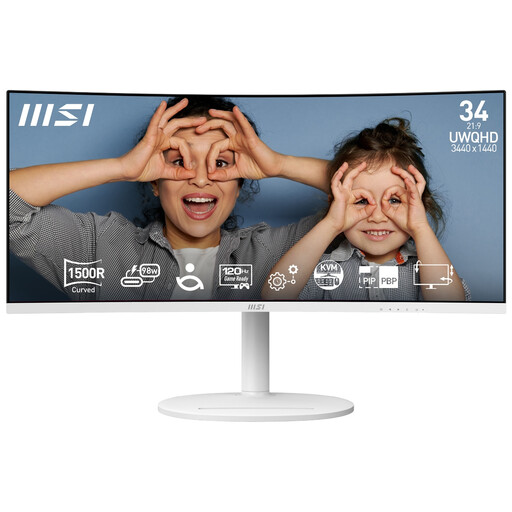
Consider this for two detailed document windows, particularly if you also want to examine its described KVM function for a two-computer setup.
The named variant has a 3440 × 1440 UWQHD display, 120Hz refresh rate and 1500R curve. Measure the desk against its stand-mounted footprint, and confirm USB-C charging compatibility before relying on a single cable.
 No image available
Its 34-inch UWQHD format is worth considering when keeping two detailed documents visible matters more than minimising screen width.
Check the complete dimensions with the supplied stand before deciding whether it fits your desk, and match its connections to your computer.
 No image available
Consider its 3440 × 1440 format if you want space for two document windows and can accommodate a 34-inch screen.
The named variant has a VA panel, two HDMI inputs and two DisplayPort 1.4 inputs. Check its full footprint with the stand and whether those connections suit your computer setup.
 No image available
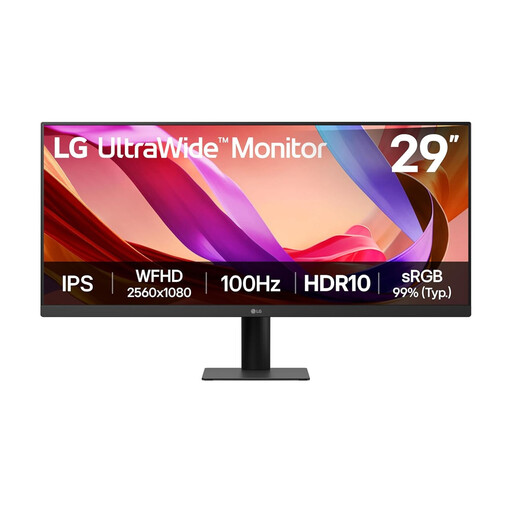
Consider the narrower 29-inch format if desk width takes priority, while accepting less document workspace than a 34-inch 3440 × 1440 screen.
The named variant has an IPS display, 100Hz refresh rate, HDMI and DisplayPort. Check its stand position and your preferred document zoom before choosing the smaller format.
Not necessarily, but the full stand-mounted footprint and your viewing position decide whether it fits. Dell UK lists the P3424WE at 81.57 cm wide and 23.74 cm deep with its stand; compare the dimensions of the model you want with your usable desk space and leave room for your keyboard and cables.
Choose 3440 × 1440 if keeping more text visible in both windows is the priority and the screen fits your desk. A 2560 × 1080 ultrawide offers fewer pixels horizontally and vertically, but a 29-inch model may suit a tighter width constraint.
Only if the laptop, monitor and cable support the required video and charging functions. Some cited Dell and LG models specify 90W power delivery; check your particular laptop’s charging requirement and display connection before relying on that rating.
You generally do not need KVM when both files are on one computer: arrange their windows side by side instead. If the files are on separate computers, a compatible KVM can let you control both with one keyboard and mouse, while Picture-by-Picture can display two inputs at once.