For slides and notes running on one computer, a 34-inch 3440 × 1440 ultrawide is a starting point: Microsoft Support describes how Windows Snap arranges separate windows, while Dell UK and LG UK list monitors in this format. If the material comes from two devices, look instead for explicit Picture-by-Picture (PBP) support; a 49-inch Dual QHD model offers a wider workspace, but makes desk fit and device connections more important to check.
Who is this for?
Single-laptop presenters
If your slides and notes run on the same computer, you can arrange them as separate windows on one ultrawide. A 34-inch 3440 × 1440 model is a starting point; Microsoft Support describes using Windows Snap to position the windows.
Two-source meeting users
If the presentation and notes come from separate devices, check for PBP so both inputs can be visible together. If you also want to control the devices with one keyboard and mouse, check for a built-in KVM switch. LG UK and Samsung Business UK describe these functions on specific models.
Laptop-docking desk users
If you want the monitor connection to carry video and charge your laptop, compare the monitor's stated USB-C functions and power delivery with the laptop's requirements. Dell UK and LG UK list different USB-C power limits on their cited models.
What matters when choosing?
34-inch ultrawide for one computer
Choose it when: Your slides and notes are separate windows on the same computer. Microsoft Support describes arranging windows with Snap.
Keep in mind: Side-by-side windows do not turn one computer into two independent video sources.
34-inch ultrawide with PBP
Choose it when: Two computers must remain visible on one panel; LG UK specifies PBP for the 34BA75QE-B.
Keep in mind: Each source shares the panel area when PBP is in use.
49-inch Dual QHD for two sources
Choose it when: You need a wider two-source workspace; Samsung Business UK describes two-source control on the S95UC.
Keep in mind: The larger format changes the desk-space and viewing-position decision. Check its dimensions and required inputs.
| Concern | What to check | Who this matters to |
|---|
| Two devices on screen |
Confirm PBP and the permitted input combination. Check for KVM separately if the devices must share a keyboard and mouse. |
When slides and notes are on different computers, I need to see both without changing inputs. Around 42% of consumers would put simultaneous two-source viewing first. |
| Room for slides and notes |
Check for 3440 × 1440 resolution on a 34-inch model and whether your computer can output it through your intended connection. |
If both applications run on my laptop, I want enough room to keep their windows open together. Window space would come first for around 33% of consumers. |
| Laptop connection |
Compare USB-C video support and the monitor's stated power delivery with your laptop's requirements. |
At a desk where I connect and disconnect my laptop, I want the display connection to handle charging too. Roughly 25% of consumers would prioritise that docking need. |
Buying pitfalls
-
Assuming width means two-computer support
A wide screen can hold two windows from one computer, but separate video sources need an explicitly supported feature such as PBP.
If slides and notes come from different devices, check the exact model's PBP input combinations and the cables each source needs.
-
Confusing KVM with PBP
KVM lets connected devices share a keyboard and mouse; PBP puts their video inputs on screen together. One function does not establish the other.
Check for both only if you need to see both sources and control them with shared peripherals.
-
Choosing USB-C by charging wattage alone
A stated power-delivery limit does not establish that your laptop sends video over USB-C or that the available charging power meets its needs.
Compare the laptop maker's video-output and charging requirements with the monitor's specification and cable requirements.
-
Choosing 49 inches before measuring the desk
A 49-inch screen calls for a different desk layout and viewing position from a 34-inch model.
Check the model's physical dimensions and your available space before deciding whether the extra width serves your workflow.
Brands to consider for these workflows
Dell
Dell UK presents the P3425WE as a 34.1-inch ultrawide USB-C hub monitor for a connected laptop desk.
- The cited P3425WE lists up to 90W USB-C power delivery and RJ45 connectivity.
- If two video sources must appear together, confirm PBP on the exact model rather than treating hub or KVM features as proof of it.
LG
LG UK lists 34-inch ultrawide models with different combinations of PBP, KVM and USB-C functions.
- LG UK specifies PBP for the 34BA75QE-B and display, data and charging up to 65W over USB-C for the 34WR55QK-B.
- Compare the exact model's inputs, power delivery and panel specification; these features do not apply to every LG ultrawide.
Samsung
Samsung Business UK presents the 49-inch S95UC as a wide workstation display for connected sources.
- Samsung Business UK describes integrated control of two sources with one keyboard and mouse on the S95UC.
- Check desk fit and the connections your devices require before choosing its 49-inch format for a slides-and-notes setup.
Joybuy product choices
These ultrawides cover 34-inch and 49-inch layouts for keeping slides and notes in view. For any setup using two separate devices, confirm PBP and the supported input combination on the exact product before buying.
 No image available
Acer Predator X49X 49-inch QD-OLED curved ultrawide
Consider its 49-inch, 32:9 format if you want a wide layout for slides and notes and have space for it on your desk.
The product name specifies a Dual QHD QD-OLED display, 1800R curve, 240Hz refresh rate and HDMI, DisplayPort and USB-C connections.
If two devices must appear together, confirm PBP, the required input combination and any KVM function for this exact model.
View on Joybuy
 No image available
CRUA 49-inch 5120 × 1440 curved ultrawide
Its wide format is an option for arranging slides and notes as windows from one computer, provided it fits your desk.
The product name specifies a 32:9 VA panel, 165Hz refresh rate, two HDMI 2.1 and two DisplayPort 1.4 inputs, and a height-adjustable stand.
For separate video sources, check PBP support and its input combinations; also confirm the monitor's dimensions before purchase.
View on Joybuy
 No image available
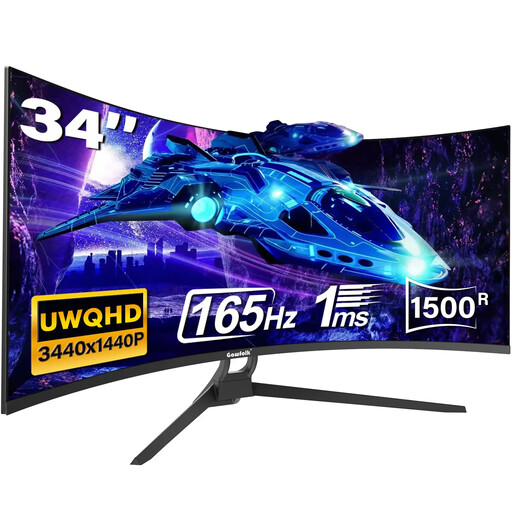
Gawfolk 34-inch UWQHD curved monitor
Consider this 21:9 format when slides and notes are windows on the same computer.
The product name specifies 3440 × 1440 resolution, a 1500R curve and a 165Hz refresh rate.
If you need two separate sources or USB-C video, check PBP and the actual port functions for this model before buying.
View on Joybuy
 No image available
Dahua 34-inch UWQHD 200Hz curved monitor
Its 34-inch ultrawide format suits a setup that puts presentation and notes windows on one computer.
The product name specifies 3440 × 1440 resolution, a VA panel, two HDMI and two DisplayPort 1.4 inputs.
If your workflow uses two devices, confirm PBP support and the permitted inputs rather than relying on the number of ports.
View on Joybuy
 No image available
LG UltraGear 34G630A-B 34-inch VA WQHD monitor
Consider this 34-inch model if slides and notes will be arranged on one computer.
Its product name specifies a VA panel and 240Hz refresh rate. Check its native resolution against the workspace you need.
For a two-device setup, confirm whether this exact model supports PBP and the inputs you intend to connect.
View on Joybuy
Common questions
Is a 34-inch ultrawide enough for slides and notes?
A 34-inch 3440 × 1440 ultrawide is a starting point when both run as applications on one computer. Microsoft Support describes using Windows Snap to arrange the windows; check that your computer can output the monitor's native resolution. This arrangement does not display two independent video inputs.
What if my slides and notes are on different computers?
Choose a monitor that explicitly supports PBP for the input combination you need. LG UK specifies PBP on the 34BA75QE-B; if you also want one keyboard and mouse for both computers, check for a built-in KVM switch.
Will a USB-C ultrawide work with any USB-C laptop?
Do not assume that a USB-C connection will provide both video and adequate charging for every laptop. Check the laptop's USB-C video capability and power requirements against the monitor's stated functions and cable instructions; LG UK specifies display, data and up to 65W charging for the 34WR55QK-B.
How do I arrange slides and notes in Windows?
For one computer connected to an ultrawide, open the slides and notes in separate windows and use Windows Snap to position them side by side. Microsoft Support describes Snap as a way to resize and position windows; if you use more than one physical display, check the connections and arrange the displays in Windows settings.


