What to check when choosing
Settle screen placement and readable workspace before deciding whether laptop docking or two-computer features are necessary.
| Concern |
What to check |
Who this matters to |
| Standing-height positioning |
Compare the stand’s height range with your standing position. If using an arm, check its mounting pattern, load rating and fit to the desk. |
When I raise my desk, I need the screen in front of me without craning my neck; around 36% of consumers put standing-height positioning first. |
| Space for slides and notes |
Check native resolution and aspect ratio, then consider whether your windows will fit legibly at your viewing distance. |
I want to read notes while the presentation stays visible, instead of switching windows; roughly 29% of consumers prioritise that side-by-side workspace. |
| One-laptop connections |
Check USB-C display support and power delivery against the laptop’s requirements; check for Ethernet if you need a wired connection. |
With one laptop, I would rather reconnect fewer cables whenever I move the desk; around 21% of consumers make simpler laptop connections their primary concern. |
| Two-computer use |
Confirm built-in KVM for shared keyboard and mouse control, and picture-by-picture if both sources need to appear together. |
If my notes and presentation come from different computers, I need to switch control or view both sources; roughly 14% of consumers put two-computer use first. |
Relevant monitor brands
These model-specific examples illustrate features to compare, rather than characteristics shared by every monitor from each brand.
Dell
Dell’s Pro 34 Plus USB-C Hub Monitor P3425WE is a laptop-centred ultrawide example with a 34.1-inch, 3440 × 1440 IPS panel.
- Dell lists up to 90 W USB-C power delivery, RJ45 Ethernet, KVM and up to 150 mm of stand height adjustment for this model.
- Check whether that adjustment range reaches your standing position and whether your laptop supports the connections you intend to use.
LG
LG’s ultrawide range includes the 34BA75QE-B with docking and multi-source features, alongside the 34WR55QK-B as a different USB-C option.
- LG lists 90 W USB-C power delivery, RJ45, an adjustable stand, picture-by-picture and KVM for the 34BA75QE-B.
- The 34WR55QK-B has a different, up-to-65 W USB-C rating and does not include a DisplayPort cable. Compare the exact model and bundle.
Samsung
Samsung’s ViewFinity S65UC is relevant when presentation content and notes come from two source devices.
- Samsung lists a built-in KVM, LAN, picture-in-picture and picture-by-picture for the 34-inch S65UC.
- Those source controls do not establish that the stand or a chosen arm will position the screen correctly at your standing desk.
BenQ
BenQ’s PD3420Q is a 34-inch, 3440 × 1440 creative-monitor example for presentation work that also involves colour-sensitive material.
- BenQ lists KVM, a stand with 150 mm of height adjustment and 100 × 100 mm VESA mounting for the PD3420Q.
- Its listed 65 W USB-C power delivery needs checking against your laptop’s charging requirement; colour-workflow features matter only if you need them.
Ultrawides for presentation notes on Joybuy
These choices include 34-inch ultrawides and a wider 49-inch model for placing notes beside presentation content. Check each monitor’s standing-height fit and the connections required by your laptop; a gaming-oriented specification does not settle either question.
 No image available
LG UltraGear 34GX900A-B 34-inch OLED WQHD monitor
A 34-inch ultrawide to consider for keeping notes beside slides; check that its stand reaches the screen position you need while standing.
The title lists OLED and a 240 Hz refresh rate. For persistent notes or slides, take account of the product description’s warning about leaving static images on an OLED screen for extended periods.
If you plan to connect a laptop through USB-C, confirm its video support and charging needs against the exact monitor.
Joybuy
 No image available
Philips Evnia 6000 34M2C6500 34-inch WQHD monitor
Consider this 34-inch model if a 3440 × 1440 workspace and adjustable screen position suit your notes-and-slides layout; check its height range against your standing posture.
The title lists height, swivel and tilt adjustment, plus HDMI and DisplayPort inputs. Check which connection and cable your presentation computer needs.
Joybuy
 No image available
Dahua 34-inch curved UWQHD 200 Hz monitor
Its stated 3440 × 1440 resolution makes it relevant to a side-by-side notes layout, subject to checking text size and screen placement at your desk.
The title specifies a VA panel and HDMI and DisplayPort connections. Confirm the stand’s usable height range before relying on it for standing work, and check how your laptop will connect and charge.
Joybuy
 No image available
Acer X Predator X49X 49-inch QD-OLED monitor
The 49-inch, 32:9 format is an option when you want a particularly wide workspace, but check desk width, depth and viewing distance before choosing it for a standing setup.
The title lists a curved QD-OLED screen. Confirm the exact model identity, stand adjustment and laptop connections before relying on model-specific features.
Joybuy
 No image available
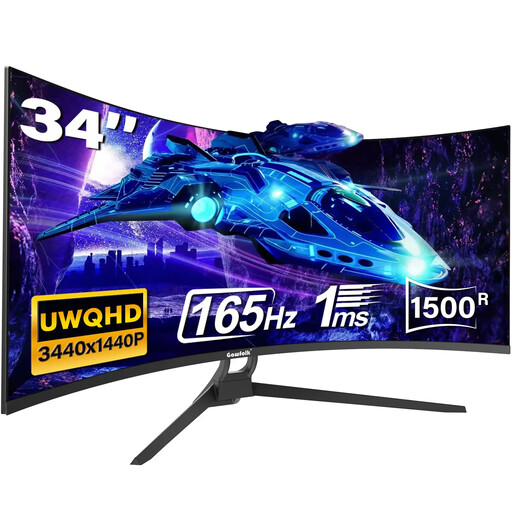
Gawfolk 34-inch curved UWQHD 165 Hz monitor
The 21:9 screen is relevant to viewing presentation content beside notes; check whether its stand or a compatible arm can place it correctly at standing height.
The title lists HDMI, DisplayPort, Type-C and VESA mounting. Check the exact mounting pattern and arm load rating, and confirm Type-C video or charging functions if your laptop needs them.
Joybuy
Frequently asked questions
How should I position an ultrawide at a standing desk?
Position the screen and keyboard centrally, with the top of the screen around eye level and the display about an arm’s length away, following Health and Safety Executive guidance. Check this at the standing height you use; if the supplied stand cannot achieve it, assess a compatible arm or another monitor.
Does an employee’s standing-desk setup need a DSE assessment?
The Health and Safety Executive says employers must assess workstations for workers who use display screen equipment daily as part of normal work, continuously for an hour or more. The assessment covers the workstation and work being done, not just the monitor; the HSE also calls for assessment when a workstation is newly set up or its use changes.
When do I need a monitor with built-in KVM?
Prioritise built-in KVM if you need one keyboard and mouse to control two connected computers. If both computers’ outputs must remain visible, check for picture-by-picture separately; neither feature is necessary simply to place two windows from one laptop side by side.
Will USB-C carry my display and charge my laptop through one cable?
It can if the exact monitor supports the required display and charging functions and your laptop’s USB-C connection is compatible. LG lists up to 65 W power delivery for the 34WR55QK-B, while Dell lists up to 90 W for the P3425WE and LG lists 90 W for the 34BA75QE-B; compare the rating with your laptop’s requirements.
What should I check before using a monitor arm or ordering cables?
Match the arm’s mounting pattern and load rating to the exact monitor, then check that it can place the screen correctly at standing height. Compare the required connection with the in-box list: LG, for example, states that a DisplayPort cable is not included with the 34WR55QK-B.


