Laptop translators with one usable wall socket
You need the source and translation visible together. If your laptop supports the monitor’s USB-C video and charging functions, one cable may also let you leave its separate charger and dock unplugged.


For reviewing a translation beside its source on one laptop, start with a 34-inch ultrawide at 3440 × 1440 and check whether its USB-C connection can carry video and supply enough power for your laptop. Picture-by-Picture and KVM matter more if the work is split between two computers. A USB-C monitor may remove the need to plug in a separate laptop charger, but the monitor still needs a mains socket.
You need the source and translation visible together. If your laptop supports the monitor’s USB-C video and charging functions, one cable may also let you leave its separate charger and dock unplugged.
Your source material and translation work sit on separate computers. Picture-by-Picture can show both inputs, while KVM can let them share a keyboard and mouse; check that the particular monitor has both functions.
You spend extended periods reading and editing, so screen placement and reflections matter as well as width. The Health and Safety Executive advises positioning the screen and keyboard centrally to avoid twisting your back.
Decide whether your priority is fewer plugged-in laptop accessories, room for two documents, control of two computers or an adjustable reading position. A monitor’s USB-C power rating only helps with the socket problem if its video connection and charging output suit your laptop.
| Concern | What to check | Who this matters to |
|---|---|---|
| Laptop connections | Check USB-C video support on the laptop and monitor, and compare the laptop’s charging requirement with the monitor’s Power Delivery output. | I want to work without plugging in a separate laptop charger or dock, provided one cable can do the job. Around 36% of consumers would put this connection need first. |
| Side-by-side space | Check for a 3440 × 1440 ultrawide workspace and make sure the screen fits your desk. | Keeping the source and my draft open together matters more to me than switching between windows. Around 29% of consumers would make readable workspace their primary concern. |
| Two-computer control | Check for Picture-by-Picture to show two inputs and KVM to share peripherals; confirm the cable paths for both computers. | If the source and translation are on different computers, I need to see or control both without duplicating my desk setup. Around 21% of consumers would prioritise that two-computer workflow. |
| Screen positioning | Check stand adjustment, available desk depth and how you will manage reflections. | For long reading sessions, I need to place a wide screen without turning or stretching to see the text. Around 14% of consumers would put workstation positioning first. |
The Dell, LG and BenQ models discussed here list different USB-C power outputs. A monitor’s stated maximum does not establish that your particular laptop can receive video and adequate charging through that connection.
Compare the laptop’s USB-C video capability and charging requirement with the exact monitor’s ports and Power Delivery specification.
If the connection cannot meet those requirements, you may still need the laptop’s separate charger or a dock.
Screen width does not establish whether two inputs can appear at once or whether one keyboard and mouse can control both computers.
For a split-device workflow, check Picture-by-Picture, KVM and the required video and USB connections on the exact model.
Without the functions you need, an additional USB switch or separate peripherals may be necessary.
The Health and Safety Executive identifies workstation setup and use as relevant to fatigue, eye strain and musculoskeletal discomfort. A display mode does not determine whether a large screen is positioned comfortably.
Check the stand’s adjustments, viewing distance and reflections, and take regular breaks. Treat display modes as optional preferences rather than substitutes for desk setup.
Electrical Safety First warns that overloaded extension devices can overheat and advises against plugging one extension lead into another.
If you use an extension device, keep within its marked current rating and do not daisy-chain leads. If your desk regularly depends on extensions, consider asking a registered electrician about additional fixed sockets.
These examples show features to compare on specific monitor lines; a brand name alone does not establish laptop compatibility or the features of another model.
The Dell Pro 34 Plus P3425WE is a business-oriented USB-C hub ultrawide listed by Dell UK.
LG UK lists both USB-C hub features and simpler USB-C options among its 34-inch ultrawides.
The PD3420Q is relevant when translation review also involves colour-sensitive layout or design files.
The Philips 34B2U5600C is a business ultrawide with docking and source-switching features.
These ultrawides offer space to place source text beside a translation. If reducing plugged-in laptop accessories is essential, check each model’s exact USB-C video and charging functions before buying; screen width alone does not answer that question.
 Image unavailable
The 49-inch screen is an option when you want a particularly wide area for source text and a translation, provided your desk can accommodate it.
The product name specifies a 32:9, 5120 × 1440 display and two HDMI 2.1 and two DisplayPort 1.4 inputs.
Check the included stand’s adjustments and the monitor’s USB-C video and charging functions before relying on it for your desk setup.
 Image unavailable
Its 34-inch ultrawide format is relevant when you want the source and translation on one desktop.
The product name specifies 3440 × 1440 resolution, a VA panel and two HDMI and two DisplayPort 1.4 inputs.
Check USB-C video and charging if you hope to leave the laptop charger unplugged; check Picture-by-Picture and KVM separately if you use two computers.
 Image unavailable
The 34-inch ultrawide screen suits a layout with the source and translation open beside each other.
The product name specifies 3440 × 1440 resolution, two HDMI inputs, DisplayPort, and height, swivel and tilt adjustment.
Check USB-C video and charging against your laptop if reducing charger connections is a priority. For two computers, check Picture-by-Picture and KVM rather than assuming multiple inputs provide them.
 Image unavailable
This 34-inch ultrawide is worth considering for a single desktop showing both documents.
The product name identifies the R34w-30 model and UWQHD display format.
Check its exact resolution, input layout and USB-C video and charging functions against your computer setup, particularly if you plan to connect two devices or replace a laptop charger.
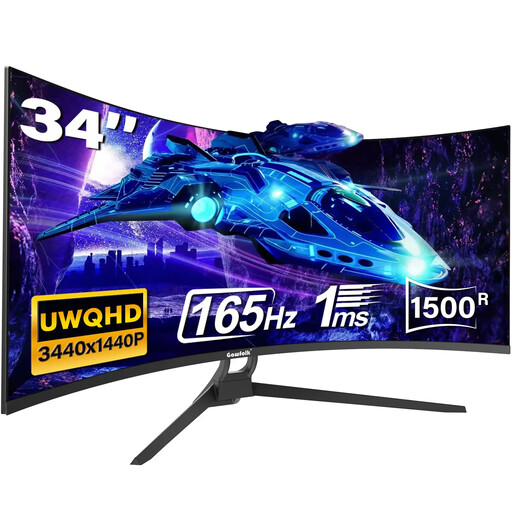 Image unavailable
The 34-inch ultrawide format provides a workspace to arrange a source and translation together.
The product name specifies a 21:9 curved screen, HDMI 2.1, DisplayPort 1.4 and VESA mounting.
Although the title mentions Type-C, confirm its exact function and charging output before planning a single-cable laptop connection. Check stand adjustment or suitable VESA-arm compatibility if you need to change screen height.
It can free the socket used by a separate laptop charger if your laptop supports video over USB-C and can charge within the monitor’s stated Power Delivery output. The monitor still needs its own mains connection, so compare both devices’ specifications before changing your plug setup.
Not if the source and translation are on one laptop. Picture-by-Picture is relevant when you need two video inputs visible together; KVM is relevant when two computers must share a keyboard and mouse. LG UK lists both functions for the 34BA75QE.
Place the display so you can read without twisting or reaching across the desk. The Health and Safety Executive advises keeping the top of the screen around eye level, the display about an arm’s length away, and the screen and keyboard central to your working position.
No. Electrical Safety First advises against plugging one extension lead into another and says not to exceed an extension device’s marked current rating. If you use an extension device for the desk, check its rating and the equipment connected to it.