Detailed-map comparison workers
If you compare map layers, imagery or routes beside reference material, vertical resolution matters as well as screen width. A continuous ultrawide also avoids a bezel between the two work areas.


Choose a 39.7–40-inch 5K2K ultrawide if you need detailed maps and a reference window on one uninterrupted screen: the cited Dell and LG models each provide 5,120 × 2,160 pixels. A 49-inch 32:9 screen suits a wider, two-pane-style layout, while two separate monitors allow independent positioning. Whichever layout you choose, check that your computer, dock and cable support the intended display mode and that the screens fit your desk.
If you compare map layers, imagery or routes beside reference material, vertical resolution matters as well as screen width. A continuous ultrawide also avoids a bezel between the two work areas.
If the work areas come from two computers or video feeds, look for a monitor that supports Picture-by-Picture. If both are applications on one computer, arranging windows may meet the need without a second video input.
Separate monitors make sense when you want one screen centred and another angled, or a physical boundary between tasks. Plan their stands, desk space and viewing positions as part of the setup.
Decide whether map detail, two video sources or independent screen placement drives the choice; then check the connections and desk fit for that layout.
Choose it when: you want detailed maps beside references on one continuous display; Dell UK and LG UK each list a 5,120 × 2,160 model in this size range.
Trade-off: the work areas cannot be positioned as separate screens, and the computer-to-monitor connection must support the intended resolution.
Choose it when: a broad two-pane-style layout matters most, particularly if you need Picture-by-Picture for two inputs; Samsung UK lists both that mode and the 32:9 layout for the Odyssey G91F.
Trade-off: it remains one physical screen, so the two work areas cannot be placed independently.
Choose them when: you need a physical division between tasks or want to angle and adjust each screen separately.
Trade-off: allow room for two screens, their stands and connections, and accept a bezel between work areas.
| Concern | What to check | Who this matters to |
|---|---|---|
| Map detail and vertical space | Compare native pixel dimensions, not just screen diagonal; Dell UK and LG UK list 5,120 × 2,160 for the U4025QW and 40WP95CP-W. | If I inspect fine map detail beside a reference pane, I want enough vertical workspace without constantly rearranging the view. Around 33% of consumers put map detail first. |
| Two work areas or inputs | Decide whether you need two video inputs on one panel or two application windows from one computer; check Picture-by-Picture support for the former. | When my map and second feed come from different devices, arranging windows on one computer will not do the same job. For around 27% of consumers, keeping two sources visible is the primary need. |
| Screen placement | Measure desk width and depth, and check each stand or arm’s adjustment range. Include screen position in a workstation assessment for regular work use. | I may need the main map directly ahead and supporting material on an angled screen, rather than both on one fixed panel. Independent placement comes first for around 20% of consumers. |
| Laptop connection | Check the computer, dock, cable and monitor input against the intended resolution and refresh rate; confirm charging needs separately. | If I connect a laptop at my desk, I want its display mode and charging arrangement to work together without giving up the workspace I chose. Around 20% of consumers make connection simplicity their first priority. |
A 32:9 panel can show two work areas, but it cannot give them separate physical positions. Picture-by-Picture serves a different purpose from arranging two windows on one computer.
Identify whether your second workspace is another application, a second video input or a separately positioned monitor before choosing a layout.
A monitor’s listed resolution does not establish which modes your computer, dock and cable can deliver together. Apple Support also notes that a scaled Mac resolution may affect performance.
Compare the exact computer and connection specifications with the monitor’s intended resolution and refresh rate before ordering.
The Health and Safety Executive advises assessing display-screen workstations and reducing risks; a large screen still needs a suitable viewing position.
Measure available desk space and check stand depth and adjustment before deciding where each work area will sit.
Depending on the layout, positioning the screen may call for a deeper desk or a suitable arm or stand.
Samsung UK lists the Odyssey G91F at 144 Hz, while a Joybuy listing bearing model number LS49FG910EUXXU states 240 Hz; its HDR figures also differ. Those figures should not be treated as interchangeable specifications.
Match the complete model number and check the current manufacturer documentation for the display mode, ports and other features that affect your choice.
These manufacturer examples illustrate different screen layouts; choose by the particular model and connection requirements rather than the brand name alone.
Dell UK lists both the 39.7-inch UltraSharp U4025QW ultrawide and the 31.5-inch U3225QE 4K monitor, representing continuous-screen and separate-monitor approaches.
LG UK lists the 39.7-inch 40WP95CP-W as a 5,120 × 2,160 ultrawide for a single continuous workspace.
Samsung UK describes the 49-inch Odyssey G91F as a 32:9 screen with Picture-by-Picture and Picture-in-Picture modes.
BenQ UK lists the 27-inch MA270S for a separate-screen approach rather than as an ultrawide.
These single-screen ultrawides can place a map beside another window. Compare their stated resolutions with the vertical map detail you need, and confirm multi-input operation separately if your work areas come from two devices.
 No image available
Consider this broad single-panel layout if you want a map and reference window side by side; confirm that its vertical resolution meets your detail needs.
 No image available
This is a single wide screen to consider for a map beside an application window; decide whether 1,440 vertical pixels are sufficient for the map detail you inspect.
 No image available
This 32:9 panel suits a very wide single-screen arrangement; its 1,440-pixel vertical resolution is a point to weigh against your map-detail needs.
 No image available
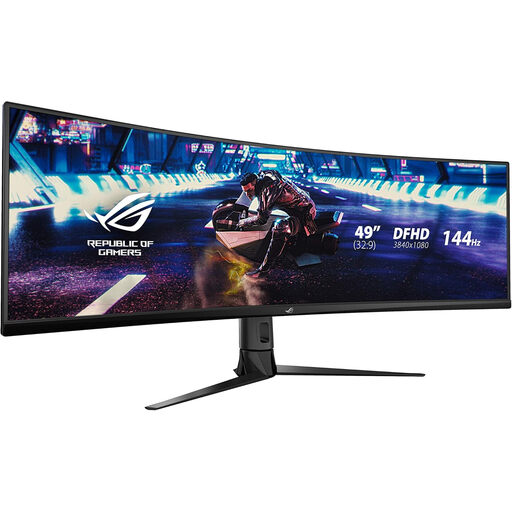
Consider this curved ultrawide for side-by-side windows, but check its native vertical resolution against the fine detail you need to see in maps.
It can offer a similar side-by-side layout, but it is still one physical screen. Samsung UK describes the Odyssey G91F as equivalent in shape to two adjacent 16:9 displays and lists Picture-by-Picture for multiple inputs; choose separate monitors if you need to position each screen independently.
Do not assume that your particular Mac and connection will provide the display mode you want. Apple Support explains that Macs select a display resolution and offer other choices, while scaled resolution may affect performance; check the Mac, dock, cable and monitor together before buying.
Yes, where the rules apply to the worker’s screen use: the Health and Safety Executive says they include home workers who use display-screen equipment daily for continuous periods of an hour or more. Employers must assess the workstation and reduce risks, so include the home desk and screen positions in that assessment.
No. The Health and Safety Executive’s workstation guidance calls for risks from display-screen use to be assessed and reduced where applicable. Check viewing position, stand adjustment and available desk space regardless of the panel’s shape.