Window-side typography reviewers
If you inspect fonts, layouts or documents near a bright window, controlling reflections is part of judging fine letterforms. The Health and Safety Executive advises arranging the desk and screen to avoid glare.


Control window reflections before choosing an ultrawide: the Health and Safety Executive advises positioning screens to avoid glare and bright reflections. A 40-inch 5120 × 2160 model gives you more native pixels for inspecting type across a wide canvas than a 38-inch 3840 × 1600 model, but the latter may fit your workspace better. Check the exact screen surface, desk fit and laptop compatibility; neither resolution nor an anti-glare label establishes how a monitor will look beside your window.
If you inspect fonts, layouts or documents near a bright window, controlling reflections is part of judging fine letterforms. The Health and Safety Executive advises arranging the desk and screen to avoid glare.
If you keep a design app, preview and references visible together, compare the available working area with the native resolution and the connections your computer can use.
If space is limited, check whether a large screen and its stand leave enough room to position the display away from reflections. Stand adjustment and laptop charging may matter as much as panel size.
For typography work beside a bright window, plan screen placement first, then weigh native resolution against the space and connections your setup allows.
| Concern | What to check | Who this matters to |
|---|---|---|
| Reflections and placement | Check the exact screen surface and whether the desk can be oriented away from direct window reflections. | If the window reflects across the text I am reviewing, I need to change the screen position before relying on its coating. Around 34% of consumers would put reflection control first. |
| Text detail | Compare native resolution with panel size: the cited 40-inch route is 5120 × 2160, while the 38-inch route is 3840 × 1600. | When I inspect letterforms alongside a layout and references, I want enough pixels across one screen to view them together. Roughly 33% of consumers would make typography detail their primary concern. |
| Laptop workflow | Confirm the laptop’s supported display output, connection standard and charging needs against the exact monitor. | I want to connect my laptop without losing the display mode or charging arrangement I need for work. About 20% of consumers would prioritise that connected workflow. |
| Desk fit and adjustment | Measure the available width and depth; check the stand footprint and adjustment range. | With little freedom to move my desk away from the window, I need a screen I can fit and position comfortably. Around 13% of consumers would put desk fit and adjustment first. |
A bright window can still produce distracting reflections. RTINGS explains that matte coatings reduce mirror-like reflections by spreading reflected light, while the Health and Safety Executive advises arranging the screen to avoid glare.
Plan where the screen will sit, including whether you can use blinds or curtains, and check the exact model’s surface treatment.
LG and Dell list both 5120 × 2160 and 3840 × 1600 models. Panel width alone does not tell you how many native pixels are available for a type preview.
Compare resolution and size together, then decide whether the extra pixels serve your layout and reference workflow.
Monitor connectivity and power delivery differ by model, and a connector’s shape does not establish what your laptop can output or accept.
Check your computer’s external-display modes, port specification and charging requirement against the monitor and cable you intend to use.
A suitable cable, dock or separate power adapter may be needed if the intended display and charging arrangement cannot be met through one connection.
A large curved screen may be hard to orient away from a window if the desk is shallow or the stand cannot reach the position you need.
Measure the desk and check the stand’s adjustments. If you plan to use an arm, confirm the exact monitor’s mounting specification.
LG’s cited 38-inch and 39.7-inch ultrawides offer two different resolution and connectivity configurations.
Dell’s cited UltraSharp models include a 40-inch 5120 × 2160 Thunderbolt hub display and a 38-inch 3840 × 1600 IPS Black display.
BenQ’s RD programming series is an alternative to consider if character viewing and screen treatment take priority over an ultrawide canvas.
These 49-inch and 34-inch ultrawides offer different canvas sizes for typography previews. Compare their native resolution, desk fit and connections with your needs for working beside a bright window.
 No image available
Consider its wide canvas if you want room for a type preview and other windows on one screen.
The listed variant is 32:9, with Double Quad HD resolution, a 240 Hz refresh rate and USB-C.
Measure for a 49-inch display, check your computer’s intended display mode and assess how the screen surface behaves in your room.
 No image available
Its 32:9 canvas may suit a workspace with several windows open alongside a typography preview.
The title lists 5120 × 1440 resolution, a 165 Hz refresh rate, HDMI 2.1 and DisplayPort 1.4 inputs.
Check the exact surface treatment and stand adjustment, and measure the space available for a 49-inch screen.
 No image available
Consider this 34-inch format if desk fit matters more to you than the larger canvas of a 49-inch model.
The title lists 3440 × 1440 resolution, a 200 Hz refresh rate, HDMI and DisplayPort inputs.
Decide whether that resolution gives you enough detail for type review, and check the surface treatment and screen position before window-side use.
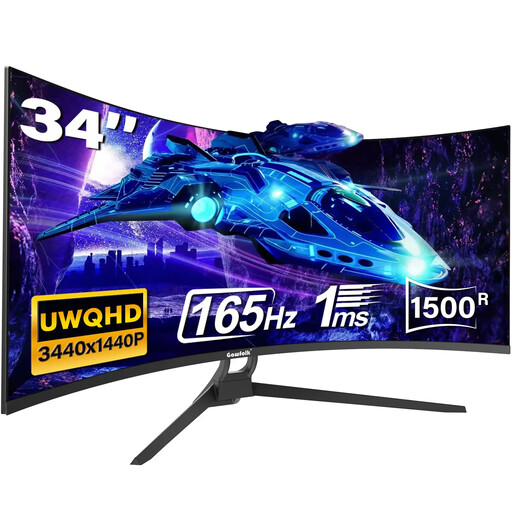 No image available
This 21:9 format is another option to assess if a 34-inch canvas fits your desk and preview workflow.
The title lists a 165 Hz refresh rate, 1500R curve, HDMI 2.1 and DisplayPort 1.4.
Confirm the screen surface, stand adjustment and actual port selection before purchase; Type-C appears in the title but not in the described input list.
Not by itself: an anti-glare surface can reduce mirror-like reflections, but its behaviour depends on the coating and room layout. RTINGS explains the coating trade-off, while the Health and Safety Executive advises positioning the screen to avoid glare and using blinds or curtains where needed.
Choose the 40-inch 5120 × 2160 route if its extra native pixels serve your wide preview and reference workspace; consider a 38-inch 3840 × 1600 model if that size better fits your desk. LG and Dell list models at both resolutions, but resolution does not determine reflection handling.
Check the laptop’s supported external-display resolution and refresh rate, USB-C or Thunderbolt capability, cable and charging requirement against the exact monitor. Dell lists up to 140 W power delivery for the U4025QW and LG lists up to 94 W for the 38WN95C-W; neither figure alone confirms compatibility with your laptop.
Under Health and Safety Executive guidance, employers must assess workstations when workers use display screen equipment daily as part of normal work continuously for an hour or more. The assessment considers the equipment, furniture, working conditions and task, so monitor size should be considered as part of the whole setup.