Who needs a different screen setup?

Laptop users short of screen space

If your laptop remains suitable for work but documents and calls compete for space on its built-in screen, an external monitor is worth considering. Check the laptop’s video output and measure the surface where the monitor will sit.

People who reconnect a laptop each day

A USB-C docking monitor may reduce the connections you make at your desk. First confirm that the laptop port carries video and that the monitor, cable and charging output support the functions you intend to use.

People mixing work with gaming or creative tasks

Daily documents do not establish what you need for fast games or colour-sensitive editing. Check the exact display’s relevant specifications alongside the computer’s output capability.

What should you check before choosing?

Standard monitor

Choose when: You want more room for documents and calls and have a compatible computer video output.

Allow for: Laptop charging and accessories may need separate connections.

USB-C docking monitor

Choose when: You regularly reconnect a laptop that supports USB-C video, and the monitor provides the charging and peripheral connections you need.

Check carefully: A USB-C socket alone does not confirm video output, and charging capacity varies by model.

TV as a monitor

Consider when: A large shared screen or media use matters alongside computer work.

Check carefully: Desk distance, text display and input responsiveness depend on the specific TV and its settings.

Priority What to check Your needs
Screen and desk fit Compare screen size and resolution with your applications and viewing position. Measure the full monitor width, stand depth and available height, not just the panel diagonal. I need room for documents and calls, but the complete setup must fit my desk or kitchen table.
Computer connection Match the computer’s documented video output to a monitor input and suitable cable. For USB-C video, confirm display-output support on the exact laptop port. My existing computer needs to drive the screen I choose without relying on the shape of a connector as proof of compatibility.
Docking functions Check the exact monitor’s charging output against the laptop’s requirement. Confirm any USB hub, Ethernet or additional-display functions you plan to use. One cable would simplify my desk, provided it actually handles my display, charging and peripheral needs.
Specialist tasks For gaming, check refresh and response specifications alongside computer output. For colour-sensitive work, check the model’s colour coverage and calibration information against your workflow. I also play fast games or edit images or video regularly, so ordinary document-work criteria alone will not settle my choice.

What can go wrong when buying?

  • Assuming every USB-C port carries video

    USB-C describes the connector, not all the functions available through it. A charging-only laptop port cannot be assumed to send a picture to a USB-C monitor.

    Check the laptop maker’s specification for video output, such as DisplayPort Alt Mode, then match it with the monitor’s input and an appropriate cable.

    An incompatible connection may call for a different cable, adapter or dock.

  • Choosing by screen diagonal alone

    The screen measurement does not tell you how much desk depth its stand needs or whether a clamp will fit the back of the surface.

    Measure width, depth, rear clearance and available height; compare them with the exact model’s dimensions and mounting requirements.

  • Assuming a dock enables every peripheral or extra screen

    Hub, network and multi-monitor functions differ by model and depend on the computer. Microsoft Support notes that display capability depends on the computer and display adapter; a splitter should not be treated as a way to create independent extended screens.

    List the peripherals and number of displays you need, then check both the monitor’s ports and the computer’s supported display count.

    You may still need a separate charger, dock or network connection.

  • Applying office-display criteria to every task

    A refresh-rate figure does not establish colour accuracy, while resolution alone does not establish whether a display fits your computer or viewing position.

    For gaming, examine refresh and response behaviour with your computer’s output. For colour-sensitive work, compare the exact model’s colour specifications with the requirements of your workflow.

Which monitor ranges are relevant?

These examples show features to compare on specific UK models; a brand name alone does not establish the ports or adjustments you will get.

Dell

Dell UK lists the Pro P2726HE as a 27-inch Full HD USB-C hub monitor for work setups.

  • Dell UK specifies up to 100W power delivery for the P2726HE, which is worth comparing with your laptop’s charging requirement.
  • Its Full HD resolution and exact port arrangement should be assessed for your tasks; the P2726HE’s features do not apply to every Dell monitor.

Lenovo ThinkVision

Lenovo UK describes the ThinkVision T27h-37 as a 27-inch QHD USB-C docking monitor.

  • Lenovo lists up to 90W power delivery for this model, alongside hub and network connections.
  • Confirm that your laptop supports USB-C video and that you need the model’s particular connections before choosing it for docking.

HP

HP’s UK business-monitor range includes USB-C models with different screen formats and port sets.

  • The range includes a Series 5 Pro 27-inch QHD USB-C model listed by HP Store UK.
  • Check the exact SKU for the connections and conferencing equipment you need rather than treating them as range-wide features.

LG

LG UK’s 32UN880K-B is an example of a larger 4K USB-C display with a clamp-mounted stand.

  • LG specifies up to 60W USB-C power delivery for the 32UN880K-B.
  • Check clamp clearance, display dimensions and your laptop’s charging requirement for this specific model.

Joybuy monitor options

These Joybuy monitors give you standard wired-display and USB-C options to assess for a home-working desk. Check each model’s connections against your computer; the TV route is a separate decision.

ASUS ProArt PA24ACRV monitor

ASUS ProArt PA24ACRV IPS QHD

Consider this QHD monitor if document space and creative tasks matter alongside a laptop connection. Check that your laptop supports video over USB-C and that the monitor’s charging output meets its needs; confirm any hub functions you intend to use on the exact listing.

View on Joybuy

ASUS ProArt PA278CV monitor

ASUS ProArt PA278CV IPS WQHD

The WQHD display is an option for documents and other screen-based tasks. Check its full dimensions against your desk, and confirm the exact laptop video connection and USB-C charging output before planning a single-cable setup.

View on Joybuy

ASUS Eye Care VY27UQ monitor

ASUS Eye Care VY27UQ 4K UHD 60Hz

This 4K option is worth assessing if you want a higher-resolution screen for desk work. Confirm that your computer supports the intended 4K output and that the monitor’s listed position adjustments suit your workspace.

View on Joybuy

Dell P2425H monitor

Dell P2425H 24-inch Full HD IPS

A 24-inch Full HD screen is a route to a separate workspace for everyday documents and calls; the product title lists HDMI and DisplayPort. Confirm the connection you will use, and check the exact SKU’s USB-C and refresh-rate specifications before relying on either feature.

View on Joybuy
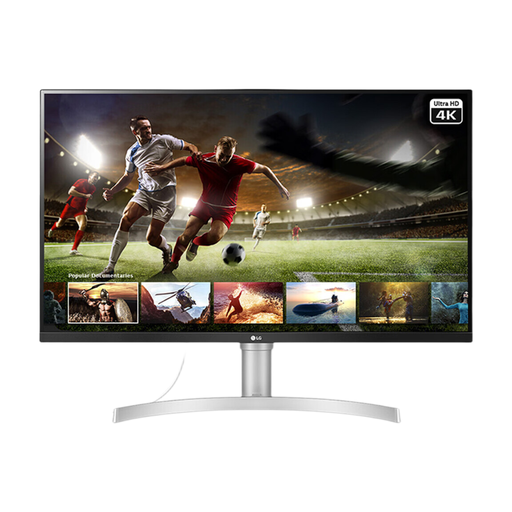
LG 32UN650K monitor

LG 32UN650K 32-inch 4K IPS

This larger 4K display is an option for screen-based work if its full size and viewing position suit your desk. Its product title lists HDMI and DisplayPort; check that your computer can provide the 4K output you intend to use.

View on Joybuy

Common questions

Can I add a monitor instead of replacing my laptop?

Yes, if the laptop still meets your computing and portability needs and supports the display you intend to connect. Check its documented video output and supported number of external screens. A monitor adds screen space; it does not change the laptop’s processing, storage or battery capability.

Will any USB-C laptop port work with a USB-C monitor?

No. The laptop port needs documented video-output support, such as DisplayPort Alt Mode, for that connection to carry a picture. Check the exact port specification and compare the monitor’s charging output with the laptop’s requirement.

Can one USB-C cable handle video, accessories and charging?

It can when the laptop, cable and monitor support all three functions. VESA describes video, USB data and power over supported DisplayPort-over-USB-C connections, but a particular monitor’s ports and power-delivery rating still need checking against your laptop and accessories.

When does a TV make sense as a work screen?

Consider a TV if a large shared display or media use is important to you and the specific set fits your viewing position. For daily computer work, check its screen dimensions, resolution, input compatibility and responsiveness in the settings you would actually use.