For permitted routine documents, a dual-connector USB flash drive can serve computers with different ports; for repeated large-file transfers, consider a portable SSD if both computers and the cable support the connection it needs. A portable HDD suits a capacity-led, Windows-first workflow but needs file-system checks, while an employer-approved cloud service avoids carrying a drive. Check workplace permission and data-handling requirements before choosing any route for work files.
Who is each option for?
Hybrid workers using USB-A and USB-C computers
If you regularly move permitted documents between computers with different ports, a dual-connector flash drive can avoid an adapter. Kingston specifies both connectors on its DataTraveler Duo; check workplace permission before using any personal drive.
People moving large files frequently
A portable SSD is worth considering for repeated transfers of large folders or media. Check both computers and the cable against the drive’s USB requirements before relying on its advertised speed.
Windows-first users carrying more data
A portable HDD may suit a larger permitted collection of files. Toshiba lists Canvio Basics capacities up to 4TB, but says the line is formatted NTFS for Windows and requires reformatting for macOS.
What should you check before choosing?
Start with the workplace’s permitted transfer methods, then check the computers, files and frequency of transfer before comparing drives.
| Priority | What to check | Your needs |
|---|
| Workplace permission |
Ask whether personal removable media is allowed, an organisation-issued device is required, or a managed transfer service must be used. The National Cyber Security Centre advises organisations to assess and control peripheral-device risks. |
I need a transfer method my workplace permits before I connect a drive or move work files. |
| Data protection |
Check the required encryption, access controls and handling rules for the files. The Information Commissioner’s Office describes encryption as a measure to consider according to the nature and risks of processing personal information; a product password does not replace workplace policy. |
If I carry personal or sensitive work data, I need to follow the organisation’s approved security method. |
| Connections |
Identify both computers’ ports and the drive’s connectors or supplied cables. For advertised SSD speeds, check the host USB mode as well as the connector shape. |
One computer has USB-A and the other USB-C, so I want a connection that works at both ends. |
| File system |
Check whether both computers can read and write the drive’s format. Apple documents ExFAT for Windows-compatible volumes over 32GB and warns that formatting erases the selected disk or volume; workplace requirements still apply. |
I move files between Mac and Windows computers and need to copy existing files elsewhere before changing a drive’s format. |
| Capacity and speed |
Compare capacity with the files you routinely carry. For large transfers, check stated speeds against the complete connection: Samsung says the T7’s maximum figures require a USB 3.2 Gen 2 host, compatible cable and UASP. |
For occasional documents, compact storage matters to me; for repeated large folders, transfer time becomes more important. |
| Cloud access |
Confirm that the specific managed service is approved and accessible from both locations. Microsoft documents filename characters that can prevent OneDrive or SharePoint files from syncing. |
I would rather not carry a drive if my workplace permits a cloud service and my files can transfer through it. |
What mistakes should you avoid?
-
Buying a personal drive before checking workplace rules
The workplace may restrict removable media. The National Cyber Security Centre identifies data loss, theft and malicious software among the risks organisations need to manage.
Ask whether personal drives are permitted, whether an organisation-issued encrypted device is required, or whether you should use an approved service instead.
-
Assuming USB-C guarantees the stated SSD speed
The connector alone does not establish the speed of the host, cable and drive together. Samsung says the T7’s maximum stated speeds require USB 3.2 Gen 2 and UASP support.
Check both computers’ USB specifications and the cable before choosing a drive for frequent large transfers.
-
Reformatting a drive without copying its files
Some Windows-oriented drives need a different format for Mac use. Apple warns that formatting a disk or volume erases its files.
Copy anything you need to keep elsewhere, then confirm the format required by both computers and your workplace.
Changing the format without that copy can mean losing the files already on the drive.
-
Treating a product password as the whole security plan
A password feature does not establish that a drive meets the organisation’s rules for storing or moving work data. The Information Commissioner’s Office places encryption within a broader, risk-based approach to security.
Use the employer-approved method and follow its rules for access, handling and deletion.
Relevant brand references
Kingston
A reference for compact flash drives that connect to computers with different USB ports.
- Kingston specifies USB-A and USB-C connectors, 128GB or 256GB capacities and USB 3.2 Gen 1 for its DataTraveler Duo line.
- Those specifications do not establish workplace approval or meet any particular organisation’s encryption requirements.
Samsung
A reference for portable SSDs considered for repeated transfers of larger files.
- Samsung states that its Portable SSD T7 can reach up to 1,050MB/s read and 1,000MB/s write.
- Samsung says those maximum figures require a USB 3.2 Gen 2 host, compatible cable and UASP; compatibility with the host can vary.
Toshiba
A reference for portable HDDs in a capacity-led, Windows-first workflow.
- Toshiba specifies Canvio Basics capacities up to 4TB, USB 3.2 Gen 1 connectivity and USB bus power.
- Toshiba lists the line as NTFS-formatted for Windows and says it requires reformatting for macOS.
Joybuy drive options
These portable SSDs and dual-connector flash drives are options for carrying permitted files between computers. Choose the storage type for your transfer workload, then check workplace rules and compatibility for the particular model.
 No image available
Samsung Portable SSD T7 2TB Grey
Consider this portable SSD for repeated transfers of larger file sets. The listing specifies 2TB, USB 3.2 Gen 2 and USB-C-to-C and USB-C-to-A cables. Samsung’s stated T7 speed ceiling requires a compatible host, cable and UASP; confirm workplace permission and security requirements before storing work files.
Joybuy
 No image available
Lexar ES4 Portable SSD with Magnetic Set 1TB
This 1TB USB 3.2 Gen 2 SSD is an option for moving sizeable folders between USB-C and USB-A computers; the listing describes cables for both connections. It also describes DataShield 256-bit AES encryption, which requires software installation and activation. Check host compatibility, any initial formatting requirement and whether that security method meets workplace policy.
Joybuy
 No image available
Samsung MU-PE1T0S 1TB Portable SSD Black
This 1TB USB 3.2 Gen 2 SSD has listed USB-C-to-C and USB-C-to-A connection options for transfers between computers. The product description claims IP65 dust and water resistance and drop resistance up to 3 metres; those limits do not mean it can be submerged. Check the conditions of those claims, host compatibility and workplace security requirements before use.
Joybuy
 No image available
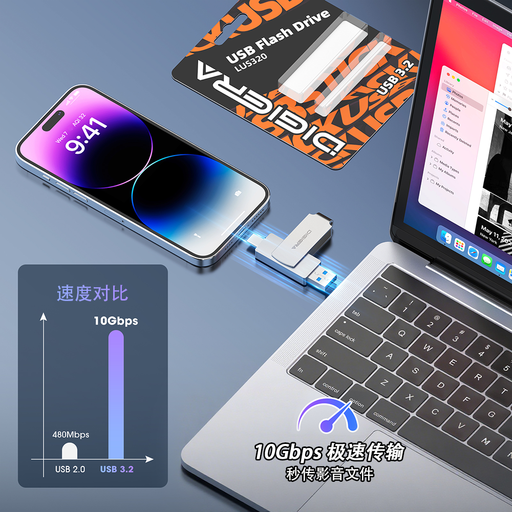
DigiEra LUS320 128GB USB-A and USB-C Flash Drive
For routine files moved between different ports, this drive has both USB-A and USB-C connectors. Its listing specifies 128GB, USB 3.2 Gen 1 and exFAT, with support for Windows, macOS and Android. Check whether its format and the workplace’s removable-media and encryption rules suit the files you intend to carry.
Joybuy
 No image available
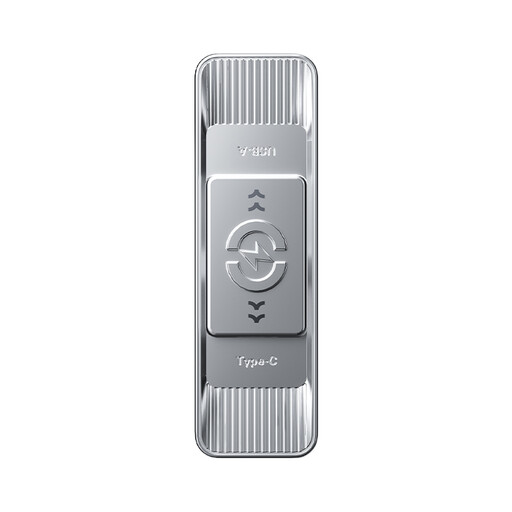
MOVESPEED YSUSP05-512GSR 512GB Dual-Connector Flash Drive
This 512GB flash drive is an option for carrying a larger set of files between USB-A and USB-C computers. The listing specifies USB 3.2 Gen 1 and a zinc-alloy body. Check the computers’ compatibility and any workplace requirements for removable media and encryption before transferring work files.
Joybuy
Common questions
Can I use my own USB drive with a work computer?
Check your employer’s policy before connecting it or moving work files. The National Cyber Security Centre advises organisations to assess external-interface risks and notes that they may restrict or disable peripheral access.
Does every portable drive need encryption?
The requirement depends on the files and the organisation’s security rules, rather than the type of drive alone. The Information Commissioner’s Office describes encryption as a measure to consider according to the nature and risks of processing personal information; follow your employer’s approved method for work data.
Which format works for transfers between Mac and Windows?
For ordinary file exchange, Apple documents ExFAT as a Windows-compatible format and recommends it for Windows-use volumes over 32GB. Check workplace requirements and copy existing files elsewhere before formatting, which erases the selected disk or volume.
Will a USB-C connection give me the SSD’s advertised speed?
Not on its own: the host, cable and USB mode matter too. Samsung says the T7’s maximum stated read and write figures require a USB 3.2 Gen 2 host, compatible cable and UASP.
Can an approved cloud service replace a physical drive?
It can be an alternative when your workplace permits that specific service and you have access from both locations. Check that your files meet its requirements: Microsoft documents filename characters that can prevent OneDrive or SharePoint syncing.


