Choose a dual USB-A and USB-C stick for compact, occasional handovers when its capacity is sufficient; consider a portable SSD for repeated large-folder transfers, or a portable hard drive when carrying a large library matters more than a pocket-sized device. Check the ports and cable at both computers, as well as the drive’s file format if files must move between Windows and macOS. Advertised transfer speeds depend on the connection and computer.
Who is each option for?
People using both USB-A and USB-C computers
If coursework, office documents or photos move between an older USB-A computer and a newer USB-C device, a dual-connector stick offers a direct connection at each end. Check that its capacity covers the files you actually carry.
People moving large folders regularly
A portable SSD is worth considering for repeated media or project-folder handovers. Check the computer’s USB specification and the cable before relying on an advertised speed; a USB-C socket alone does not establish the transfer rate.
People carrying large file libraries
A portable hard drive offers a cable-connected route for a large photo, video or document library. Seagate, for example, lists portable hard drives from 1TB to 5TB. Check the drive’s size and connection against how often you will carry it.
What should you check before choosing?
Dual-connector USB stick
Choose it when: You carry modest sets of files between USB-A and USB-C computers and want one compact device that plugs into either port.
Bear in mind: Check capacity and transfer requirements before choosing a stick for repeated large-folder handovers.
Portable SSD
Choose it when: Large media or project folders move frequently and a cable-connected drive suits your routine.
Bear in mind: Crucial says X10 performance varies with host capability, so its stated maximum is not a promise of copy speed on every computer.
Portable hard drive
Choose it when: Carrying a large library takes priority and a larger, cable-connected device is acceptable.
Bear in mind: Check the supplied cable against your computers; Seagate says its One Touch hard drive needs a separate adapter for USB-C computers.
| Priority |
What to check |
Your needs |
| Connector fit |
Identify the ports on every computer. Check the drive’s connectors, supplied cable and any adapter needed; physical fit alone does not establish the supported transfer mode. |
I move files between USB-A and USB-C devices and would rather not discover that I need another cable during a handover. |
| Transfer demands |
Check how often you copy large folders, the drive’s stated read and write figures, and the computer port and cable. Treat quoted maximums as conditional, not as measured times for your files. |
Large media or project folders move often enough that transfer time affects my work; for occasional documents, compact carrying matters more. |
| File format |
Check the drive’s current format before Windows–Mac handovers. Apple identifies ExFAT as Windows-compatible for volumes over 32GB; Microsoft lists a 4 GiB maximum single-file size for FAT32. |
The same drive must accept files from Windows and macOS, including an occasional large video or archive. |
| Capacity and carrying |
Compare the largest complete handover with the drive’s capacity. Decide whether a small stick or a cable-connected SSD or hard drive fits how frequently the device travels. |
I want room for the folders I carry together, without choosing a larger device solely for files that stay on my computer. |
What can catch you out?
-
Choosing by USB-C shape alone
A USB-C connection does not guarantee an SSD’s highest stated transfer mode. The computer port, cable and adapter can affect the connection.
Check the data specification of each computer port and the supplied cable, not just whether the plug fits.
A suitable data cable or adapter may be needed for a computer with a different port.
-
Assuming free space means every file will copy
Microsoft documents a 4 GiB maximum single-file size for FAT32. One large video or archive may therefore fail to copy even when the drive has free space.
Check the file format before the handover. Apple identifies ExFAT as a Windows-compatible choice for volumes over 32GB; copy files you need elsewhere before reformatting, which erases the drive.
-
Choosing an SSD for occasional small documents
An SSD’s higher stated performance may have little practical relevance when a compact stick already has enough capacity for infrequent document transfers. Repeated large folders present a different need.
Start with your largest file, the size of a typical handover and how often you transfer it, then choose the form factor and connection that suit that routine.
-
Deleting files before passing on a drive
Recycle Your Electricals warns that conventional deletion can leave personal data recoverable.
Follow appropriate device-specific guidance to permanently remove private data before donating, reusing or recycling the drive; do not rely on moving files to the bin.
Relevant brand examples
Kingston
Kingston’s DataTraveler microDuo 3C illustrates the dual-connector stick route for mixed-port handovers.
- Kingston specifies both USB Type-A and Type-C connectors and claims up to 200MB/s read speed for this model.
- The claimed read maximum does not establish the time needed to write a particular folder on your computers.
Crucial
The Crucial X10 is a portable SSD example for larger file handovers.
- Crucial states up to 2,100MB/s read speed and an IP65 dust- and water-resistance rating for the X10.
- Crucial says performance and compatibility can vary with host capability and formatting; check your computer and intended file format.
SanDisk
SanDisk’s Portable SSD V3 is another cable-connected option for carrying files.
- SanDisk specifies USB 3.2 Gen 2 and up to 1000MB/s sequential read performance for this model.
- A stated read maximum alone does not determine copy speed with your files, cable and computer.
Seagate
Seagate’s portable hard drives provide a high-capacity route when a cable-connected device suits the journey.
- Seagate lists 1TB, 2TB, 4TB and 5TB models in its Portable External Hard Drive range.
- For its separate One Touch hard-drive line, Seagate says the supplied cable is USB Type-A and a USB-C computer needs a separately obtained adapter.
Joybuy options for file handovers
These portable SSDs and dual-connector USB sticks offer two ways to carry files between computers. Choose between them using your folder sizes, transfer frequency and available ports; the wider decision also includes portable hard drives.
 No image available
Samsung T7 Shield 1 TB Portable SSD, Blue
Consider this 1 TB portable SSD for carrying larger folders between computers. Its listed interface is USB 3.2 Gen 2; check the cable, host port and file format needed for your handovers.
View on Joybuy
 No image available
Samsung T7 1 TB Portable SSD, Blue
This 1 TB portable SSD is an option for repeated large-file handovers. The title specifies USB Type-C and USB 3.2 Gen 2; check the connection at each computer and the drive’s format before Windows–Mac use.
View on Joybuy
 No image available
Lexar ES4 1TB Portable SSD with Magnetic Set
The 1TB ES4 is a portable SSD option for larger folders, with USB 3.2 Gen 2 and stated maximums of 1050MB/s read and 1000MB/s write. Its title names iPhone 15/16 compatibility; check the accessories and requirements for that use separately from computer file transfers.
View on Joybuy
 No image available
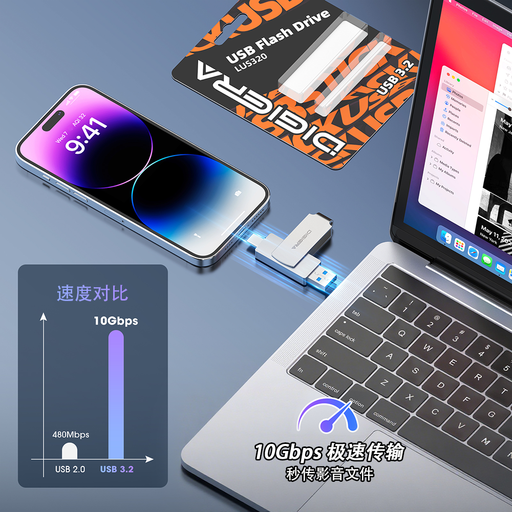
DigiEra LUS320 128GB USB-A/USB-C Flash Drive
The two connectors suit file handovers between USB-A and USB-C computers when 128GB covers the files being carried. The title states USB 3.2 and a maximum read speed of 500MB/s; check the file format for Windows–Mac use.
View on Joybuy
 No image available
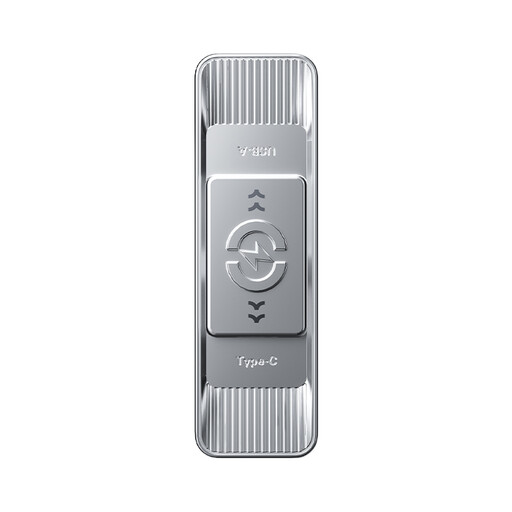
MOVESPEED YSUSP05-512GSR 512GB USB-A/USB-C Flash Drive
This 512GB stick offers USB-A and Type-C connections for mixed-port handovers. Its title specifies USB 3.2 Gen 1 and a stated 570MB/s read maximum; check the supplied file format before transferring files between Windows and macOS.
View on Joybuy
Questions about moving files
What format should I use between Windows and macOS?
Check whether the drive uses ExFAT for read-and-write handovers between the two systems. Apple identifies ExFAT as Windows-compatible and specifies it for Windows volumes over 32GB. If you need to reformat a drive, move files you want to keep elsewhere first because reformatting erases it.
Why won’t a large file copy to a USB stick with free space?
Check its file format before replacing the stick. Microsoft lists a 4 GiB maximum single-file size for FAT32, so a larger video or archive can be rejected despite available capacity.
Will a USB-C SSD reach its stated speed on any USB-C computer?
No: USB-C identifies the connector, not a guaranteed transfer rate. Crucial says X10 performance varies with host capability, while PCMag UK notes that the highest-speed Gen 2x2 mode requires a compatible, less-common port. Check the computer’s USB specification and the cable as well as the drive.
Do I need an adapter for a USB-C-only laptop?
You need a suitable connection if the drive comes only with a USB-A plug or cable. For example, Seagate says its One Touch hard drive includes a USB Type-A cable and needs a separate adapter for a USB-C computer. Check what the particular drive supplies and whether the cable or adapter supports data transfer.


