People using both USB-A and USB-C devices
A dual-connector drive offers a direct physical connection to both port types without a separate adapter. Check that each device can access external storage and read the chosen file system.


Start with the ports and storage formats supported by every device that needs to read the files. A single-connector USB stick suits devices that routinely use the same port; a dual USB-A/USB-C drive avoids a separate adapter when you use both. Consider an external SSD for repeated large transfers, while checking its connection requirements and the performance of the exact model.
The devices at each end of a transfer determine the connector route; the size and frequency of the files help determine whether a stick or SSD is more practical.
A dual-connector drive offers a direct physical connection to both port types without a separate adapter. Check that each device can access external storage and read the chosen file system.
A USB-C stick keeps the connection simple when the devices you use regularly have USB-C ports. For a tablet or phone, confirm external-storage support rather than relying on connector fit alone.
An external SSD is worth considering when capacity and frequent large transfers matter more than carrying a small stick. Compare the exact model’s transfer specifications and check its cable and host requirements.
Check the whole journey a file will take, from the first device’s port to the last device’s supported storage format, before settling on capacity or speed.
| Priority | What to check | Your needs |
|---|---|---|
| Connector fit | List the ports on every regular device. Choose USB-A or USB-C for a shared port type, or check a dual-connector drive when both are used often. An occasional second port may instead call for a compatible adapter. | I move files between an older USB-A computer and a USB-C device, so I would rather not carry an adapter for every transfer. |
| Device and format support | Confirm that each device supports external storage and the drive’s file system. Apple Support specifies a single data partition and a supported format for iPad external storage; a suitable connector or adapter may also be needed. | My files need to open on every destination device, not merely fit its port. |
| Capacity | Compare the capacity with the largest set of files you intend to carry, leaving room for additional files. Check whether a stick still suits recurring large projects or media collections. | Some trips involve a few documents; others mean moving a whole batch of photos or video files at once. |
| Transfer performance | Compare read and write figures for the exact model and capacity, including their stated test conditions. Check the host connection too; a headline read figure does not describe every file-copy task. | If I move large files regularly, waiting for copies matters more to me than having the smallest device. |
| Carrying and connection | Decide whether a pocket-sized stick or an SSD with its required cable better fits how you work. For a tablet, check any adapter or power requirements for the particular storage device. | I want to know what I must carry to connect the drive when I am away from my usual computer. |
| Separate backup | Keep recoverable copies of important files somewhere other than the transfer drive. The UK National Cyber Security Centre defines a backup as a separate copy that can restore data if the original becomes inaccessible. | I use portable storage to move files, but I do not want it to hold my only copy. |
A USB-C drive can physically fit a device that cannot use it as expected. Apple Support specifies connector or adapter, partition and format requirements for iPad external storage.
List both ends of the transfer and check each device’s external-storage guidance before choosing USB-A, USB-C or a dual-connector drive.
A file system chosen for one device may not meet another device’s requirements. Apple Support identifies MS-DOS (FAT) and ExFAT as Windows-compatible Mac formatting options and sets out separate requirements for iPad.
Check every destination’s supported formats and copy off files you need to keep before erasing or reformatting the drive.
A manufacturer’s maximum sequential-read figure does not promise the same result when writing files or using a different host connection.
For frequent large transfers, compare read and write information for the exact capacity and model on a like-for-like basis. Consider an SSD if its connection and transfer characteristics suit the job.
Portable media can be lost. Northern Ireland Cyber Security Centre guidance also notes the limited storage space of USB flash drives when discussing backups.
Keep important originals and a separate recoverable backup; choose a transfer drive for carrying files, not as a substitute for a backup plan.
These product lines illustrate different connector and storage routes; a brand’s inclusion does not establish the fit of every model.
Kingston’s DataTraveler lines include USB-A and dual USB-A/USB-C flash-drive options.
Samsung lists single USB-C flash drives and Duo Plus drives with an integrated USB-A adapter.
SanDisk’s range includes dual-connector flash drives and portable SSDs for different transfer setups.
These options span USB-A, USB-C and dual-connector flash drives, plus portable SSDs for larger or frequent transfers. Match the connector and storage format to your own devices before choosing a model.
 No image available
A 1TB SSD option for larger file sets; the listing describes USB-A and USB-C cables. Lexar states a USB 3.2 Gen 2 interface and maximum read and write speeds of 1050MB/s and 1000MB/s respectively, not independently measured speeds. Check the required host connection, file system and compatibility of each intended device.
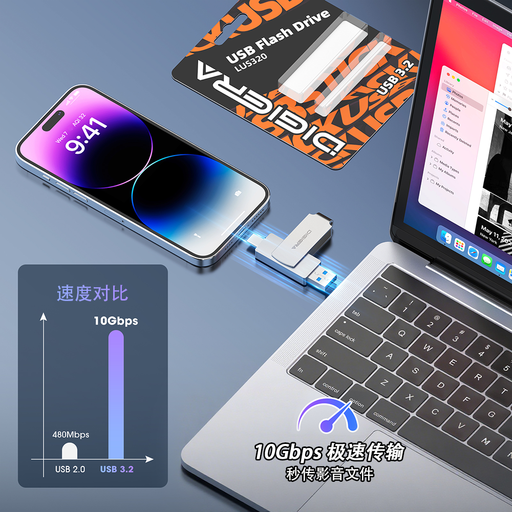 No image available
Both connectors make this a physical fit for transfers between USB-A and USB-C ports. The listing specifies a 128GB capacity, USB 3.2 and exFAT; its stated 500MB/s read speed is a product claim, not an independent result. For iPad use, also check connector requirements, the supported format and Apple’s single-partition requirement.
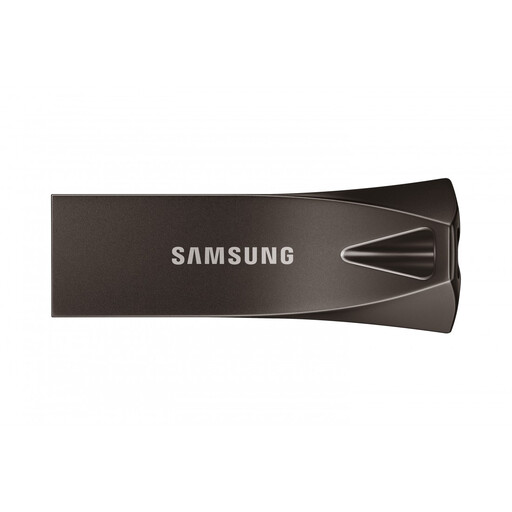 No image available
A 256GB USB-A option for transfers involving compatible computers with that port. The listing states USB 3.2 Gen 1. A USB-C-only device would need a suitable adapter or another connector route; check the drive’s file system before using it across different devices.
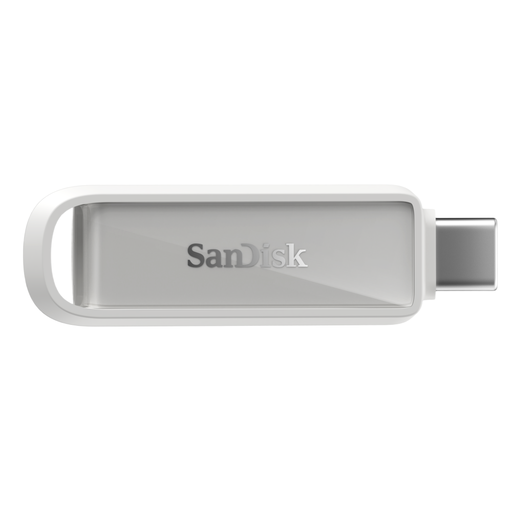 No image available
This 128GB USB-C stick is a single-connector option for carrying files between compatible USB-C devices. Before using it with a phone or tablet, confirm that the exact device supports external storage and check its format and partition requirements.
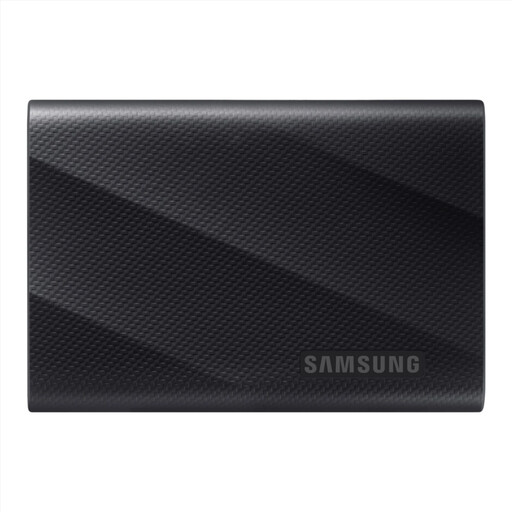 No image available
A 2TB SSD option for larger transfer sets. The listing specifies USB-C and USB 3.2 Gen 2x2; transfer results depend on the host and are not established by the interface name alone. Check the intended devices’ connection and file-system support, and confirm a suitable adapter or cable if you need to connect to USB-A.
Choose a dual USB-A/USB-C drive when you regularly transfer files directly between both port types and prefer one item to carry. A separate adapter may suit an occasional second connection, provided the adapter and device support it. Neither arrangement guarantees that a phone or tablet can access external storage.
Apple Support says iPad external storage needs a compatible connector or adapter, a single data partition and a supported format, including APFS, APFS (encrypted), Mac OS Extended (HFS+), exFAT, FAT32 or FAT. Check the requirements for your iPad and storage device; some external drives may also need additional power.
Apple Support identifies MS-DOS (FAT) and ExFAT as Windows-compatible options in Disk Utility. Its guidance specifies MS-DOS (FAT) for Windows volumes of 32GB or less and ExFAT for those over 32GB. Check every other device that must use the drive before reformatting it, and copy off files you need to keep first.
Consider an external SSD if you repeatedly move large file sets and its capacity, connection and model-specific performance suit that work better than a small stick. Which? describes SSDs as usually faster but pricier than HDDs; that comparison does not establish how a particular SSD will perform against a particular USB stick.
Keep a separate recoverable copy of important files rather than relying on a transfer stick as the only copy. The UK National Cyber Security Centre defines a backup as a copy stored separately so data can be restored if the original becomes inaccessible; Northern Ireland Cyber Security Centre guidance notes that USB flash drives can be easy to lose.