Socket-limited classroom presenter
If you update slides during lessons or move between rooms, check how the keyboard is powered and whether it can connect without taking a USB port needed for presentation equipment.


Choose a wireless keyboard that works with the computer you use to present, then decide how you will keep it powered between lessons. Bluetooth can leave USB ports free when the computer supports pairing; a receiver or wired option offers another connection route but needs a suitable port. Check the physical layout and editing keys against your classroom workspace before choosing.
If you update slides during lessons or move between rooms, check how the keyboard is powered and whether it can connect without taking a USB port needed for presentation equipment.
If you work on a laptop and also type on a tablet or phone, check that each device is compatible and that the keyboard has a practical way to switch between them.
If familiar symbol positions and arrow keys matter while you edit, check the exact UK layout variant. Where others are working nearby, assess the supplied key switches and typing sound rather than assuming a keyboard will be quiet.
Start with the presentation computer and its available ports, then choose a power arrangement you can manage between sessions. The controls and physical layout still need to fit the space where you edit.
| Concern | What to check | Who this matters to |
|---|---|---|
| Power between lessons | Choose between rechargeable and replaceable batteries; check charging arrangements or the spare batteries you would need. | If I cannot count on a free socket before class, I need a keyboard whose power I can plan ahead for. Around 32% of consumers put that independence first. |
| Connection and ports | Confirm the computer supports the keyboard’s connection method and that any receiver or cable has a suitable free port. | With presentation equipment already connected, I need the keyboard to pair with my actual computer without displacing another device. For around 25% of consumers, connection compatibility is the primary concern. |
| Editing controls and space | Compare keyboard dimensions with the lectern and inspect the arrow keys, function row and number pad if you use them. | When I make last-minute slide changes on a small surface, I want the keys I use within reach without crowding the computer. Workspace fit and editing controls come first for around 25% of consumers. |
| Shared-room typing and UK layout | Check the exact regional layout and supplied switch variant; assess typing sound for the room. | If I type while others are learning or working, unfamiliar symbols or distracting key noise could interrupt the task. Around 18% of consumers chiefly prioritise a familiar UK layout and shared-room typing. |
A wireless keyboard still needs charged or replaceable batteries. Manufacturer battery-life figures depend on use; Logitech, for example, gives different MX Keys for Business runtimes depending on backlighting.
Check the power arrangement before buying. Charge between sessions if that is practical, or keep compatible spares for a replaceable-battery model.
Charging also takes time and access to the appropriate cable; replaceable batteries need replenishing.
Bluetooth requires support on the presentation device and permission to pair it. A school-managed computer may have peripheral restrictions that need checking locally.
Identify the computer first, confirm its Bluetooth and pairing settings, and check whether a receiver or wired alternative would have a suitable free port.
Regional variants can differ in their printed symbols and key positions, which matters when editing quickly.
Check the exact layout designation and photographs for an English UK or UK ISO variant if that is the arrangement you use.
A compact keyboard may fit a lectern more easily, but its arrow-key arrangement or available dedicated keys may not suit your editing habits. A larger one needs more surface space.
Compare the keyboard’s dimensions with your workspace, then inspect the navigation keys, function row and number pad you actually use.
Logitech offers several wireless-keyboard arrangements relevant to limited sockets, port availability and device switching.
The Surface Keyboard is a replaceable-battery option for a compatible Windows classroom PC.
Apple’s British English Magic Keyboard with Numeric Keypad is a Mac-focused option for users who want an extended layout.
The Keychron K10 UK ISO is a full-size mechanical option for users who want Bluetooth alongside a wired connection.
These wireless keyboards offer different approaches to classroom slide editing: UK-labelled models, connection alternatives and a multi-device option. The AULA model is labelled US layout, so its physical keys need particular attention if you normally type on a UK keyboard.
 No image available
Consider this full-size wireless model if a UK-labelled keyboard suits your slide-editing setup. If you plan to use its receiver, reserve a USB-A port; confirm that Bluetooth pairing is permitted on the classroom computer if you intend to use that connection instead.
Check how often you would need to replace its batteries for your pattern of use.
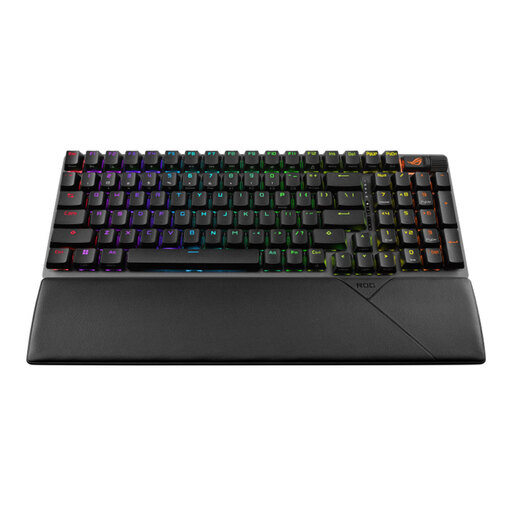 No image available
This UK-layout wireless model is worth considering if you want another connection option at a desk. Check the exact supplied switch version before using it in a shared classroom, where typing sound matters.
Confirm the charging arrangement and expected runtime for the settings you intend to use. Receiver and wired use each need a suitable free computer port.
 No image available
This Bluetooth model may suit slide editing across more than one paired device, provided each device supports the connection. Check the exact physical key layout if UK symbol positions matter to you.
Plan to recharge between sessions and check the expected runtime at the backlight setting you would use.
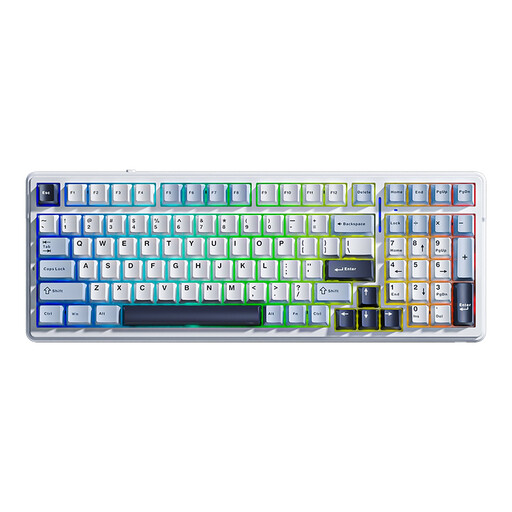 No image available
Consider this tri-mode model if you switch devices and can work comfortably with its stated US QWERTY layout. Its physical legends and key positions may not suit someone accustomed to a UK layout.
Check typing sound in a shared room and confirm charging needs for your intended use; battery capacity alone does not establish time between charges.
It can if that laptop supports Bluetooth and permits keyboard pairing. Microsoft advises checking Bluetooth support, switching it on and pairing the keyboard in discoverable mode. A USB Bluetooth adapter is another possibility for a computer without Bluetooth, but it would occupy a port.
It can avoid a keyboard cable during use, but it does not remove the need to manage power. Rechargeable keyboards need charging between sessions; replaceable-battery models need compatible spares. Check the manufacturer’s battery-life conditions rather than assuming every wireless model lasts the same length of time.
Choose a clearly labelled English UK or UK ISO variant if you rely on UK physical key positions and printed symbols. Microsoft documents a distinct Windows United Kingdom keyboard layout, so a generic QWERTY label alone is not enough to identify the physical arrangement you expect.
A faulty keyboard may qualify for a remedy under the Consumer Rights Act 2015; the short-term right to reject is subject to the Act’s conditions and time limit, rather than a retailer’s change-of-mind policy. For disposal, UK government guidance says electrical products and batteries marked with the crossed-out wheelie-bin symbol should not go in household rubbish; use an appropriate electrical-waste collection route.