What matters when choosing?
Start with the size and frequency of your transfers, then check how each device connects and whether the files can be handled safely on every computer involved.
USB flash drive
Choose it when: routine hand-offs call for a pocket-sized drive, particularly across USB-A and USB-C ports.
Bear in mind: connector shape alone does not establish transfer speed; USB sticks also differ in write performance and durability.
Portable SSD
Choose it when: you repeatedly move large folders or media and transfer time is a priority.
Bear in mind: quoted maximum speeds depend on compatible ports and cables, while protection ratings apply to particular models and test conditions.
Portable hard drive
Choose it when: carrying a large collection at once matters more than keeping the device pocket-sized.
Bear in mind: account for its dimensions, cable and handling requirements, especially if you travel with it regularly.
Cloud transfer
Choose it when: both devices have suitable internet access and the service is permitted for the files involved.
Bear in mind: large uploads and downloads depend on the connection, and confidential files must follow applicable access and organisational rules.
| Concern |
What to check |
Who this matters to |
| Portability and ports |
Check whether each computer has USB-A, USB-C or both, and whether the drive needs an adapter. |
If I carry documents between computers, I want the drive to fit easily in my bag and connect without another accessory. Around 36% of consumers put carrying convenience and direct port compatibility first. |
| Large-file transfers and travel |
Compare the exact model’s stated read and write speeds with its required host port and cable; check the conditions behind any protection rating. |
When I move large project files repeatedly, waiting for transfers and protecting the drive in transit matter more than its smallest possible size. Around 36% of consumers primarily value transfer speed and travel resilience. |
| Capacity |
Work out how much space the files need, then check the drive’s capacity, dimensions and connection. |
I need to carry a substantial collection at once and can accommodate a larger device. For around 18% of consumers, portable capacity is the primary concern. |
| File security |
Check the rules for the files, any approved encryption method and how passwords or recovery information must be kept. |
If the drive holds personal or confidential material, I need to protect it and follow the relevant organisation’s policy. Around 10% of consumers put secure file handling first. |
Joybuy products for file transfers
These choices cover portable SSDs for larger or repeated transfers, a dual-connector USB stick for routine hand-offs, and a portable hard drive for carrying a larger file collection. Match the connection and file format to your own devices before moving important work.
 No image available
Samsung T7 Shield Portable SSD 1TB, Blue
Consider this portable SSD if you move large files between locations and can use a compatible connection for the transfer speed you need.
The listed variant has 1TB capacity and a USB 3.2 Gen 2 interface. Check read and write access on each intended operating system before loading important files.
View on Joybuy
 No image available
Samsung Portable SSD T7 2TB, Blue
This SSD is a choice for carrying substantial work or study files when a compact drive is useful.
The title specifies 2TB capacity, USB Type-C and USB 3.2 Gen 2. Confirm the connection and Mac or Windows write access needed for your transfers.
View on Joybuy
 No image available
Lexar ES4 Portable SSD with Magnetic Set, 1TB
Consider this SSD for large-file movement if the devices and magnetic mounting arrangement suit your workflow.
Its title specifies USB 3.2 Gen 2, up to 1,050MB/s read and 1,000MB/s write, and compatibility with iPhone 15/16, PC and Mac. Check the connection, file format and encryption arrangement before relying on it for confidential files.
View on Joybuy
 No image available
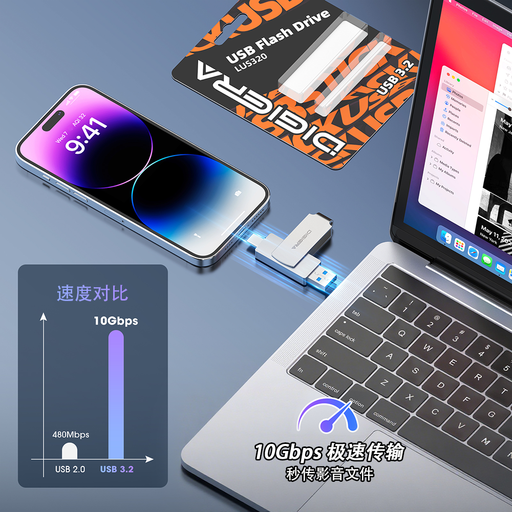
DigiEra LUS320 USB-A and USB-C Flash Drive, 128GB
This small drive suits routine hand-offs if its 128GB capacity meets your needs and your devices have the stated ports.
The title specifies USB 3.2, USB-A and USB-C connectors, a swivel design and up to 500MB/s read speed. Check the receiving computer’s port and the drive’s write performance for your workflow.
View on Joybuy
 No image available
Western Digital Elements Port. 4TB, Black, USB 3.0
Consider this portable hard drive when carrying a large file collection is the priority and a larger device is acceptable.
The title specifies 4TB capacity and USB 3.0. Confirm the cable and ports you will use, as well as read and write compatibility across your computers.
View on Joybuy
Frequently asked questions
Is a USB stick enough for moving files between home and work or campus?
A USB stick can be enough for routine transfers when its capacity, connectors and write speed suit your files and computers. For repeated large transfers, consider a portable SSD, but check the host port and cable before expecting its advertised maximum speed.
Which format can I use to write files on both Mac and Windows?
Apple Support identifies ExFAT for disks over 32GB and MS-DOS (FAT) for disks of 32GB or less in its Windows-compatibility formatting guidance. Formatting erases files on the drive, so copy them elsewhere first and test writing on both computers.
Why can my Mac read a drive but not copy files onto it?
An NTFS-formatted drive may be readable on a Mac even though, as Apple Support explains, Disk Utility does not support writing to NTFS. Check the format and your Mac’s write access before transferring files; back up the drive before changing its format.
Must files on a USB drive be encrypted in the UK?
Encryption is not required for every USB drive: the Information Commissioner’s Office says the UK GDPR does not specifically require all personal information to be encrypted. Security must be appropriate to the risk when handling personal information, so follow the applicable employer, university or client rules for the files you carry.
When can I unplug a drive after copying files?
Use the computer’s eject command and wait until it indicates that the drive can be removed. Which? recommends safely ejecting after copying to help prevent file corruption.


