What matters when choosing?
Choose the colour target for your work, plan how you will match the two screens, then confirm that your computer and connections support the complete setup.
| Concern |
What to check |
Who this matters to |
| Matching the screens |
Consider two of the same model, with controllable colour modes and brightness. Plan to calibrate and profile each display separately. |
When I compare one edit on both screens, differences between the displays could distract from the edit itself. Roughly 42% of consumers put screen matching first. |
| Colour-space coverage |
Match documented sRGB or Rec.709 coverage to standard delivery, or check P3 or Adobe RGB coverage when the deliverable requires it. |
If my work is destined for a wider-gamut photo or video workflow, I need to choose for that output rather than for gamut alone. Around 33% of consumers prioritise the required colour space. |
| Two-display connections |
Check the computer’s external-display limits, required resolution and refresh rate, ports, cables and any dock or DisplayPort MST arrangement. |
At a laptop desk, I need both 4K screens to operate independently without assuming that charging over USB-C also provides two video outputs. Approximately 25% of consumers make connection planning their primary concern. |
Joybuy monitors for these workflows
These 4K monitors relate to different parts of the two-screen decision, including wider-gamut editing, sRGB-focused work and desk connectivity. If you plan to buy a pair, check the exact variant and how you will configure and connect both units.
 No image available
ASUS ProArt Display PA32UCG-K 32-inch 4K HDR IPS Mini LED monitor
Consider this model when your editing workflow calls for a larger 4K screen and wider-gamut work. Its listed features include a 120 Hz refresh rate, Thunderbolt 3 and hardware calibration. Check the applicable peak-brightness specification if HDR output matters to your choice, and profile each screen separately for a paired setup.
View on Joybuy
 No image available
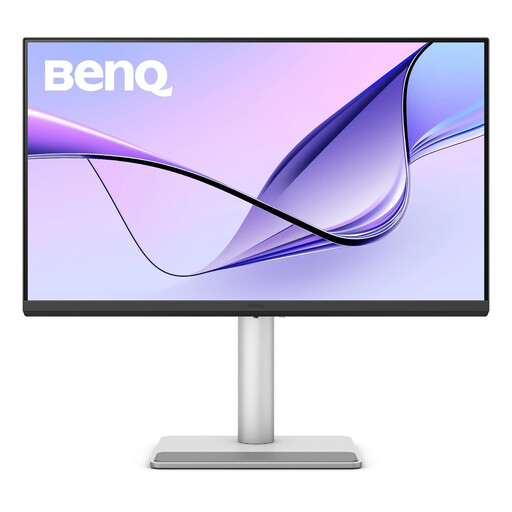
BenQ MA270UP 27-inch Nano Glossy IPS 4K USB-C monitor
This is a 27-inch option to consider for a 4K editing desk where a USB-C connection and a Mac-oriented display mode matter. The product name also identifies a height-adjustable stand and P3 support; check the calibration information you need before choosing two for close colour comparison.
View on Joybuy
 No image available
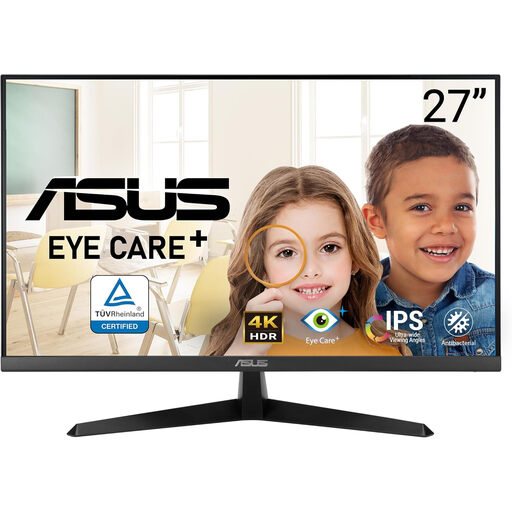
ASUS EYE CARE VY27UQ 4K UHD 60 Hz monitor
Consider this model for an sRGB-focused editing pair if its available colour controls suit your workflow. The product name specifies 4K UHD and 60 Hz; check the model’s calibration information and configure a separate profile for each screen before judging close colour differences.
View on Joybuy
 No image available
Dahua curved 4K OLED 165 Hz monitor with 65 W Type-C
This curved display is an option to assess for P3-oriented editing if its shape and controls fit your side-by-side setup. The product name states 99% DCI-P3 coverage and a USB hub. Confirm the exact screen diagonal before trying to match its physical size with another unit, and check its calibration controls for colour work.
View on Joybuy
 No image available
iiyama ProLite XUB2792UHSU-B6 27-inch 4K UHD monitor
This 27-inch 4K model is worth considering for an sRGB-oriented desktop editing pair. Confirm the colour modes and calibration controls you need for comparing edits; if laptop charging is part of your connection plan, check power delivery for the exact model rather than assuming it from a USB-C connection.
View on Joybuy
Questions about two-screen colour editing
Do both 4K monitors need to be the same model?
Two of the same model are a practical starting point for direct colour comparison, but identical models do not guarantee identical images. Set the same intended colour target, calibrate and profile each display, and keep lighting and viewing angles comparable. The International Color Consortium says calibration and profiling work together to achieve consistent display colour.
Should I choose sRGB and Rec.709 or wider-gamut monitors?
Choose according to where the finished work will be used: sRGB suits web-focused image creation, while P3 or Adobe RGB coverage matters when your deliverables call for those spaces. The International Color Consortium identifies sRGB as suitable for web image creation; whichever coverage you choose, use colour-managed applications and the appropriate modes on both screens.
Can one USB-C laptop cable run two 4K monitors?
It can in a compatible arrangement, but USB-C charging on a monitor does not establish that your laptop can run two independent 4K displays through one cable. DisplayPort describes MST as one method for carrying multiple display streams, and BenQ states that Mac devices do not support DisplayPort MST. Check the computer, operating system, dock, cables and required refresh rate before relying on a single-cable plan.
How do I set up two external monitors for colour comparison in Windows?
Set comparable brightness and colour modes using each monitor’s controls, then assign the appropriate profile to each display in Windows colour-management settings. Microsoft Support notes that external-monitor brightness is adjusted on the monitor itself and that Windows lets you manage default profiles for connected displays.


