People adapting an existing computer
If your computer runs the services you need but seeing content, hearing audio, typing or pointing is difficult, try its built-in settings before choosing a compatible screen or peripheral.


Start with the task that is difficult, then try the screen, audio, keyboard or pointer settings on your current computer. If that computer still runs your essential apps, a positionable display or different input device may address the remaining obstacle; consider another computer or tablet when its portability or access features matter to you, but check your apps, peripherals and screen-access software before switching.
The useful starting point is whether you need to change a task on your current computer or change the device itself.
If your computer runs the services you need but seeing content, hearing audio, typing or pointing is difficult, try its built-in settings before choosing a compatible screen or peripheral.
If a standard keyboard or mouse is difficult to use, compare the movement each alternative requires, its layout and how it connects to your computer. An ergonomic label alone cannot tell you whether a control will suit your tasks.
If portability or a particular access method is driving the change, check your essential apps, operating system and external devices together before choosing a laptop or tablet.
Try the relevant settings with an everyday task, then check whether the remaining difficulty calls for a different control, screen or whole device.
| Priority | What to check | Your needs |
|---|---|---|
| Typing and pointing | Try keyboard and pointer settings. Compare a split keyboard with your usual layout, or thumb-operated with finger-operated trackball control; check the connection needed. | I want controls that use movements I can manage during my usual typing and pointing tasks. |
| Seeing the screen | Test magnification or a screen reader in essential apps. For a separate display or mount, check its connections, mounting pattern, weight and the intended desk or wall attachment. | Content needs to be usable where I work, whether that means changing its on-screen presentation or positioning a separate display. |
| Audio and voice | Try captions with the calls or media you use. Check whether the voice feature you need types speech as text, controls the interface, or does both in your apps. | I need to follow spoken content or produce text without assuming every device offers the same functions. |
| Device and software fit | Check the current operating-system requirements for essential apps and screen-access software. Confirm peripheral connections and any required configuration software. | Changing computer must not leave me unable to use an essential service, program or input device. |
| Fixed desk or portable device | Compare the screen and input arrangement you can set up at a desk with what you can use when moving around the home. Test required apps and access features on the device you intend to use. | I may value a separately positioned screen at one desk, or need a device I can move between rooms. |
A split keyboard, thumb trackball and finger-operated trackball require different movements. A manufacturer’s comfort description does not establish that a device will relieve a health condition.
Where possible, try the exact control layout with the typing and pointing tasks you do at home.
Freedom Scientific publishes Windows requirements for JAWS, while Mac, iPad and Chromebook have their own built-in access features. Those features do not establish that a Windows program will run on another platform.
List the apps and peripherals you cannot do without, then check their current requirements and test the access workflow on the intended device.
If an essential program cannot run on the chosen platform, using it may require another compatible computer.
Mounting patterns, supported weights and attachment methods vary. Ergotron, for example, specifies a capacity and VESA standard for its cited LX configuration; those figures do not apply to every arm.
Compare the exact display and proposed attachment point with the chosen mount’s instructions before ordering.
A program may list Windows 10 as compatible, but Microsoft says ordinary Windows 10 support ended on 14 October 2025. One statement does not establish the other.
Check the operating system’s current support arrangement separately from each program’s compatibility requirements.
These references help identify features and compatibility checks; they are not a list of products available in the selection below.
Windows settings are worth testing when adapting an existing PC or choosing a device for Windows-specific software.
Mac and iPad are separate choices: compare their required apps and input methods rather than treating them as interchangeable.
Its cited keyboard and trackball illustrate two different changes to physical input.
The Orbit Wireless Trackball with Scroll Ring is a finger-operated, ambidextrous option to compare with thumb-controlled models.
Its cited LX monitor arm illustrates the checks involved in positioning a display at a fixed desk.
JAWS is a specialist screen-access option to assess when built-in tools do not meet a task you have tested.
These options cover changing a screen or input device on a home setup and choosing a touchscreen laptop. Check each product against your existing equipment and the task you need it to perform.
 Image unavailable
A separate screen to consider if you want to reposition a display while keeping your existing computer. The listed model has a 180° adjustable stand and VESA mounting; check your computer’s video connection, power arrangement and touchscreen support before choosing it.
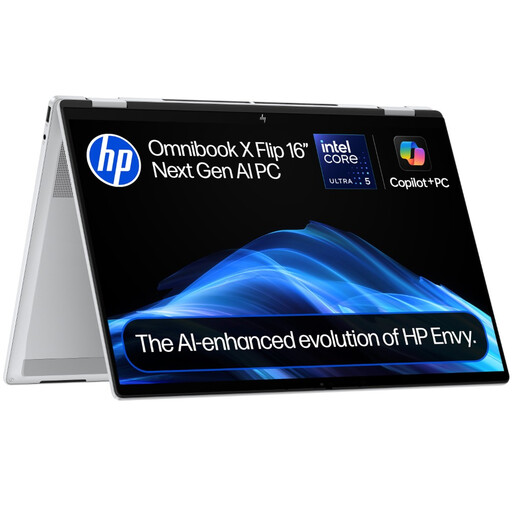 Image unavailable
A replacement-device option if you want laptop and touch input in one computer, rather than an accessory for your current one. Its listed configuration includes an Intel Core Ultra 5 226V, 16GB RAM, 512GB SSD and Windows 11 Home; check essential software and peripheral compatibility for this exact configuration.
 Image unavailable
Consider the split layout if ordinary typing remains possible but you want to compare different key positions. The listed keyboard includes a padded wrist rest; allow for learning the layout and check its connection with your computer.
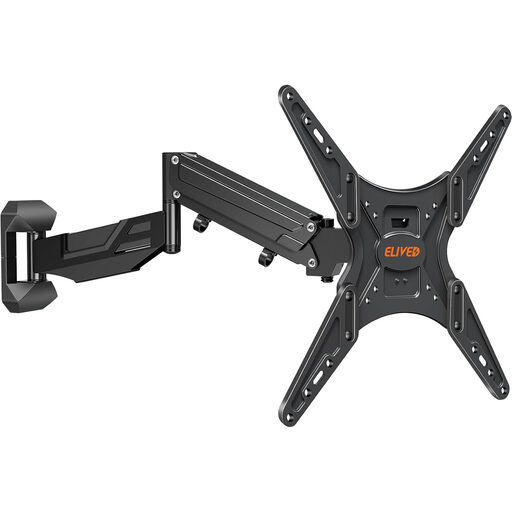 Image unavailable
This is a wall-mounted positioning option, not a desk-mounted arm. Its title specifies VESA 100 × 100–400 × 400 mm and a load limit of 25 kg; check the exact display and whether the intended wall and fixing method meet the bracket’s instructions.
 Image unavailable
A large fixed-desk display to assess if you need room for several on-screen windows. The listed panel is 5120 × 1440 with a 32:9 aspect ratio and VESA 75 × 75 mounting; check desk space, computer output and any proposed arm against the exact display.
Not necessarily. Try the relevant screen, keyboard, pointer, caption or voice settings with your actual tasks, then identify what remains difficult before buying another device.
Compare your exact monitor’s mounting pattern and weight with the arm’s stated limits, including attached equipment where applicable. Check its instructions for the intended desk clamp, grommet or other attachment too.
Do not assume it will. Check the trackball model’s supported operating systems and whether your device has the required Bluetooth connection or receiver port; check button-customisation software separately if you need it.
Freedom Scientific publishes Windows system recommendations for JAWS, so do not choose a Mac or iPad on the assumption that it will run the program. If JAWS is essential, check its current requirements against the exact computer you plan to use.