Choose the calling method and support routine before choosing a tablet: agree who the relative will call, test the connection where they will sit, and decide who will help with setup. An iPad with Assistive Access is worth considering when the family can use FaceTime and wants favourite contacts on the Calls screen; for an Android or Fire tablet, check the chosen app and interface on the exact device before relying on it for routine calls.
Who is this setup for?
A dedicated calling tablet makes most sense when the person, their usual contacts and a trusted helper can settle on a routine they can practise together.
Families arranging familiar calls
This route focuses on reaching a small group of known people rather than learning a broad range of tablet features. Ofcom’s 2025 UK qualitative research describes connectivity, accessibility, cost and digital-confidence barriers that can affect communication.
People setting up a tablet with a trusted helper
A helper can agree the calling method and contacts with the person who will use the tablet, then practise both making and answering calls. For iPad Assistive Access, Apple says the Apple Account shown should belong to that person.
Households checking where calls will work
Test Wi-Fi in the room where the tablet will normally be used before deciding whether mobile connectivity is needed. Apple describes cellular iPad use as requiring a mobile-data plan when Wi-Fi is unavailable.
What should you check before choosing?
Start with the family’s calling service, then test the contact screen and connection with the person who will use the tablet.
iPad with Assistive Access
Consider it when: the family can use FaceTime and wants Apple’s Calls app to show selected favourite contacts first.
Allow for: a trusted helper to configure it using the tablet user’s own Apple Account, as Apple advises.
Samsung Galaxy tablet
Consider it when: the agreed calling service works on Android and display or navigation settings can be tested with the user.
Allow for: arranging the regular interface around the calling task; Samsung describes display and contrast settings, with availability varying by model.
Amazon Fire HD 10
Consider it when: Zoom is the agreed calling service; Amazon describes Zoom use with the Fire HD 10’s front-facing camera.
Allow for: checking any other required app on Fire OS, because Amazon says Fire tablets do not support Google Play.
| Priority |
What to check |
Your needs |
| Familiar calling |
Agree one app that both sides can use. Add the intended contacts and test an outgoing and incoming video call on the exact device. |
I want to recognise the people I call without searching through a long contact list or several apps. |
| Manageable setup |
Try the chosen home-screen layout with the tablet user. For iPad Assistive Access, Apple says the account should belong to the user; its Calls app can show favourite contacts first. |
A trusted helper can set things up with me, but I need to practise the steps I will use on my own. |
| Connection |
Test Wi-Fi at the usual calling spot. If calls must work without Wi-Fi, check the exact tablet’s cellular option, network coverage and mobile-data arrangement. |
Calls need to work from the room where I will actually sit, not just beside the router. |
| Ongoing help |
Agree who to contact when a call fails and how they will help. Keep account recovery information secure, and do not grant access in response to an unexpected support request. |
If something changes on the screen, I want a familiar person to contact without responding to a stranger’s offer of help. |
What can make calling harder?
-
Buying before agreeing on a calling app
A front camera does not establish that both sides can use the same service. Amazon describes Zoom use on Fire HD 10 but says Google Play is not supported on Fire tablets.
Choose the service together, add the intended contacts and make a live test call on the exact tablet.
-
Leaving the tablet on the helper’s account
That can leave routine access and account recovery tied to someone other than the tablet user. Apple specifically advises checking that the Apple Account used for Assistive Access belongs to the person using the iPad.
Set up the user’s own account and agree, with their consent, what information a trusted helper needs for support.
-
Accepting unexpected offers of remote help
An unsolicited message can be mistaken for a legitimate support request. The National Cyber Security Centre warns that official NCSC emails do not ask for remote access.
Keep an agreed family contact beside the tablet. Do not give passwords, codes or remote access to someone who approaches unexpectedly.
-
Overlooking the tablet’s usual location
Calls still depend on the device being charged and connected where the relative normally sits. A cellular iPad uses a mobile-data plan when Wi-Fi is unavailable, according to Apple.
Choose a practical charging position, check what charging equipment comes with the exact tablet and test Wi-Fi there before adding a mobile-data arrangement.
Relevant tablet and platform references
These platform differences help narrow the setup to test; a feature’s presence does not establish that every person will find it easy to use.
Apple
An iPad route for families considering FaceTime and a deliberately limited Calls screen through Assistive Access.
- Apple says favourite contacts can appear on the first screen of the Assistive Access Calls app.
- Apple advises that the account belong to the iPad user; a trusted helper may still be needed to configure and practise the setup.
Samsung
A Galaxy tablet route when the family’s calling app works on Android and the intended display and navigation settings can be tried on the exact model.
- Samsung describes settings for enlarging displayed content and increasing contrast on Galaxy mobile devices.
- Setting availability can vary by model; mobile connectivity on a cellular model also depends on suitable service and coverage.
Amazon Fire
A Fire HD 10 route to examine when Zoom is already the family’s chosen calling service.
- Amazon describes using the Fire HD 10’s 5 MP front-facing camera for Zoom calls.
- Amazon says Fire tablets do not support Google Play, so check every required app on the intended Fire model.
Joybuy tablet options
These tablets offer different sizes and connection arrangements to consider for a family calling setup. Check the agreed calling app, contacts and everyday controls on the exact device before handover.
 No image available
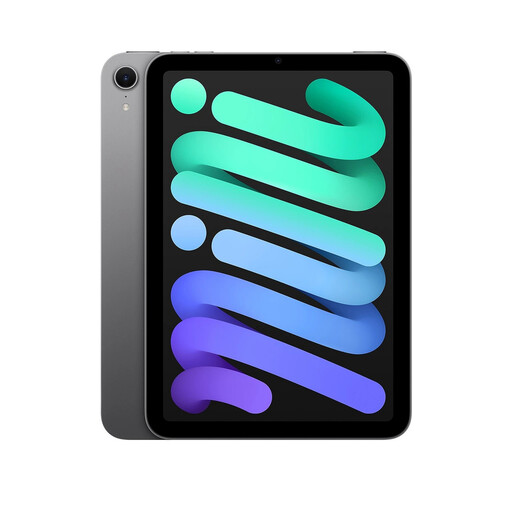
Apple iPad mini 7 (A17 Pro), 512GB, Space Grey
For a family considering FaceTime, try Assistive Access and favourite contacts with the intended user; Apple says their own account should be used. Check this tablet’s connection options and test calls at the usual calling spot.
View on Joybuy
 No image available
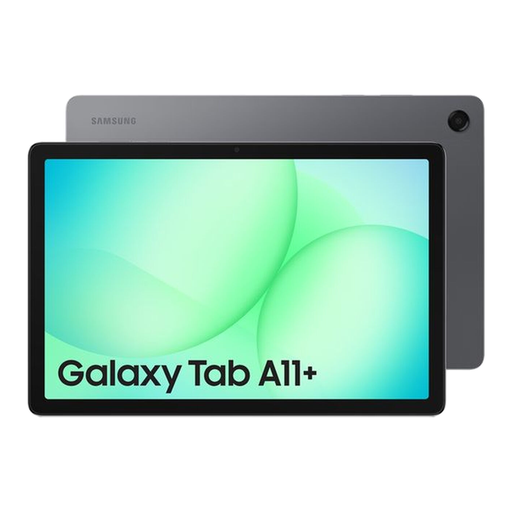
Samsung Galaxy Tab A11+ 8GB 256GB WiFi Gray
For calls from a regular spot at home, test Wi-Fi there and check that the chosen app and home-screen arrangement work for the relative. The stated configuration is 8GB RAM and 256GB storage.
View on Joybuy
 No image available
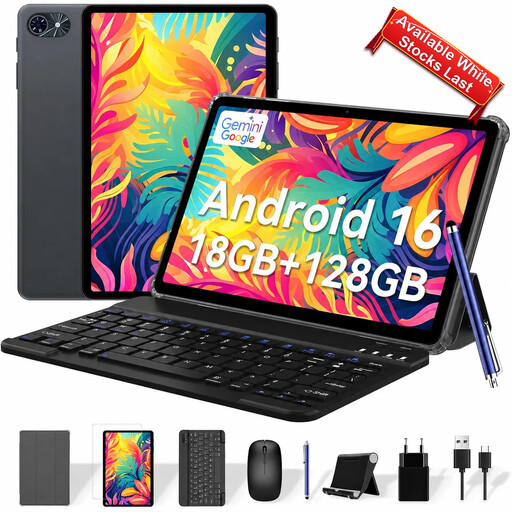
TABWEE T80 10-inch tablet, 128GB, with keyboard
For a fixed calling location, decide with the user whether the keyboard belongs in their everyday setup or can be set aside. Check that the family’s calling app runs on this tablet and that its controls can be arranged into a routine the user can repeat.
View on Joybuy
 No image available
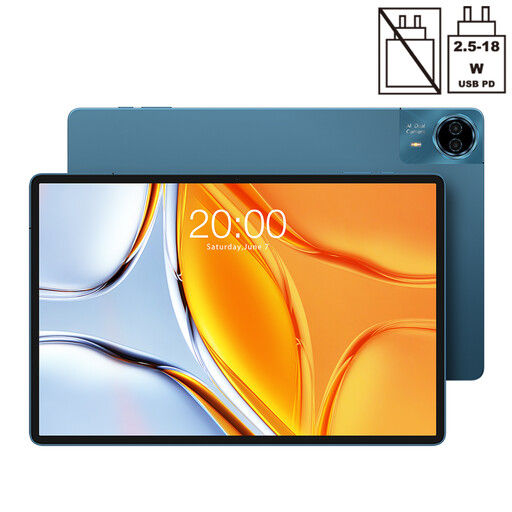
TECLAST T70 2025 Edition 14-inch tablet, 256GB, Dual SIM 4G LTE
For a larger tablet kept in one calling place, check that the user can position and handle it comfortably. The title lists a 1920 × 1200 display and 4G LTE connectivity; mobile use needs suitable service. Confirm the delivered Android version and test the intended calling app.
View on Joybuy
Questions before handover
What should we set up before the relative starts using the tablet?
Set it up with them: use their own account, agree one calling method, add familiar contacts and practise making and answering a call. Choose a charging place together. For iPad Assistive Access, Apple advises checking that the Apple Account belongs to the person using the device.
Is a Wi-Fi tablet enough for video calls?
Wi-Fi may be enough if it works dependably where calls will take place. Test that spot first; consider cellular connectivity if calls must work without Wi-Fi and a suitable mobile-data plan is acceptable. Apple describes a mobile-data plan as the connection route for a cellular iPad when Wi-Fi is unavailable.
How can a family member help when they are not there?
Agree in advance which family member to contact and how they will talk through a problem. Do not assume the tablet permits full remote control, and do not share passwords or grant access because of an unexpected message. The National Cyber Security Centre warns that official NCSC emails do not ask for remote access.
Will any video-call app work on an Amazon Fire tablet?
No app should be assumed to work without checking it on the intended model. Amazon describes Zoom use on Fire HD 10 but says Fire tablets do not support Google Play. Confirm that the family’s chosen app is available, sign in and complete a test call before relying on it.


