Choose a device that runs the child’s intended games and supports a separate child account with suitable communication and spending settings. A console has platform family controls; a Windows PC needs checks across browsers, launchers and game accounts, while an iPad suits app-based games when Family Sharing and Screen Time are practical. A headset or controller can complement an existing setup, but it cannot replace account controls.
Who is choosing this setup?
Parents focused on online communication
If the child plays with friends online, the main question may be how to limit contact from unknown players without overlooking voice chat or messages inside individual games. Ofcom identifies contact with strangers, violent content and bullying among parents’ concerns about children’s gaming.
Families replacing a shared device or account
A child using an adult’s console, computer, tablet or account may need a separate profile so settings and purchase permissions can be managed for them. PlayStation, Xbox, Microsoft and Apple describe family-management tools built around individual family members or child accounts.
Parents balancing game access and spending controls
The child’s preferred games still need to work on the chosen device. Parents can then check the relevant account’s purchase settings: PlayStation, Xbox and Apple describe controls for spending or purchase approval, with different conditions for using them.
What should you check before buying?
Start with the games and accounts the child will use, then check how that combination handles contact and purchases. Treat a headset or controller as an addition to a suitable device, not as a separate way to manage online safety.
| Concern |
What to check |
Who this matters to |
| Online contact |
Check child-account communication and privacy settings, then inspect voice chat, messages and friend requests in each intended game. |
If my child plays with friends online, I want to limit contact from unknown players without assuming every game uses the same chat rules; about 31% of consumers would put communication controls first. |
| Separate accounts |
Confirm that the child can have an age-accurate account in a parent-managed family group on the devices they will use. |
When a child has been using a shared account, I need settings and permissions that apply to them rather than to the adult; about 25% of consumers would make separate-account management their primary concern. |
| Game and device fit |
Check each game’s supported device and version, online-account requirements and multiplayer access before choosing a console, PC or tablet. |
If a favourite game needs a particular platform, I cannot choose hardware on family settings alone; game access would come first for about 25% of consumers. |
| Purchases and accessories |
Review purchase approval or in-app-purchase settings. If adding a headset, check its compatibility and the game’s voice-chat permissions. |
Before handing over the setup, I want to manage digital purchases and know what an accessory will let my child do online; roughly 19% of consumers would prioritise spending and setup needs. |
Mistakes that can affect the setup
-
Buying the device before checking the games
A console, PC or tablet may have family controls but still fail to run a game the child wants, or the game may require another account or separate chat settings.
List the intended games and check their supported devices, multiplayer requirements, communication options and in-game purchases before choosing hardware.
-
Using an adult account for the child
Shared permissions, contacts and purchases make it harder to apply settings suited to the child. A device PIN does not provide the same account-level controls.
Set up the child’s own age-accurate account in the relevant family group before they download games or add friends.
-
Assuming a PC filter covers every game service
Microsoft says Family Safety web and search filters require the child to be signed in and using a supported browser. Browser filtering alone does not set the chat rules in a game or launcher.
Check which browsers the child can use, then review the privacy and communication controls of each launcher and game separately.
-
Overlooking other ways to make in-game purchases
Xbox says organiser approval is not required when currency or gift cards are used. Apple provides a separate Screen Time setting for blocking in-app purchases.
Review the child account’s purchase settings alongside any stored funds, gift cards and in-app-purchase options.
Platform brands to consider
PlayStation
A console platform to consider when the child’s games are available on PlayStation and the household can set up a child member account.
- PlayStation lists controls for games and apps, online communication, spending and playtime in its family tools.
- Settings depend on the account and platform; PlayStation notes that some options, including online-content age filtering, may vary by country or region. Check controls inside each intended game too.
Xbox
A console platform for households that want an organiser to manage a child member’s Xbox settings.
- Xbox Support describes family settings for privacy and communication, as well as an option to require purchase approval.
- The child must be in the family group for those settings to apply. Xbox notes that some console changes require signing out and back in before they take effect.
Microsoft
A family-management option for a child using a Windows gaming PC, an Xbox or both.
- Microsoft Family Safety lets family organisers manage limits and permissions for members of their family group.
- Microsoft says its web and search filters require a signed-in child using a supported browser; they are not a substitute for checking game and launcher controls.
Apple
A tablet route for children whose intended games run on iPad and whose household can use Family Sharing.
- Apple describes Screen Time controls for apps, content, communications and device use, with options to block in-app purchases or use Ask to Buy.
- Family Sharing and separate Apple Accounts are needed for the managed setup. Check software compatibility for the controls the household intends to use.
Console options for online gaming
These Xbox and PlayStation consoles are options when the child’s intended games run on the chosen platform and a parent will configure a separate child account. Check each game’s chat and purchase settings before selecting a model.
 No image available
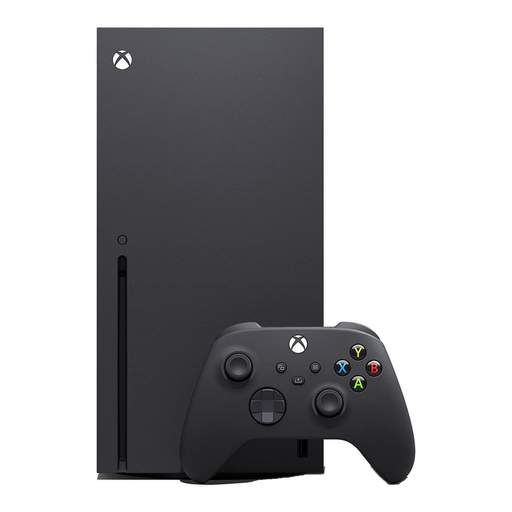
Xbox Series X 1TB Console – Black
Consider this Xbox console if the child’s games are available on Xbox and an adult will manage their family-member account.
The model has 1TB of storage. Xbox Support describes organiser-managed privacy and communication settings and purchase approval; check the intended games’ own controls as well. Allow space for ventilation when positioning the console.
View on Joybuy
 No image available
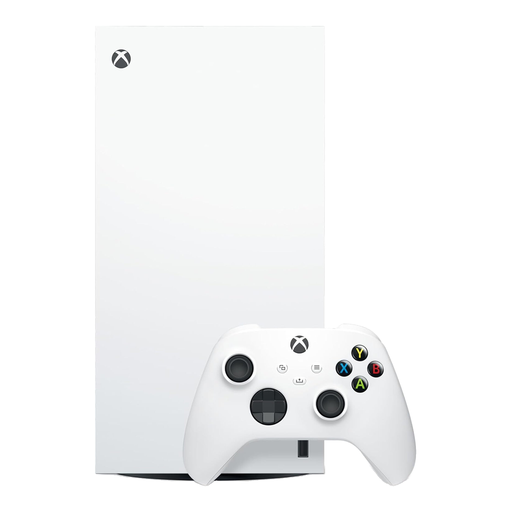
Xbox Series X 1TB Digital Edition – White
This Xbox option suits a household choosing digital games that are available for the child on Xbox.
It has 1TB of storage and is an all-digital model without an optical drive, so check how the child will access each game. Xbox family settings can manage a child member’s privacy and communication, but game-specific controls still need checking.
View on Joybuy
 No image available
Sony PlayStation 5 Digital Edition – Slim
Consider this model if the child’s intended PlayStation games are available digitally and a parent can manage a child member account.
This Digital Edition has no disc drive, and game purchases require a PlayStation Network account. PlayStation lists family settings for games, online communication and spending; confirm how they apply to the child’s games and linked services.
View on Joybuy
 No image available
PlayStation 5 Disc Edition + Marvel’s Wolverine
This disc-edition console is relevant if the child’s other intended games are on PlayStation, but the included game needs separate consideration.
The bundled Marvel’s Wolverine game is stated to be PEGI 18 and is not a game to select for a child under 18. Before considering this bundle for a household with a younger child, confirm that the child account can be prevented from accessing the included game, and check communication settings for any other games they will play.
View on Joybuy
Common questions
Does a new console set up online safeguards automatically?
No. Set up a separate child account with the child’s correct age, configure the platform’s family settings and check the intended games’ communication options. Ofcom advises parents to check account ages because they can affect the features and content available to children.
Can a child use a parent’s existing gaming account?
Use a separate child account if you need controls tailored to the child. Apple explicitly advises a separate Apple Account for each family member, while PlayStation, Xbox and Microsoft organise their family-management features around child or family-member accounts.
Will platform controls cover chat in every game?
Do not assume they will. PlayStation and Xbox provide platform communication settings, but voice chat, messages, friends and linked services can have their own options. Check each game the child intends to play before choosing the device.
What should I check before allowing game purchases?
Configure purchase settings on the child account and review any stored funds and in-app-purchase options. Xbox Support says organiser approval can be required for purchases but is not needed when currency or gift cards are used; Apple describes separate options to block in-app purchases or request approval through Ask to Buy.


