Teachers who handwrite and annotate
If you mark PDFs, sketch diagrams or annotate slides while preparing lessons, pen compatibility, screen size and handheld use will shape your choice.


Choose a tablet for the lesson-planning work you do most: an iPad Air or Galaxy Tab S10 FE suits a handwriting-led workflow, while a Windows 2-in-1 is worth considering if you type extensively and need desktop-style applications. Check pen and keyboard arrangements, school-approved apps and account access before choosing a model; if you handle pupil information, follow your school’s data-protection process.
If you mark PDFs, sketch diagrams or annotate slides while preparing lessons, pen compatibility, screen size and handheld use will shape your choice.
If you type substantial plans, manage files and work across browser tabs, check whether the device can run the applications your planning depends on.
If you need school accounts, Wi-Fi or approved applications, ask which devices your school can support before choosing on personal preference alone.
Start with the task that would be hardest to do on the wrong device, then check its accessories and school-system compatibility. Screen size and connectivity matter most once you know where you will prepare lessons.
| Concern | Buying checks | Who this matters to |
|---|---|---|
| Typing and desktop workflow | Check your regular planning apps and school portals on the chosen operating system. Confirm the keyboard setup for extended typing. | If I write long plans and manage several files, touch-only navigation may get in my way. Around 33% of consumers put a laptop-style workflow first. |
| Handwriting and annotation | Confirm the pen supported by the exact model, what comes in the box and whether your PDF and presentation apps offer the tools you use. | When I mark worksheets or sketch examples, I need a pen workflow that fits those materials. Handwriting and annotation come first for around 27% of consumers. |
| Planning across locations | Check carrying weight, space for offline files and whether you regularly work without dependable Wi-Fi. | I move between classrooms and home, so carrying the device and accessing saved resources matter most. Around 20% of consumers prioritise planning across locations. |
| School-approved use | Ask the school IT lead about device enrolment, account access and approved services before purchase. | My lessons may involve school systems or pupil information, so I need to know what the school permits. School-approved use is the primary concern for around 20% of consumers. |
A device chosen for handwriting or sustained typing may need a separate pen or keyboard to serve that purpose.
Check the exact bundle and compatible accessories before comparing complete setups. Apple lists Pencil and Magic Keyboard options separately for iPad Air; Microsoft describes the Surface Pro keyboard and Slim Pen as optional.
Cellular connectivity adds little to lesson preparation that normally takes place on dependable home or school Wi-Fi.
Identify where you regularly need to work without Wi-Fi, and check whether downloaded files would cover those sessions instead.
Cellular use also requires a mobile data plan.
School accounts, networks and approved applications can limit which devices are usable for planning.
Ask the school IT lead about operating-system support, sign-in, Wi-Fi enrolment, printing and device-management requirements before buying.
Planning and AI services that process children’s personal information require attention to the school’s data-protection arrangements. The Information Commissioner’s Office states that data-protection law still applies to education technology that processes children’s information.
Use school-approved services and follow the school’s process before uploading pupil-identifiable material.
The iPad Air range is worth considering if handwriting and visual resource preparation are central to your planning.
The Galaxy Tab S10 FE offers an Android route for pen-oriented notes and locally stored lesson resources.
Surface Pro is a Windows 2-in-1 route for teachers whose lesson planning involves substantial typing and laptop-style work.
These choices cover handwriting-focused tablets and a larger Windows convertible for typed lesson planning. Match each device to your school’s supported apps and accounts before deciding.
 No image available
Consider this digital notebook if writing notes and reading lesson materials matter more to you than a laptop-style workflow.
The title specifies a 10.65-inch E-Ink screen and voice-to-text features. Check the school’s rules and the service’s data handling before using transcription with pupil information.
 No image available
Choose this configuration for touch-first lesson preparation if the apps you use work on iPad and you want to annotate with a compatible pen.
Apple lists support for Apple Pencil Pro and Apple Pencil (USB-C) on this iPad Air generation. Check the exact Pencil and keyboard bundle; these accessories are sold separately.
 No image available
This 11-inch tablet is another option for preparing and reviewing lesson materials across apps, provided your school supports the workflow.
The named configuration has 256GB of storage and Standard Glass. Check Pencil and keyboard compatibility for this exact model and whether either accessory is in the bundle.
 No image available
Consider the larger screen if you draw or mark up visual lesson resources and want a stylus in the listed bundle.
The title specifies a 12.7-inch 2K display, 4096 pressure levels, 256GB storage and Android 15. If you will carry it often, check its weight; also confirm that your school supports the apps and accounts you need.
 No image available
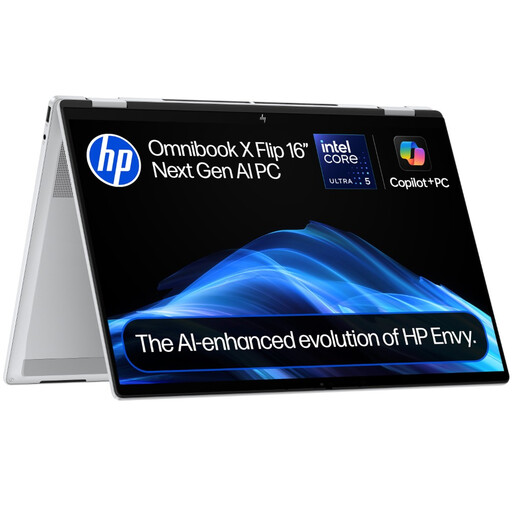
Consider this Windows convertible if extended typing and a larger screen matter more to your planning than handheld tablet use.
The title specifies a 16-inch touchscreen, 16GB RAM, a 512GB SSD and Windows 11 Home. If annotation or frequent carrying is important, confirm pen support and weight for this model.
Choose cellular only if you regularly need to work without dependable Wi-Fi and offline files will not cover that work. Cellular use requires a mobile data plan; otherwise, check that your resources are accessible on the networks you normally use.
Check the exact bundle rather than assuming either is included. Apple lists Pencil options and Magic Keyboard separately for iPad Air, while Microsoft describes the Surface Pro keyboard and Slim Pen as optional.
Use depends on your school’s device policy and technical setup. Ask the IT lead whether your chosen operating system can access the required network, accounts and approved apps before buying.
Use only services approved through your school’s data-protection process for that purpose. The Information Commissioner’s Office states that data-protection law still applies when education technology processes children’s personal information.