Choose a 34-inch ultrawide if a broad, single-screen railway view matters most and your desk, PC and simulator can accommodate it. Choose a 27-inch 4K monitor if route-building tools, maps and other desktop work take priority; a 27-inch QHD monitor is another option if you want fewer pixels for the PC to drive. Check game behaviour and native-resolution performance before treating a high refresh rate as the deciding feature.
Who each monitor suits
Single-screen cab-view enthusiasts
If you want a wider railway view without putting two monitors on the desk, assess a 34-inch ultrawide first. Samsung and LG list 34-inch, 3440 × 1440 models, but you still need to check your simulator’s aspect-ratio behaviour and your PC’s performance.
Route builders and home-office multitaskers
If maps, timetables, route tools and office windows occupy much of your screen time, desktop resolution, stand adjustment and laptop connectivity may matter more than a very high refresh rate. Dell’s 27-inch 4K and QHD models illustrate different ways to prioritise those features.
Performance-conscious simulator players
If you plan to keep your current PC, match the monitor’s native resolution to the settings you want to use. Dovetail Games distinguishes minimum hardware for its lowest settings from recommended hardware for higher settings; meeting a game’s minimum requirements alone does not settle your monitor choice.
What matters when choosing
Decide whether the railway view or detailed desktop work takes priority, then check the PC, game and desk against that screen choice. Each concern below describes consumers who put that need first.
| Concern |
What to check |
Who this matters to |
| Single-screen railway view |
Compare 21:9 screen width with your desk space, and check the exact simulator’s ultrawide display behaviour. |
If I want one broad cab view rather than two screens, I need the game to make useful use of that width. Around 33% of consumers put this viewing need first. |
| Route-building detail |
Compare native resolution, text scaling and stand adjustment for your route tools and desktop apps. |
When I work with maps, timetables and text-heavy tools, I care more about a usable desktop layout than a panoramic game view. Roughly 25% of consumers prioritise that detail. |
| PC graphics workload |
Check the game’s requirements and your PC’s performance at the intended native resolution and settings. |
I would rather choose a screen my existing PC can run comfortably than select extra pixels or refresh rate I cannot use. About 25% of consumers make that balance their main concern. |
| Home-office fit |
Measure desk clearance and check the required video connection, stand movement and any laptop charging requirement. |
My monitor must fit beside my work equipment and connect to the laptop I actually use. Around 17% of consumers put that desk-and-connection need first. |
Checks before you buy
-
Assuming the PC will run a new screen at your preferred settings
A higher native resolution gives the PC more pixels to render. Dovetail Games distinguishes minimum requirements for lowest settings from recommended requirements for higher settings, so launching a simulator does not establish how it will run at your chosen resolution.
Check the exact game, PC, video outputs and cables. If possible, try the simulator at a comparable resolution before choosing the monitor.
-
Choosing refresh rate before screen format
Samsung and LG list ultrawide models with high refresh rates, but the refresh-rate figure alone does not tell you whether the screen suits route-building or how fast your simulator will run.
Choose the aspect ratio and resolution for your main tasks, then decide what refresh rate your games and PC can use.
-
Assuming USB-C guarantees a one-cable laptop setup
USB-C video output and charging depend on the laptop and monitor. Dell lists up to 65W power delivery for the S2722DC; that limit will not meet every laptop’s charging requirement.
Check your laptop’s USB-C video support and charging requirement against the exact monitor’s connections and power-delivery rating.
-
Measuring the screen but not the working position
A wide monitor also needs suitable desk clearance and a viewing position that works alongside your keyboard, laptop and other equipment.
Measure the available space and check the stand’s adjustments and footprint. If you use the setup for work, ask your employer about its display-screen-equipment assessment process.
Relevant monitor brands
Dell
Dell’s S2725QS and S2722DC are examples of conventional 27-inch screens for mixed simulator and desktop use.
- Dell lists the S2725QS as a 3840 × 2160 IPS model with up to 120Hz and height and pivot adjustment. Its S2722DC is a 2560 × 1440 model with a 75Hz refresh rate and USB-C power delivery up to 65W.
- These particular 27-inch models do not provide the 21:9 format of a 34-inch ultrawide; check which layout better suits your game and route tools.
Samsung
Samsung’s Odyssey G5 G55T range is relevant to a 34-inch curved ultrawide setup.
- Samsung lists the LC34G55TWWPXXU with a 3440 × 1440 VA panel and a 165Hz refresh rate.
- Check desk clearance, the exact game’s ultrawide behaviour and PC performance at native resolution before choosing this format.
LG
LG’s 34-inch UltraGear OLED models are examples of high-refresh ultrawides for buyers who also use their desk for gaming.
- LG lists 3440 × 1440, 21:9 panels and 240Hz refresh rates for the 34GS95QE-B and 34GX900A-B; it lists USB-C power delivery up to 65W for the 34GX900A-B.
- Decide whether you can use the refresh rate, confirm laptop compatibility if USB-C matters, and consider prolonged static office content when assessing an OLED screen.
Joybuy monitors for simulation and route building
These choices include ultrawide screens for a single-screen railway view and a 27-inch 4K screen for detail-focused route building. Compare each with your simulator, PC and desk rather than treating the listed refresh rate as a measure of game performance.
 No image available
LG UltraGear 34GX900A-B 34-inch OLED monitor
Consider this for a single wide simulator screen if the game and PC suit its native resolution. LG lists a 3440 × 1440, 21:9 OLED panel, a 240Hz refresh rate and USB-C power delivery up to 65W for this model. Check desk fit and laptop compatibility; for prolonged static office content, also consider OLED image-retention risk.
View on Joybuy
 No image available
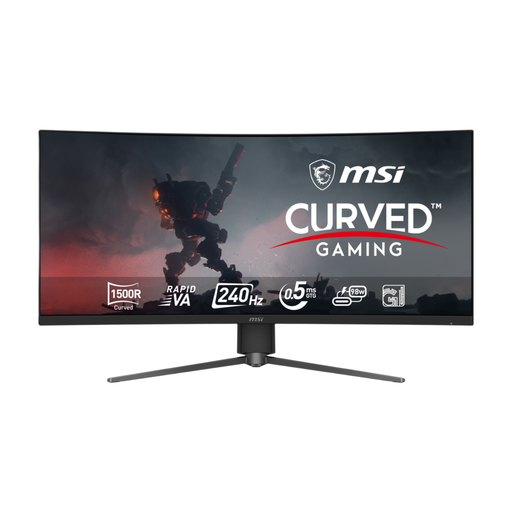
MSI MPG 346CQRF X24 34-inch UWQHD monitor
Its curved ultrawide format suits a desk where one broad simulator screen is the priority. The product name specifies a Rapid VA panel, adaptive sync and a 240Hz refresh rate. Confirm the exact game’s ultrawide behaviour, PC performance and desk clearance; check laptop video and charging requirements separately if you want a USB-C setup.
View on Joybuy
 No image available
Lenovo R34w-30 34-inch UWQHD monitor
This is another wide-screen option if you want to keep the simulator and desktop work on one monitor. The product name identifies a 34-inch UWQHD screen. Confirm this variant’s exact native resolution, your game’s ultrawide behaviour and the space available on your desk.
View on Joybuy
 No image available
iiyama ProLite XUB2792UHSU-B6 27-inch 4K monitor
Consider this conventional 16:9 screen when maps, route tools and desktop detail matter more than a panoramic view. Its product name specifies 4K UHD resolution. Check your PC and cable connection for the settings you intend to use, and confirm the monitor’s USB-C charging capability if that matters for your laptop.
View on Joybuy
 No image available
Dahua 34-inch 3440 × 1440 curved gaming monitor
Its 21:9 format is relevant if a broad single-screen railway view is your main aim. The product name specifies a VA panel, 200Hz refresh rate, 1ms MPRT response-time figure and HDMI and DisplayPort connections. Check the simulator’s aspect-ratio behaviour, PC performance and full desk footprint before choosing it.
View on Joybuy
Common questions
Should I choose 4K or 3440 × 1440 for route building?
Choose a conventional 4K screen if detailed desktop work and a 16:9 layout are your priorities; choose 3440 × 1440 if one wide canvas for the simulator and adjacent windows matters more. Check desk width and PC performance at the resolution you select.
Do I need a 240Hz monitor for a railway simulator?
Not as a starting requirement: settle the screen format and resolution first. A high-refresh model may also suit other games you play, but its stated refresh rate does not establish the frame rate your PC will produce in a railway simulator.
Will every railway simulator display properly on a 21:9 monitor?
Do not assume every title handles 21:9 in the way you want. Check the exact game’s resolution options and interface behaviour; a Dovetail Games developer response describes custom-resolution options for Train Sim World 7, but that does not establish the behaviour of other simulators.
Can one USB-C cable connect and charge my laptop?
Only when the laptop supports video over USB-C and its charging requirement fits the monitor’s power-delivery capability. Dell lists USB-C video operation and up to 65W power delivery for the S2722DC, so compare your exact laptop’s requirements with the monitor you choose.


