Who needs a more reliable setup?
The aim is access to a device that can complete the child’s actual schoolwork when it needs to be done, not simply another screen in the household.
Families sharing a schoolwork device
If a child must wait for someone else’s computer, a reliably allocated device may address the scheduling problem. In its 2025 Children’s Media Literacy Report, Ofcom reported that 30% of parents of school-aged children said their child did not have continuous access to an appropriate device for learning at home.
Parents comparing device types
A Chromebook, conventional laptop or keyboard-equipped tablet needs to fit the school’s sign-in, browser or app, document and video-meeting workflow. Check those tasks with the school before choosing by form factor.
Households with connection problems too
A dedicated device will not resolve homework sessions interrupted by an insufficient internet connection or a data limit. Check the connection and the place where the child will work alongside the device.
What should you check before choosing?
Ask the school how assignments are accessed, completed and submitted, then check which device route can perform those tasks and remain available at homework time.
| Priority | What to check | Your needs |
|---|
| Reliable access |
Agree when the child can use the device; check its charger, battery condition and study location. A desktop needs a fixed workspace, while a portable device can be used elsewhere. |
I need the child to start and submit work without waiting for another household member’s computer. |
| School compatibility |
Confirm the learning platform, school-account sign-in, supported browser or app, and any required desktop-only software. Google Classroom Help identifies supported browsers; Microsoft Support notes that some Word desktop features are unavailable in Word for the web. |
Assignments and uploads must work with the school account, not just open on a personal account or a general website. |
| Writing and documents |
Check the amount of typing, required file formats and editing features. For a tablet, test the compatible keyboard and apps; Google Classroom Help says full mobile app use also needs Docs, Sheets and Slides. Microsoft Support says mobile editing can depend on screen size and plan. |
For longer written assignments, I want a usable physical keyboard and the document functions the school expects. |
| Online sessions |
Test page loading, uploads and any data limits at home. Confirm a webcam and microphone if the school requires live or recorded work; Microsoft Support says Teams on the web is not supported on mobile devices and directs mobile users to its app. |
Video lessons and submissions need to work from home without the connection becoming the barrier. |
Which brands offer relevant device ranges?
These brand ranges provide form factors to investigate; the school’s workflow and the exact model determine whether a device is suitable.
Acer
Acer describes its UK Chromebook range as including clamshell, touchscreen and convertible models, with some positioned for education.
- Compare the available form factors against the child’s typing and carrying needs.
- Check the exact model’s ports, storage, automatic-update date and school-platform compatibility; the range description does not establish these for every model.
Lenovo
Lenovo’s UK Chromebook range includes traditional, 2-in-1 and detachable designs; its Windows laptops are a separate route to consider where school software requires one.
- Different designs allow a choice between an integrated-keyboard layout and more flexible tablet-like use.
- Confirm the operating system and required school apps for the particular device rather than relying on its shape.
ASUS
ASUS describes touchscreen and 2-in-1 models in its UK Chromebook range and offers other laptop routes separately.
- Compare Chromebook and conventional laptop models once the school’s software requirements are clear.
- Verify the chosen model’s operating system, keyboard layout, ports, webcam and support information.
Joybuy laptop and Chromebook options
These laptops and a Chromebook are options for a child who needs reliably available access for typing and online schoolwork. Check each one against the school’s requirements before choosing; a tablet or fixed desktop may suit a different workflow.
 No image available
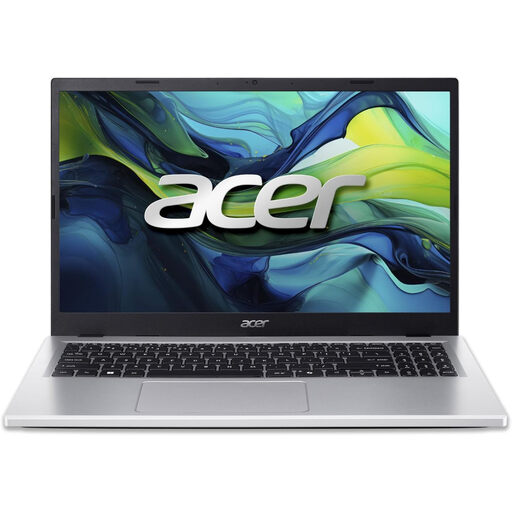
Acer Aspire Go 15 AG15-71P laptop
Consider this laptop where a child needs an integrated keyboard for regular schoolwork, provided the school’s account and software work on it.
Intel Core i5-13420H, 8GB DDR5 RAM, 256GB NVMe SSD, 15.6-inch Full HD screen and Windows 11 Home; Silver. Check the school’s required applications and expected battery use.
View on Joybuy
 No image available
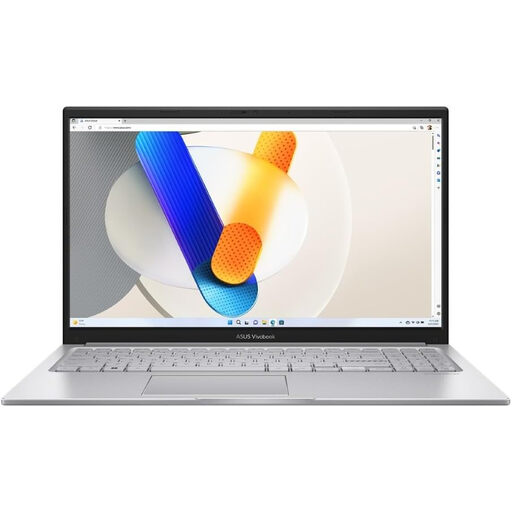
ASUS Vivobook 15 X1504VA laptop
This laptop is an option for regularly available typing and document work; confirm the school’s platform and required software before buying.
Intel Core 5 120U, 24 GB RAM, 1 TB SSD and 15.6-inch screen; Cool Silver. Check active-use battery duration for the expected study sessions rather than relying on a standby-time figure.
View on Joybuy
 No image available
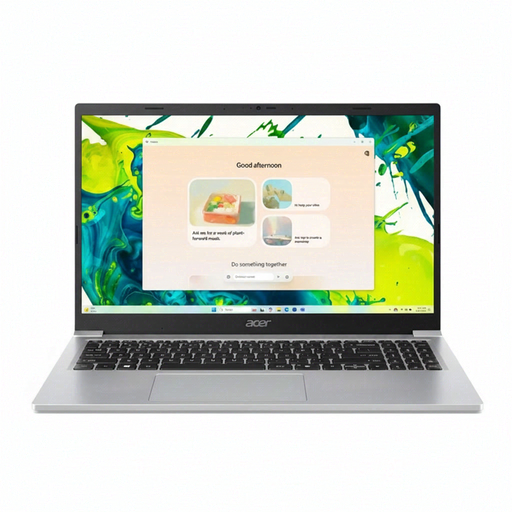
Acer Aspire Lite AL15-36P-C29Z laptop
For typing and browser-based assignments, check that the school’s required apps and sign-in work with this laptop’s Windows 11 Home in S Mode configuration.
Intel N150, 8GB DDR4 RAM, 128GB SSD and 15.6-inch Full HD screen; Silver. Confirm any software requirements before choosing it for desktop-based coursework.
View on Joybuy
 No image available
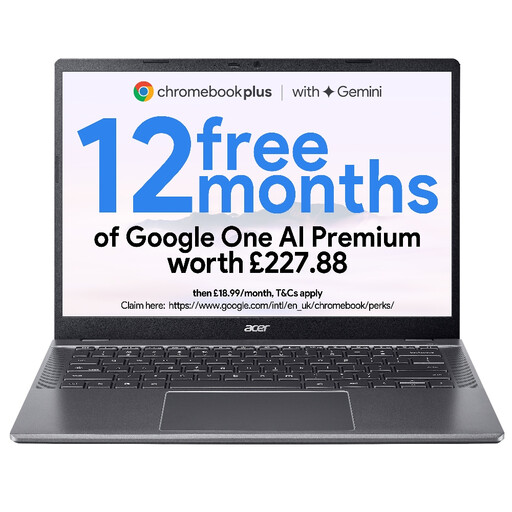
Acer Chromebook Plus 514 CB514-5H
Consider this Chromebook for typing and browser-based schoolwork if the school’s account, platform and required apps work on ChromeOS. Traditional Windows or macOS desktop-native software is not compatible.
Intel Core 5 120U, 8GB RAM, 512GB SSD and 14-inch WUXGA (1920 x 1200) screen; Iron. Check the exact model’s automatic-update end date before buying.
View on Joybuy
 No image available
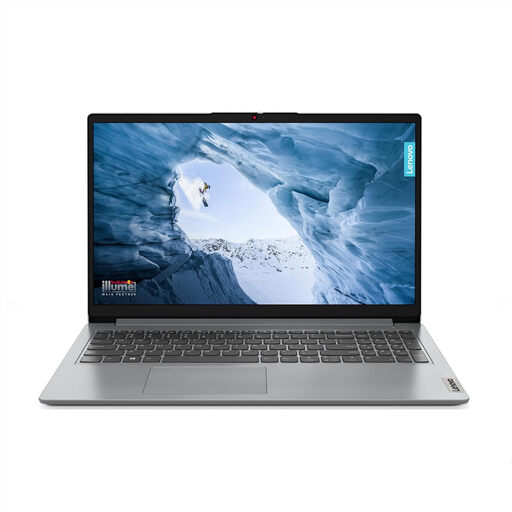
Lenovo IdeaPad 1 15-inch laptop
This is a laptop route for regularly available typing and schoolwork; check whether required applications work with Windows 11 Home in S Mode.
AMD Ryzen 3 7320U, 8GB RAM, 128GB SSD and 15-inch Full HD screen; Cloud Grey. Confirm the school-account and document workflow on the chosen device.
View on Joybuy
Home-learning device questions
What should I ask the school before buying?
Ask which learning platform and school account the child uses, whether assignments run in a browser or app, and whether any desktop software or particular document features are required. Confirm file submissions, video lessons and any need for a keyboard, webcam, microphone or USB transfer; those answers will narrow the device choice.
Can a tablet with a keyboard replace a laptop for schoolwork?
It can handle work that the school supports in the relevant tablet apps, particularly reading and lighter writing, but the keyboard alone does not provide desktop-app functions. Google Classroom Help says full mobile use also requires Docs, Sheets and Slides; Microsoft Support says mobile editing can depend on screen size and plan. Test the child’s actual assignments before choosing a tablet route.
When does a Chromebook make sense?
A Chromebook is worth considering when the school’s assignments work through supported browsers or ChromeOS apps and do not require Windows or macOS desktop-only software. Confirm the school login and document workflow, then check the exact model’s automatic-update end date under Google’s ChromeOS policy.
Should I buy external storage for schoolwork?
Check how the school saves and transfers work before buying it. External storage may be useful for a required USB transfer or local backup, but it will not resolve an unavailable device, an account problem or an incompatible learning platform.
What if the internet connection is the main barrier?
Check whether learning pages load, meetings stay connected and assignments upload without hitting data limits. The Department for Education identifies insufficient internet access as a barrier to learning at home; ask the school about available support before assuming another device will solve the problem.


