Families standardising regular household calls
Choose one easy-to-find home device for repeat calls with known relatives when contact setup, one-tap or voice-led joining, and consent for incoming calls matter more than broad app choice.


Choose the calling service first, then select the device that makes that service practical for the person receiving calls. An Alexa smart display can suit a fixed home that already uses Alexa contacts and accepts its permission settings, while a tablet offers more flexibility for app-based calls and FaceTime links; an existing laptop with suitable accessories can work when browser or meeting links are already familiar.
Choose one easy-to-find home device for repeat calls with known relatives when contact setup, one-tap or voice-led joining, and consent for incoming calls matter more than broad app choice.
A flexible tablet or computer route can suit relatives using different devices, provided everyone can join the chosen calling app or link rather than relying on one vendor ecosystem.
If a laptop or desktop already works for calls, an external camera, speakerphone or headset may address camera placement, sound or physical camera privacy without adding a separate calling device.
Start with the service your family already uses, then check the joining steps, room setup and privacy controls around that route.
| Priority | What to check | Your needs |
|---|---|---|
| Calling service | Confirm that every regular participant can use the same service; check app, browser, account, invitation-link and host-admission requirements. | I want a device that can join the service my family and friends already use, rather than one that creates a new account or app barrier. |
| Joining controls | Check whether repeat calls can use saved contacts, voice controls or a straightforward link; confirm any guest verification and camera or microphone permissions. | A fixed contact shortcut or voice command may suit a regular routine, but only if everyone accepts the relevant ecosystem and completes the setup. |
| Screen, camera and sound | Match screen size to viewing distance; consider camera position, speaker and microphone arrangement, room noise, and whether a headset is needed. | I need faces and voices to work well in the room where calls actually happen, not simply the highest headline camera specification. |
| Privacy and updates | Review who can start or enter calls, enabled permissions, physical camera-cover options and the manufacturer’s stated security-update period for connected devices. | I want clear control over incoming calls and camera use, particularly when the device stays in a shared living space. |
A large display or capable camera will not help if relatives need a different account, app, browser, invitation link, verification step or host approval.
List the one or two services used by regular callers and test a call or joining link on comparable hardware before selecting a route.
Amazon states that a Drop In connection can begin automatically after permission is granted, and permitted contacts and their household members may be able to connect to Echo devices.
Use ordinary calling where that better fits household expectations; if enabling Drop In, review every permitted contact and test the device in its intended room.
Android and Windows guests can join a FaceTime link in a browser, but Apple says SharePlay and screen sharing are unavailable to web participants.
FaceTime links can suit straightforward video conversations when browser requirements are met; choose another shared platform if web guests regularly need screen sharing.
For connected consumer smart devices, manufacturers must state the minimum period for important security updates. A webcam shutter is a separate physical privacy control.
Record the stated update period before buying and decide whether the household needs a camera shutter, a device-positioning rule, or both.
A smart-display route for a fixed household calling location, particularly where relatives already use Alexa contacts, the Alexa app or Echo Show devices.
A tablet route for households using FaceTime or needing a portable general-purpose device with a landscape-oriented front camera.
An Android tablet route for app-based family calling where an 11-inch portable screen and familiar Google or Android app access are preferred.
A peripheral route for improving an existing laptop or desktop calling setup instead of replacing it with a dedicated display or tablet.
Joybuy options for tablet-based family calls, upgrading an existing computer’s audio, and adding a private listening route.
 No image available
A portable Android tablet option for regular app-based family calls.
Stated features include an 11-inch 1920 × 1200 display, 5 MP front camera, stereo speakers, Wi-Fi, USB-C and 3.5 mm earjack. Check the chosen calling service on Android before purchase; a charger is sold separately and the listing states the tablet is not water-resistant.
 No image available
A larger-screen tablet route for calls at home or away from Wi-Fi where a suitable mobile plan is available.
The listing states a 13.4-inch 120 Hz display, Android 15, 8 MP front camera, dual-SIM 4G LTE and Wi-Fi. Its stated 720 g weight may be less convenient for prolonged hand-held calls; confirm the calling app, accounts and update arrangements before purchase.
 No image available
A multipurpose LTE tablet option for shared calls where mobile connectivity matters.
Its stated features include an 11-inch display, 6GB RAM, 128GB storage, LTE and quad speakers. LTE use needs a suitable mobile service arrangement; check the front camera, microphone setup and compatibility with the family’s chosen calling app.
 No image available
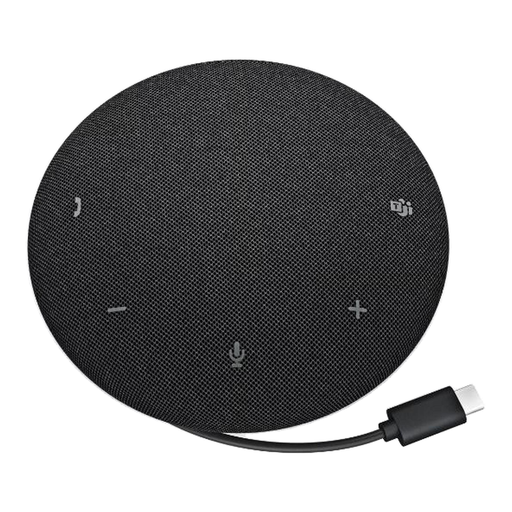
An audio upgrade for a household that already has a compatible computer, screen and camera.
The speakerphone has USB-C, four omnidirectional microphones, onboard mute and volume controls, and a stated 2.5 m microphone pickup range. It is not a standalone video-calling device, and its 75 cm cable may affect placement.
 No image available
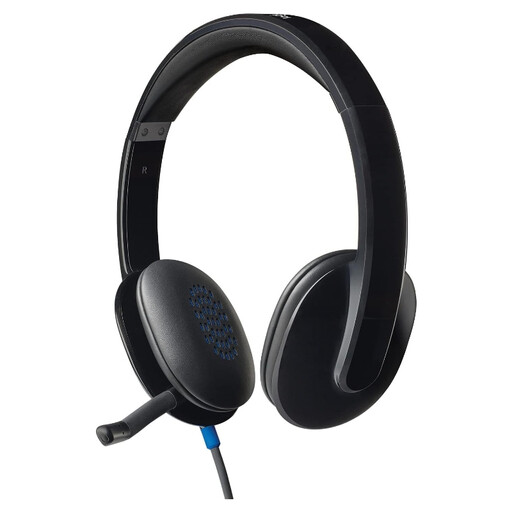
A private listening and speaking option for calls in a shared room.
It has USB-A connectivity, inline mute and volume controls, a tuckable boom microphone and stated Windows, macOS and ChromeOS compatibility. It needs a suitable host device and does not provide a camera, screen or calling service.
No. Start with the service used by the people who will call each other, then check the proposed device against that service’s account, app, browser, camera and operating-system requirements. Ofcom’s 2025 research on UK adults identified ease, convenience, and use by friends and family as common reasons for choosing call services.
Yes, they can join a FaceTime link in a web browser. Apple says web participants need a suitable internet connection and current Chrome or Edge, may need to allow camera and microphone access, and must be admitted by the host; SharePlay and screen sharing are unavailable on the web route.
Not automatically. Alexa Drop In is optional, but Amazon states that a connection can begin automatically once permissions are enabled. Review the contact list, permissions and the room where the device sits before enabling it.
It can, if the chosen service supports the laptop’s operating system and browser. Google Meet requires broadband, a supported operating system and either a built-in or external USB camera; browser users may also need to permit camera and microphone access.
Check the manufacturer’s stated minimum period for important security updates. For consumer smart devices connected to the internet or a home network, UK rules require manufacturers to state this period; install available updates and use strong account security settings.