Choose a phone or tablet if the main caller wants a portable personal device and can use the family’s calling app. A smart display suits a fixed, hands-free household calling point when everyone can use its supported service; a computer and webcam suit calls at a desk. Before buying, check how each relative will join, who will manage accounts and permissions, and where the camera needs to sit.
Who each setup suits
Someone who needs simpler controls
A shorter route to familiar contacts and larger on-screen choices may matter more than having every calling option available. Apple says Assistive Access can simplify the interface on a compatible iPad or iPhone, though the caller’s app, account and setup support still matter.
A household sharing one calling point
A screen positioned in a common room lets people join without holding a phone. An Echo Show or Google smart display is worth considering only after checking that relatives can use its supported calling service.
Someone who already calls from a computer
A separate webcam can offer more choice over camera placement. Check the computer connection and calling app first, then decide whether a different microphone, headset or camera position would address the difficulty with the current setup.
What matters when choosing
Start with the service the family actually uses, then choose a device the main caller can operate in the place where calls happen. Audio accessories and stands can refine that setup, but they do not replace a compatible calling device.
Phone or tablet
Consider it when: The caller wants a personal device they can move around the home and already knows the family’s calling app.
Allow for: A simpler interface may take help to configure, and a portable device may need a stand for a steady shared view.
Smart display
Consider it when: The household wants a fixed, hands-free screen and relatives can use its calling ecosystem.
Allow for: Amazon describes Alexa calling between supported Echo devices and the Alexa app; Google says Meet calls remain available on its smart displays, but some Assistant-device meeting features are not supported.
Computer and webcam
Consider it when: Calls already happen at a desk and a separate camera position would be useful.
Allow for: The computer and calling app must recognise the selected camera and microphone; browser calls may also require permission prompts.
| Concern |
What to check |
Who this matters to |
| Easy joining |
Try the caller’s usual app and contact list. Check whether someone can set up larger controls or favourite contacts if needed. |
If I call the same relatives regularly, I want to reach them without navigating unfamiliar prompts. Around 36% of consumers would put straightforward joining first. |
| Family compatibility |
Confirm the service each relative uses and test how they join, including any account, browser or host-approval steps. |
My relatives use different devices, so I need a call they can all enter without changing their routine. Compatibility would be the main concern for around 29% of consumers. |
| Room positioning |
Check where the lens will sit and whether a mount or stand will hold the device steady for everyone in view. |
When several of us gather for a call, I need the camera to show the group without someone holding it. A stable shared view would come first for around 21% of consumers. |
| Sound, privacy and access |
Test microphone pickup in the intended room. Check the exact device and app for captions, audio controls or a camera cover where those matter. |
I want to follow the conversation, be heard and control when the camera is visible. Around 14% of consumers would make these needs their main priority. |
Avoid these setup mistakes
-
Choosing a screen before checking the calling service
A smart display uses supported calling services, while a webcam still depends on a computer and an app. Neither device alone ensures that relatives can join.
Ask the people you call most often which service they use, then try the intended way of joining before adding hardware.
-
Expecting a webcam to fix every call problem
Camera placement may improve with a separate webcam, but an incorrectly selected microphone or blocked browser permission can still prevent a conversation. Some model-specific camera features require additional software.
Check the computer connection, select the intended camera and microphone in the app, and make a test call.
-
Assuming accessibility features work on every device
Simplified controls and captions depend on the device and setup. Apple says FaceTime Live Captions vary by supported model, language and region; their accuracy may vary and they should not be relied on in high-risk or emergency situations.
Try the feature on the exact device and in the caller’s usual app, and keep another dependable way to seek help in an emergency.
-
Overlooking placement and privacy in a shared room
A permanently positioned camera may frame people poorly or face into the room between calls. Privacy controls also differ by device.
Choose the calling location before choosing a mount or display, and decide whether a physical camera cover matters to the household.
Relevant brands to consider
Apple
iPhone and iPad are relevant when the household uses FaceTime or wants to assess Apple’s simplified-access options.
- Apple says Assistive Access can present larger, more focused controls on compatible devices. FaceTime links also let Android and Windows relatives join through a supported browser.
- Web guests need browser and permission steps plus host approval, and cannot use FaceTime screen sharing or SharePlay. Check accessibility features on the exact device.
Amazon Echo
Echo Show is a fixed-screen option for households already able to use Alexa calling.
- Amazon says screen-equipped Echo devices can make video calls through supported Echo and Alexa-app connections.
- That calling support does not establish compatibility with every app relatives may use.
Google Nest
Google smart displays are relevant to households intending to use Google Meet calls from a fixed display.
- Google says Meet calls remain available on Nest Hub Max and other supported smart displays.
- Google also says some meeting features are no longer supported on Assistant devices. Check the intended calling workflow.
Logitech
Its webcam and tablet-stand lines are relevant when camera placement is part of a computer or tablet setup.
- Logitech lists light correction, noise-reducing microphones and auto-framing for its Brio 500 webcam.
- Those are model-specific manufacturer claims, not measured results for every Logitech device. Logitech says Brio 500 auto-framing requires Logi Tune.
AnkerWork
Its PowerConf C200 is a USB-webcam reference for computer callers assessing camera coverage and framing controls.
- AnkerWork lists a built-in privacy cover and 65°, 78° and 95° field-of-view settings for the PowerConf C200.
- Changing those field-of-view settings requires AnkerWork software; calls still depend on the computer, app and permissions.
Joybuy tablets and webcams
These tablets suit consideration as portable personal calling devices, while the webcams are options for a computer-based setup. For any of them, check the family’s calling app and the connections or accounts needed before buying.
 No image available
Targus 2K Webcam with Auto Focus
Consider this separate camera if family calls take place at a computer and you want to adjust the camera setup. The product name specifies 2K and auto focus; check the intended computer connection and calling-app permissions.
View on Joybuy
 No image available
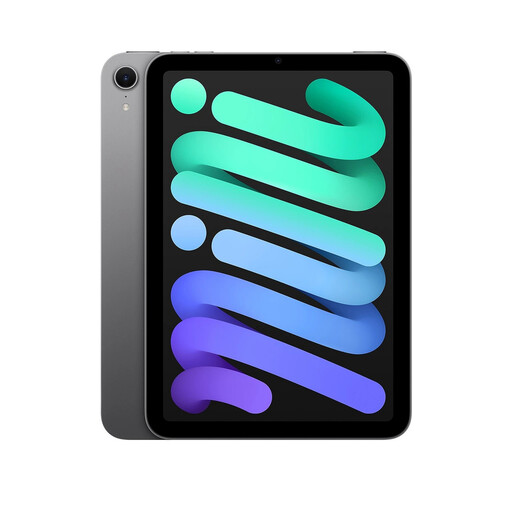
Apple iPad mini 7 (A17 Pro), 512GB, Space Grey
Consider this tablet when the main caller wants a personal device they can move around the home. This is the 512GB Space Grey variant; check the family’s calling app, account requirements and any simplified-control setup the caller needs.
View on Joybuy
 No image available
j5create JVU250 HD Webcam with Auto & Manual Focus Switch, Black
Consider this webcam for calls from a compatible computer when control over focus matters. The JVU250 is identified as an HD model with an auto and manual focus switch; check the computer connection and camera permissions in the intended app.
View on Joybuy
 No image available
Apple 11-inch iPad Air (2026, M4), Wi-Fi, 128GB, Starlight
Consider this tablet if a personal screen suits the caller better than a fixed household display. This is the 11-inch, Wi-Fi, 128GB Starlight variant; check the intended calling app and any camera-framing or simplified-control features needed for the call.
View on Joybuy
Frequently asked questions
Can relatives on Android or Windows join a FaceTime call?
Yes, through a FaceTime link created by an Apple-device user. Apple says guests need a current Chrome or Edge browser, a suitable connection and any required camera or microphone permissions; the host must admit them. FaceTime on the web does not include SharePlay or screen sharing.
Will a smart display work with any video-calling app?
No; choose one around the service your relatives can use. Amazon describes Alexa calling between supported Echo devices and the Alexa app, while Google says Meet calls remain available on supported smart displays but some Assistant-device meeting features are not.
Can a tablet make calling simpler for someone who needs fewer controls?
A compatible iPad may help if its setup matches the person’s needs. Apple says Assistive Access offers larger, more focused on-screen items; arranging contacts and account access may require help from a trusted supporter. Try the caller’s normal calling workflow before relying on it.
Can FaceTime Live Captions be relied on for every call?
No. Apple says Live Captions are available only on supported models and vary by language and region, while accuracy may vary. They should not be relied on in high-risk or emergency situations.


