What matters when choosing?
Decide where the aquarium will sit among your work windows, then check the screen’s fit, connections and panel-care requirements before focusing on its refresh rate.
| Concern |
What to check |
Who this matters to |
| Aquarium visuals |
Compare native resolution, screen size, panel type and glare treatment; check how work text looks at your preferred scaling. |
If the aquarium is my main visual feature, I want its detail and dark scenes to look appealing without making work text awkward to read. Roughly 27% of consumers would put visual detail first. |
| Work connections |
Check your laptop’s USB-C video and charging modes against the monitor’s power delivery, inputs and any KVM function. |
When I move between a laptop and gaming device, I need the screen and peripherals to fit that routine. Around 27% of consumers would make work connectivity their primary concern. |
| Static office content |
For OLED, read the exact model’s guidance on screen savers, screen movement and image cleaning. |
If fixed taskbars or dashboards stay visible for long stretches, I do not want to overlook the upkeep that comes with my panel choice. About 20% of consumers would prioritise this concern. |
| Desk fit |
Measure usable width and depth, stand footprint and viewing distance; check height adjustment or mounting options. |
If my desk is shallow or crowded, I need to position the whole screen comfortably before gaining more width for the aquarium. Roughly 26% of consumers would put workstation fit first. |
Relevant monitor brands
These product-line examples show which model-specific features to compare; a feature on one monitor should not be assumed across its brand.
Samsung Odyssey
Relevant if you want to compare a 27-inch 4K OLED gaming display with laptop connectivity.
- Samsung lists 4K QD-OLED, 240Hz, glare reduction and 98W USB-C for the Odyssey OLED G8 G80SH.
- Check your intended model’s connections and panel-care guidance rather than applying the G80SH specifications to other Odyssey displays.
LG UltraGear
Relevant if you want an ultrawide aquarium alongside work windows and have room for a large screen.
- LG lists a 45-inch, 21:9, 5K2K curved OLED panel and 90W USB-C power delivery for the 45GX950A.
- Check whether that model fits your desk and follow its OLED-care guidance if office content remains fixed for long periods.
Alienware
Relevant if a 32-inch 4K OLED format and an adjustable stand suit your workstation.
- Dell lists 4K QD-OLED, 240Hz and height, swivel and tilt adjustment for the AW3225QF.
- Check the AW3225QF’s ports against your laptop and desktop rather than assuming a USB-C one-cable arrangement.
BenQ MOBIUZ
Relevant if you are comparing 32-inch 4K gaming displays for a multi-device desk, including Mini LED and OLED models.
- BenQ describes the EX321UX as a Mini LED model with local dimming and KVM; its EX321UZ OLED specifications list KVM and 90W USB-C power delivery.
- The two models use different panel technologies. Check the exact display’s ports, power delivery and stand before deciding.
Joybuy monitors for this setup
These monitors offer different ways to keep a virtual aquarium in a home-office setup: 4K OLED screens for a conventional workspace and wider OLED or VA screens for arranging windows side by side. Match the panel, connections and physical size to how you work.
 No image available
Dahua 32-inch 4K 165Hz curved OLED gaming monitor
Consider this 32-inch format if you want a 4K aquarium display that also serves as your main work screen.
The product title specifies 3840 × 2160, 165Hz and USB-C 65W. Check your laptop’s video and charging requirements, and read the exact model’s OLED-care instructions if fixed office windows will remain visible.
View on Joybuy
 No image available
Acer X Predator X49X 49-inch curved QD-OLED ultrawide monitor
The 32:9 format is worth considering if you intend to keep aquarium and work windows visible together.
The product title specifies a 49-inch QD-OLED panel, Double Quad HD resolution and 240Hz. Measure your desk and viewing position, and check the model’s OLED-care guidance before using it for prolonged fixed office layouts.
View on Joybuy
 No image available
Dahua 34-inch UWQHD 200Hz curved VA gaming monitor
This non-OLED ultrawide is an option if you want room for the aquarium beside office windows without choosing an OLED panel.
The product title specifies a 34-inch VA panel, 3440 × 1440 resolution, 200Hz and HDMI and DisplayPort inputs. Check that the curved screen fits your desk and that its connections suit your devices.
View on Joybuy
 No image available
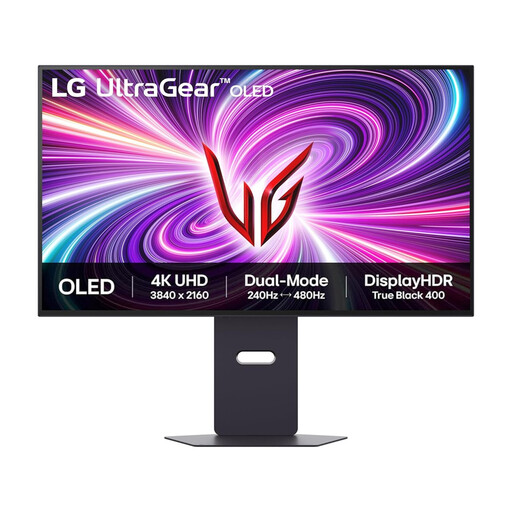
LG UltraGear 32GS95UV-B 32-inch 4K OLED gaming monitor
This 32-inch 4K OLED format may suit a desk where the aquarium and everyday work share one conventional screen.
Confirm that the monitor offered is the titled 32GS95UV-B variant: its accompanying technical details identify 32GS95UV-W. Check the exact variant’s specifications, connections and OLED-care instructions before buying.
View on Joybuy
 No image available
CRUA 49-inch 32:9 curved VA gaming monitor
Consider this non-OLED 32:9 screen if keeping the aquarium beside several work windows matters more to you than using a conventional-width display.
The product title specifies a 49-inch VA panel, 5120 × 1440 resolution and 165Hz. Check desk support, viewing distance and the listed HDMI and DisplayPort connections against your setup.
View on Joybuy
Questions about aquarium and office monitors
Is OLED sensible if I also show office apps all day?
OLED can suit an aquarium and gaming screen if you value dark-scene contrast and will follow the exact model’s care instructions. LG advises that a long-displayed fixed image may cause faint marks; check the monitor’s screen-move, screen-saver and image-cleaning guidance before committing to a static-heavy workday.
Will one USB-C cable display video and charge my work laptop?
Only if your laptop, cable and chosen monitor support the required video and charging modes. Samsung lists 98W USB-C for the Odyssey OLED G8 G80SH, while LG lists 90W power delivery for the 45GX950A; neither figure establishes compatibility with every laptop.
Where should I place a large monitor on my desk?
Start with the display directly in front of you, its top around eye level and the screen about an arm’s length away, as the Health and Safety Executive advises for display-screen work. Check whether the stand and desk depth allow that position, then adjust it for your eyesight and tasks.
Do I need a particular gaming-monitor specification to work from home?
The Health and Safety Executive’s display-screen guidance does not prescribe a particular gaming-monitor specification. It says the Display Screen Equipment Regulations apply to workers using a screen daily for continuous periods of an hour or more; assess the workstation and choose a screen you can position and use appropriately for your work.
Should I compare energy labels for monitors I will use all day?
Yes, compare the exact models’ energy labels and product information sheets rather than judging energy use from size or panel type alone. GOV.UK includes electronic displays within the scope of UK energy-labelling rules.


