What matters when choosing?
Work out how you will recover a separate copy before comparing enclosure capacity or network ports. Then check the computer's backup workflow, the drives you can use and the size of the files you expect to keep.
| Concern | What to check | Who this matters to |
|---|
| Recovery beyond the NAS |
Plan an offline or otherwise isolated copy, and test restoring a folder from it. |
If family files could be lost in the same incident as the computer and NAS, I need another place to recover them from. Around 36% of consumers put that separate recovery path first. |
| Usable capacity |
Estimate backup growth and retained versions; check compatible drives and capacity under the chosen storage layout. |
When photos, videos and device backups keep growing, I want enough usable space without confusing two drives' raw total with protected capacity. Roughly 29% of consumers make capacity and drive-failure tolerance their primary concern. |
| Backups and restores |
Confirm that the computer's backup application can use the NAS, run on a schedule and restore an earlier file. |
If backups depend on remembering a manual task, I need a routine I can maintain and a way to retrieve an older version. For around 21% of consumers, that workflow comes first. |
| Transfer speed |
Check the NAS, workstation and full network path before choosing faster Ethernet for larger jobs. |
With a large library or several devices backing up, I want transfers that fit around everyday computer use. About 14% of consumers prioritise network headroom for that need. |
NAS products on Joybuy
These enclosures offer a compact two-bay option and a four-bay option for planning household backups. Choose the computer's backup and restore method, compatible drives and a separate recovery copy alongside either enclosure.
 No image available
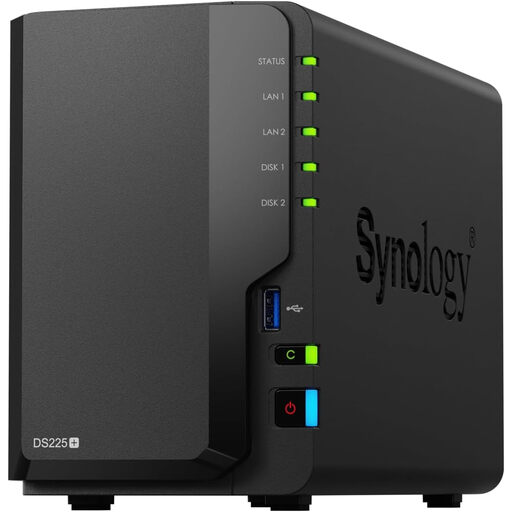
Synology DS225+ two-bay diskless NAS
Consider this enclosure for a central family-computer backup destination if the intended computer has a suitable scheduled backup and restore workflow.
It is sold as diskless, so select compatible drives separately and check usable capacity for your planned storage layout. Keep a further backup offline or otherwise isolated.
View on Joybuy
 No image available
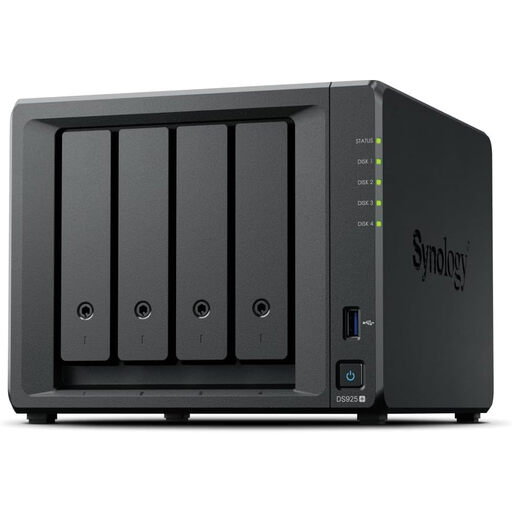
Synology DiskStation DS925+ four-bay NAS
Consider the four-bay format if your household backup plan calls for more drive positions than a two-bay enclosure provides.
Check which drives are included, the exact supported drive models and the computer's backup and restore workflow. Confirm any intended expansion unit before relying on expansion, and plan a separate isolated backup copy.
View on Joybuy
Frequently asked questions
Is a two-drive NAS a complete backup for a family computer?
No. A suitable two-drive layout can protect against one drive failing, but the NAS is still a connected device in the home. National Cyber Security Centre guidance recommends keeping a backup offline or digitally disconnected when it is not in use; test that the separate copy can be restored.
Should I choose an enclosure with drives or buy the drives separately?
Either approach can work if the drives suit the exact enclosure and your capacity plan. For separately selected drives, check the manufacturer's current compatibility list; for a bundle, check which drives are included. Calculate usable capacity under the storage layout you intend to use.
Do I need 2.5GbE to back up one computer?
Not necessarily. Consider 2.5GbE if large or frequent backups make network transfers inconvenient, but check the computer and every part of the network path first. A faster NAS port alone does not establish the speed of a backup job.
Can the same NAS back up Windows and Mac computers?
It can if the chosen NAS and each computer's backup application support the intended workflow. ASUSTOR describes Backup Plan for Windows PCs and Time Machine support for Macs; check the current documentation for the particular enclosure, operating systems and restore methods you plan to use.


