
24/7 Customer Support

Free returns

Same-day & Next-day Delivery

Quality Guaranteed

Unlock Your Welcome Offers: FREE Delivery | Up to 80% OFF | Free 30-day JoyPlus trial
Download the APP
Modern laptops are powerful, sleek and portable. Their one drawback? A distinct lack of ports. If you're juggling a charger, an external monitor, a mouse and a hard drive with only one or two USB-C inputs, you know the frustration of a cluttered desk and a constant shuffle of dongles. A capable USB-C docking station can solve this, transforming your laptop into a powerful and organised desktop workstation with a single cable.
This guide is designed to help you navigate the options and find a connectivity solution that fits your workflow. We will explore key features to consider and present a few standout models that cater to different needs, from simple expansion to a full-scale multi-monitor setup.
Selecting the right hub or dock depends entirely on how you plan to use it. Before you buy, consider these three crucial factors.
First, take stock of the devices you need to connect. Do you need multiple USB-A ports for a keyboard, mouse and external storage? Are you a photographer who needs SD and TF card readers? For many, the most important port is for an external screen. A USB-C hub with HDMI is a common requirement, but pay close attention to the specifications. For smooth, crisp visuals, look for support for 4K 60Hz, which provides a much better experience for video editing and general use than the older 30Hz standard.
One of the greatest benefits of USB-C is its ability to transmit data, video and power over a single connection. A docking station with power delivery (PD) allows you to charge your laptop through the dock itself. This means you can leave your laptop's charger in your bag. Check the wattage of the PD port—typically ranging from 60W to 100W. Ensure it meets or exceeds your laptop's power requirements to maintain a stable charge, especially under heavy load.
For many professionals and creatives, a single extra screen isn't enough. If you rely on an extended desktop for productivity, a dual monitor docking station is essential. Not all hubs can drive two external displays and capabilities can vary between Windows and macOS. If multiple monitors are a priority, verify that the dock explicitly supports this function and check the maximum resolution and refresh rate it can handle for each screen. This is a key feature for creating an immersive and efficient workspace, especially for a MacBook Pro docking station setup where screen real estate is at a premium.
Here are our recommendations for USB-C docking stations that offer a great balance of features, performance and value for UK users.
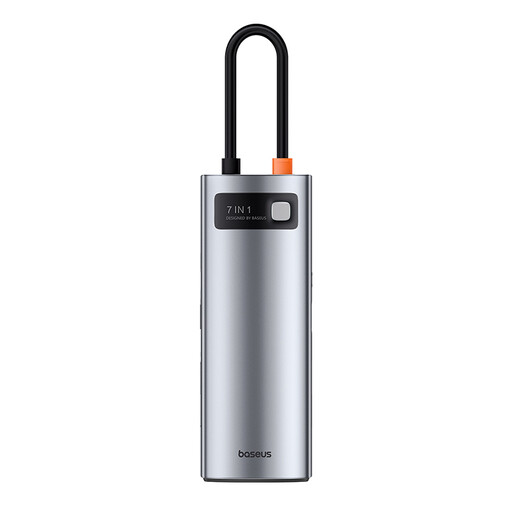
Why It Stands Out: This hub from Baseus is a fantastic all-rounder, striking a perfect balance between portability and functionality. Its durable metal alloy casing houses the essential ports most people need for a home office or travel setup, without unnecessary bulk.
Pros:
Who is it for? This is an excellent choice for students, hybrid workers and professionals who need a reliable and portable way to expand their laptop's connectivity. It covers all the daily essentials in a compact package.
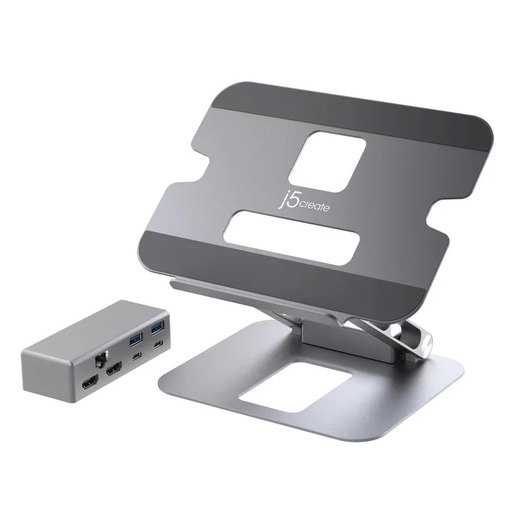
Why It Stands Out: The j5create JTS427 cleverly combines a powerful docking station with an ergonomic, multi-angle laptop stand. This two-in-one design not only expands your ports but also improves your posture and declutters your desk.
Pros:
Who is it for? This is ideal for anyone working from a fixed desk, whether at home or in the office. If you value ergonomics and want to build a clean, productive dual-screen setup, this integrated solution is hard to beat.
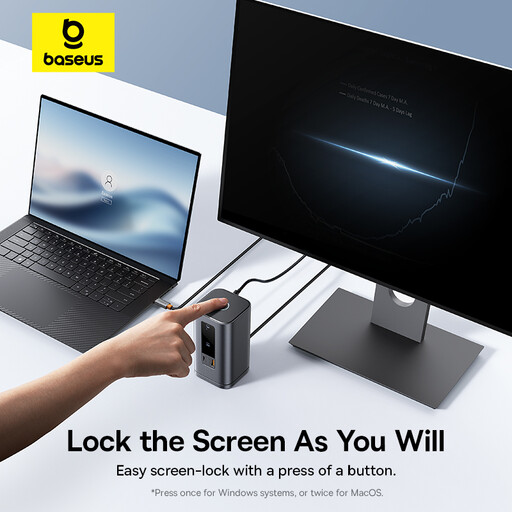
Why It Stands Out: For the ultimate power user, this 11-in-1 workstation is a connectivity powerhouse. It’s built for complex setups, offering an extensive array of high-performance ports that can handle almost any peripheral or display configuration you can imagine.
Pros:
Who is it for? This workstation is aimed at developers, video editors, financial analysts and anyone who needs the maximum number of connections and the highest possible performance. It’s particularly well-suited for Windows users looking to build an advanced multi-monitor command centre.
If our top picks don't quite match your specific needs, or you're curious about other form factors and port combinations, we have a wider selection to explore. Different setups call for different solutions, and the right one for you is out there.
Browse our full collection of Grey USB-C solutions to find the perfect match for your setup.
Generally, a USB-C hub is smaller, more portable and draws power from the laptop (bus-powered). It's designed for adding a few essential ports on the go. A laptop docking station is typically larger, designed for a stationary desk and often has its own power supply or supports high-wattage Power Delivery pass-through. Docks usually offer more ports and higher-performance capabilities, such as driving multiple high-resolution monitors.
Yes, most modern USB-C docking stations are designed to be compatible with devices like the MacBook Pro. However, it is important to check the specifications for features like multi-monitor support. Apple Silicon MacBooks (M1, M2 and M3) have native limitations on the number of external displays they can support, so for a dual monitor docking station, always verify that the product is compatible with your specific Mac model.
For the most part, no. The majority of USB-C hubs and docks are plug-and-play, meaning they work automatically when you connect them. Standard functions like USB ports, card readers and single HDMI outputs rarely require drivers. However, some advanced docks that use specific technologies (like DisplayLink) to enable multi-monitor support on certain systems may require a one-time driver installation. It is always a good practice to check the product's support page for any specific instructions.