What should you check before buying?
Decide what needs backing up and where the copy will live, then check the capacity and connections against your devices.
| Priority | What to check | Your needs |
|---|
| Backup routine |
Choose a location separate from the original files. Plan regular copies, a test restoration and a way to disconnect a physical backup when it is not in use, as the National Cyber Security Centre advises. |
I want to recover important photos or documents if the originals are lost or damaged, rather than just free up space on one device. |
| Capacity |
Measure the folders you intend to protect and allow for new files. For a system backup, Which? advises a drive at least as large as the system drive; a files-only backup may need a different amount. |
My photo and video collection is growing, so I need space for the files I have now and those I plan to keep. |
| Handling and transfers |
Consider how often you carry the drive and move large files. Which? describes SSDs as faster and less susceptible to knocks than mechanical HDDs; check the host, cable and USB mode before relying on an advertised speed. |
For frequent transfers or travel, I care about carrying the drive. For a backup kept mostly at home, I may put more emphasis on room for my files. |
| Device compatibility |
Check each device’s connector and the drive’s stated compatibility. Before changing a disk’s format, copy its existing files elsewhere: Apple Support warns that formatting erases them. |
I need to use the copy on my intended computers or phones without accidentally erasing files already on the drive. |
| Private files |
Check the exact model’s password or encryption features and how to retain access. Microsoft says BitLocker Drive Encryption is available on Windows Pro, Enterprise and Education, but not Windows Home. |
If I carry personal documents or photos, I want to control access without losing the information needed to unlock my copy. |
Joybuy storage options
These options cover portable SSDs for local photo and file copies, plus a flash drive for moving selected files between devices. Choose by the files you need to keep and the connections on your devices.
 No image available
Samsung Portable SSD T7 4 TB, grey
Consider this portable SSD for a sizeable local photo or computer-file copy if 4 TB fits your backup plan. Its name specifies USB Type-C and USB 3.2 Gen 2; check the supplied format and your devices’ connections before copying files.
View on Joybuy
 No image available
Samsung Portable SSD T7 2 TB, blue
This portable SSD is an option for carrying a local copy when 2 TB covers the files you intend to protect. Its name specifies USB Type-C and USB 3.2 Gen 2; confirm the intended devices’ ports and the drive’s supplied format.
View on Joybuy
 No image available
SanDisk Portable SSD 2TB
The stated 2TB capacity makes this a portable-SSD option for a photo or file collection of that size. Check its connector, device compatibility and supplied format before using it across computers.
View on Joybuy
 No image available
Samsung T7 Shield MU-PE1T0S 1TB, black
Consider this 1TB portable SSD if you carry a smaller file collection between locations. Samsung UK states up to 1,050 MB/s read and 1,000 MB/s write for the T7 Shield, but says maximum speeds require a compatible USB 3.2 Gen 2/UASP host and cable; check the supplied format too.
View on Joybuy
 No image available
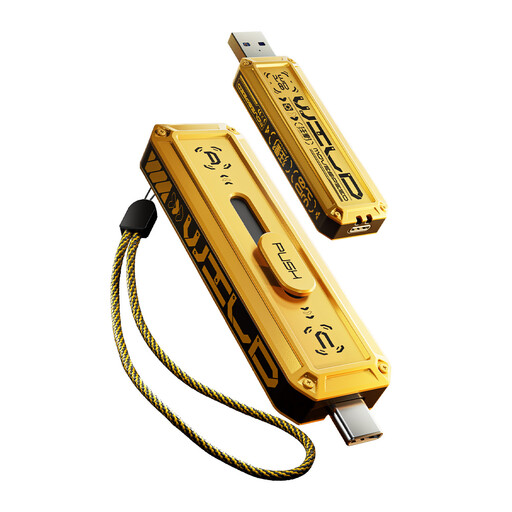
MOVESPEED YSUWD10-1TSY 1TB dual-interface USB drive, yellow
This flash drive is an option for transferring selected files rather than serving as the household’s only archive. Its title identifies USB 3.2 Gen 2×1 and Type-C interfaces; check the connectors and file format against each device you intend to use.
View on Joybuy
Frequently asked questions
Should I use an external drive or cloud storage for photos?
Either can hold a separate copy; using both gives you copies in different locations if they fit your routine. The National Cyber Security Centre describes backups on removable media or online and advises checking that important files can be restored. Confirm which photos each service or drive actually copies.
How much capacity does a backup drive need?
Start with the size of the files you will back up and allow room for new photos, videos and any older copies you intend to retain. Which? advises at least the size of the system drive for a computer backup, and potentially more for system backups; a files-only copy may have different requirements.
Can one external drive work with Windows and Mac?
Yes, if its format suits both computers and its connection is compatible. Apple Support identifies ExFAT for a Windows-and-Mac disk over 32GB. Formatting erases existing files, so move them to another location before changing the format.
How can I make regular backups from a Windows computer?
Microsoft Support says File History can make regular copies to an external drive or network location. Select the backup destination, check that the folders you care about are included and restore a test file periodically; disconnect a removable backup drive when it is not being used.
Should I encrypt a portable backup drive?
Consider encryption or password protection if the drive carries private files, but plan how you will unlock it later. Microsoft says BitLocker Drive Encryption requires a supported Windows edition and warns against keeping a recovery-key USB drive with the computer. Check the exact drive and operating system before relying on a particular encryption feature.


