For PC football games on a desk also used for work, start with a QHD high-refresh monitor whose stand and connections suit that setup. If a PS5 or Xbox Series X is your main gaming device, prioritise the HDMI modes you want to use; consider OLED or QD-OLED for a PC-first setup only after checking its input limits and panel-care terms.
Who is each setup for?
PC players sharing a work desk
If the same screen handles football games and everyday desk tasks, look at QHD resolution, the refresh mode available from your PC and how the stand fits your workspace. ASUS ROG UK specifies QHD, up to 180Hz and height adjustment for the XG27ACS, though its maximum refresh rate differs by input.
Console-first players seeking 4K and 120Hz capability
Start with the monitor’s HDMI resolution and refresh modes, then check the mode offered by the football game you intend to play. Sony United Kingdom specifies HDMI up to 120Hz for the 4K INZONE M9; console capability alone does not establish what every game will output.
PC players considering OLED or QD-OLED
These panels may appeal if their stated contrast and response characteristics are priorities alongside office use. LG UK specifies a QHD 240Hz OLED model, while Dell UK specifies a QHD 360Hz QD-OLED model; check the connection-specific mode and the manufacturer’s panel-care guidance for the exact model.
What matters when choosing?
Decide whether the PC or console sets your requirements, then check the monitor’s modes through the input you will actually use. Desk adjustment and device switching matter separately from the panel’s headline refresh rate.
| Concern |
What to check |
Who this matters to |
| Smooth play and connections |
Check the resolution, refresh rate and variable refresh rate available through your chosen input, as well as the source device’s output. |
If I play on a PC, I want the connection I use to deliver the motion settings I chose the monitor for. Around 31% of consumers put this input-and-motion need first. |
| Console 4K and 120Hz modes |
Check the monitor’s HDMI modes and, where needed, variable refresh rate and automatic low-latency mode; confirm the intended game’s output mode. |
With a console as my main gaming device, I would choose around the display mode my games can use rather than a PC-only refresh figure. For around 31% of consumers, console connectivity is the primary need. |
| Shared-desk use |
Check stand adjustment and the inputs you need; for a work laptop, confirm USB-C video compatibility and any required device-switching features. |
When work and gaming share one desk, I need to position the screen comfortably and connect my devices without awkward changes. That is the main concern for around 23% of consumers. |
| OLED or QD-OLED characteristics |
Check the exact panel type, quoted response specification, mode through your chosen port, panel-care guidance and warranty terms. |
If panel characteristics take priority in my PC setup, I would accept the extra checks involved in using OLED alongside office work. Around 15% of consumers make this panel choice their primary concern. |
Checks that are easy to miss
-
Assuming the headline refresh rate works through every port
The connection can change the maximum mode. Dell UK specifies QHD 360Hz through DisplayPort but QHD 144Hz through HDMI for the AW2725DF; ASUS ROG UK specifies up to 180Hz through USB-C or DisplayPort but up to 144Hz through HDMI for the XG27ACS.
Match the monitor’s per-port specification to your PC or console and the connection you plan to use.
-
Treating HDMI 2.1, 4K and 120Hz as one guarantee
These labels do not, by themselves, establish the mode available in a particular football game. Sony United Kingdom specifies 4K resolution, HDMI up to 120Hz, HDMI 2.1 variable refresh rate and automatic low-latency mode for the INZONE M9; the selected console and game still matter.
Check the monitor’s HDMI specification and the game’s supported console mode together.
-
Expecting USB-C or KVM to resolve every desk connection
BenQ UK lists USB-C and a built-in keyboard, video and mouse switch on the EX271Q, but using those features as intended still depends on the connected devices and their video-output capabilities.
Confirm your laptop’s USB-C video support, any charging requirement and how the monitor switches the peripherals you use.
Relevant monitor lines for reference
LG UltraGear
LG UK specifies the 27GS95QE-B as a 27-inch QHD OLED monitor with a 240Hz refresh rate.
- The named model offers a QHD OLED route for a PC-led setup; LG UK also specifies QHD at 240Hz through HDMI 2.1.
- Confirm your source device’s output mode and review the model’s panel-care terms for a desk also used for work.
Alienware
Dell UK specifies the AW2725DF as a QHD QD-OLED monitor with a 360Hz mode through DisplayPort.
- Its published DisplayPort mode makes the named model relevant to a PC-first high-refresh setup.
- Dell UK specifies a QHD 144Hz maximum through HDMI for the AW2725DF, so an HDMI-led setup should not be chosen on its 360Hz figure alone.
BenQ MOBIUZ
BenQ UK lists the EX271Q as a 27-inch QHD 180Hz monitor with HDMI 2.1, USB-C and a built-in KVM.
- The listed connections and switching feature are relevant when gaming and work devices share a desk.
- Check the laptop’s video output and the modes available through each connection before relying on the planned switching setup.
ASUS ROG
ASUS ROG UK specifies the QHD XG27ACS with a height-adjustable stand and a maximum 180Hz refresh rate.
- The named model offers height, tilt, swivel and pivot adjustment for a shared desk.
- ASUS ROG UK specifies up to 180Hz through USB-C or DisplayPort, compared with up to 144Hz through HDMI on this model.
Sony INZONE
Sony United Kingdom specifies the 27-inch INZONE M9 as a 4K IPS LCD monitor with HDMI up to 120Hz.
- Sony also specifies HDMI 2.1 variable refresh rate and automatic low-latency mode for this console-oriented model.
- It is an IPS LCD rather than OLED; check the intended game mode and your PC’s requirements before choosing a 4K screen.
Joybuy monitors for these setups
These choices span QHD high-refresh play, QHD OLED gaming and a 4K dual-mode option. Choose by your main device and connection before comparing the panel features that matter at your desk.
 No image available
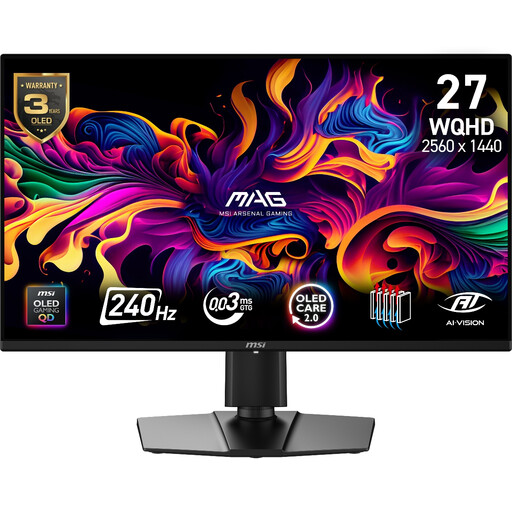
MAG 274QP QD-OLED X24, 27-inch QHD 240Hz
Consider this model if QHD OLED gaming is a priority on a desk also used for work.
Its product name specifies a 27-inch, 2560 × 1440 QD-OLED display, 240Hz and Adaptive-Sync. Check the mode available from your chosen device and connection, alongside the manufacturer’s panel-care guidance.
Joybuy
 No image available
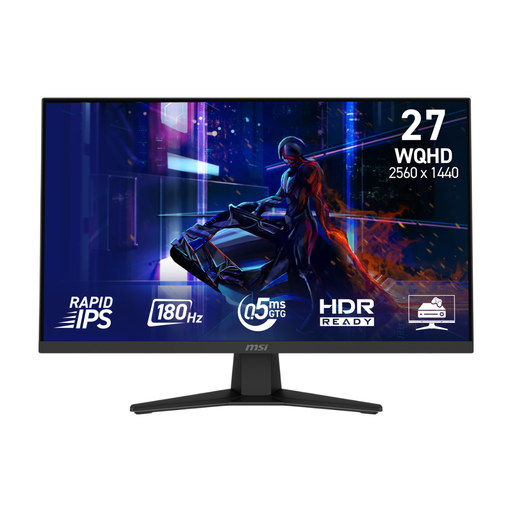
MSI MAG 274QF, 27-inch WQHD 180Hz
This is a QHD high-refresh option to consider for PC football games without making OLED a requirement.
Its product name specifies a 27-inch Rapid IPS display, WQHD resolution, 180Hz and Adaptive Sync. If stand height matters at your work desk, check whether its tilt-adjustable stand or a compatible mount meets your needs; also confirm the refresh mode through your chosen input.
Joybuy
 No image available
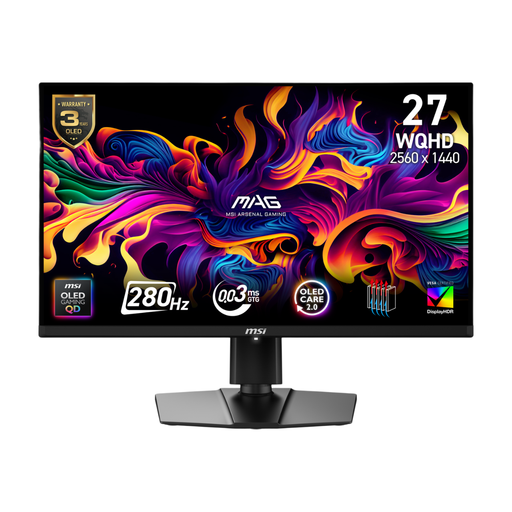
MSI MAG 271QP QD-OLED X28, 27-inch QHD 280Hz
Consider this model for a PC-first QHD setup if QD-OLED is one of your main selection criteria.
Its product name specifies QHD QD-OLED and 280Hz. Before choosing it for a particular PC or console, confirm the maximum mode through the input you will use and review the manufacturer’s panel-care and warranty terms.
Joybuy
 No image available
Samsung Odyssey G6 S27DG612, 27-inch QHD OLED 240Hz
This is another QHD OLED option for consumers weighing panel choice alongside high-refresh PC play.
Its product name specifies a 27-inch QHD OLED display and 240Hz. Confirm the refresh mode available through your intended connection, and check panel-care guidance for your mix of gaming and office work.
Joybuy
 No image available
LG UltraGear G8 27G850A, 27-inch 4K dual-mode
Consider this 4K option if console connectivity or a separate high-refresh PC mode shapes your choice.
Its product name specifies a 27-inch 4K Nano IPS display, dual-mode 240Hz/480Hz operation, DisplayPort 2.1 and HDMI 2.1. Confirm which resolution and refresh combinations work through your chosen input and with your game system before relying on either mode.
Joybuy
Questions before you buy
Do I need a 360Hz monitor for football games on a console?
No: choose around the monitor’s HDMI mode and the output available from your console and game. Dell UK specifies the AW2725DF at QHD 360Hz through DisplayPort but QHD 144Hz through HDMI; Microsoft Store UK describes Xbox Series X as supporting up to 120 frames per second, not 360.
Where should I start for PC games and home-office work on one screen?
A QHD high-refresh monitor with useful stand adjustment and the right PC input is a practical starting point. For example, ASUS ROG UK specifies the XG27ACS at up to 180Hz through USB-C or DisplayPort but up to 144Hz through HDMI, so check the connection you will use before choosing.
Will USB-C and KVM run my work laptop at the monitor’s highest refresh rate?
Not necessarily: the laptop’s video output and the monitor’s input limits determine the available mode. BenQ UK lists USB-C and KVM on the EX271Q, but you should confirm your laptop’s USB-C video capability and any charging or peripheral-switching requirements separately.


