
24/7 Customer Support

Free returns

Same-day & Next-day Delivery

Quality Guaranteed

Unlock Your Welcome Offers: FREE Delivery | Up to 80% OFF | Free 30-day JoyPlus trial
Download the APP
Modern laptops are thinner and lighter than ever, but this sleek design often comes at a cost: a lack of ports. If you've found yourself with a new MacBook, Dell XPS or Surface and are wondering how to connect your monitor, mouse and external hard drive all at once, you're not alone. The solution is a USB-C hub, a single device that can restore and expand your laptop's connectivity.
Navigating the market for the right hub can be confusing. With so many options, how do you choose one that fits your needs without overpaying for features you won't use? As a Joybuy Product Recommendation Officer, my role is to help you understand the key features to look for. This guide will walk you through what matters when choosing a hub and present some carefully selected options for different user needs.
Before you add a hub to your basket, consider these practical points to ensure it matches your workflow.
The primary function of a USB C multiport adapter is to give you back the ports your laptop is missing. Take stock of the devices you use daily.
Many slim laptops charge via their USB-C port. A USB C hub with PD charging allows you to power your laptop through the hub itself. This is crucial, as it means you don't lose your only charging port when the hub is connected. Check the wattage of the PD port. A hub offering 100W Power Delivery is a strong choice, as it can comfortably charge most powerful laptops, like a MacBook Pro, while also powering all connected accessories.
Not all USB ports are created equal. If you frequently move large files, look for hubs with USB 3.0, USB 3.1 or USB 3.2 ports, which offer significantly faster transfer speeds (5Gbps or 10Gbps) compared to the older USB 2.0 standard (480Mbps). For the most demanding workflows involving high-resolution video editing, a Thunderbolt 3 hub offers the fastest connection available, but these are often more specialised.
Based on a balance of functionality, port selection and user needs, here are our recommendations.
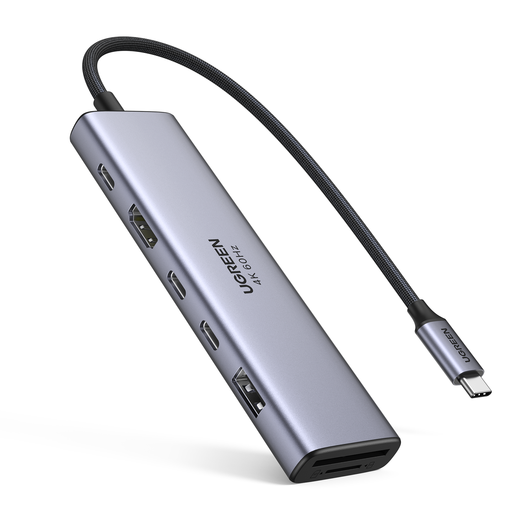
Why It Stands Out: This UGREEN model strikes an excellent balance for the everyday professional or student. It covers all the essential bases without overwhelming you with ports you may not need. It features modern, fast data ports (USB-A 3.2 and USB-C 3.2) for quick file transfers, alongside the crucial HDMI and card reader slots.
Pros:
Who is it for? This is a great all-rounder for office professionals, students and casual users who need to connect a monitor, transfer files from various sources and keep their laptop charged through a single, compact device.
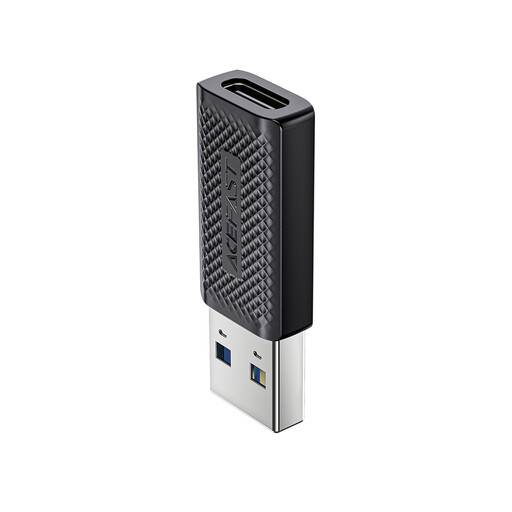
Why It Stands Out: Sometimes, less is more. The ACEFAST J2 isn't a hub, but a simple, single-purpose adapter. Its value lies in its portability and simplicity. It solves one problem perfectly: connecting a legacy USB-A device (like a wireless mouse dongle or an older flash drive) to a modern USB-C port.
Pros:
Who is it for? The minimalist who doesn't need a full multiport hub. It's perfect for travellers or anyone who just needs to connect one or two specific USB-A devices and values portability above all else.
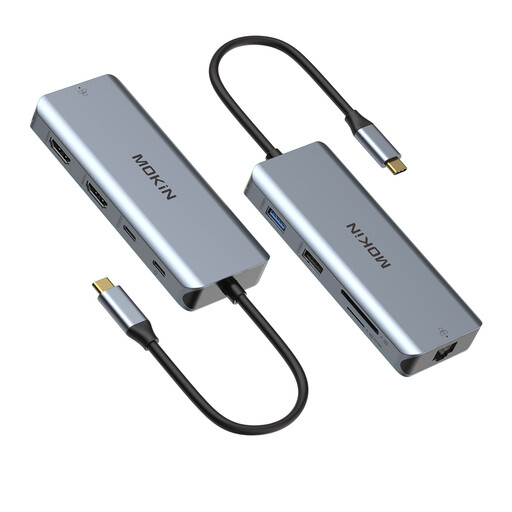
Why It Stands Out: This is a powerhouse solution for users who need to create a full-featured workstation. Its standout feature is the dual HDMI ports, allowing you to run a multi-monitor setup from a single USB-C port on your laptop. Combined with a Gigabit Ethernet port and a full suite of data and charging options, it effectively acts as a portable USB C docking station.
Pros:
Who is it for? Content creators, software developers, financial analysts and anyone who relies on a dual-monitor setup for productivity. It's the ideal choice for turning your laptop into a desktop-grade workstation at home or in the office.
If a full hub seems like more than you need, and your main goal is to connect an older USB-A device to your new laptop, a dedicated adapter is often the most straightforward solution.
For a focused and portable option, explore our range of USB-C to USB-A adapters.
1. What is the difference between a USB-C hub and a USB-C docking station? Generally, a USB-C hub is smaller, more portable and draws power directly from the laptop (bus-powered). A USB C docking station is typically larger, has its own external power supply and is designed for a stationary desk setup. Docking stations can often support more high-powered peripherals and more complex multi-monitor configurations.
2. Can I use any USB-C hub with my MacBook Pro? Most USB-C hubs are compatible with a MacBook Pro, but it's important to check the specifics. Ensure the hub's PD charging wattage is sufficient for your model (e.g., 87W or 96W). Also, be aware that base-level Apple Silicon laptops (M1/M2) only natively support one external display. To run two, you would need a hub that uses specific DisplayLink technology.
3. Will a USB-C hub slow down my internet or data transfer speeds? A well-made hub should not cause significant slowdowns. To ensure performance, choose a hub with a Gigabit Ethernet port (1000Mbps) for a fast wired connection and look for data ports labelled USB 3.0 or higher for rapid file transfers. Hubs with dedicated chipsets for each function are better at managing performance across all connected devices.