For competitive movement practice at a small desk, start with a compact Full HD monitor, then choose a refresh-rate route your PC and connection can actually use. A 320Hz Fast IPS model offers an adjustable all-round setup; the ZOWIE XL2566K takes a specialist 360Hz TN approach, but its DyAc+ mode cannot run with variable refresh rate (VRR). Check the operating modes and feature trade-offs before moving to a 380Hz or 500Hz model.
Who these monitors suit
Movement-clarity-first FPS players
You chiefly practise fast strafes, target tracking and rapid camera movement, and are willing to consider a specialist Full HD esports monitor. For the ZOWIE XL2566K, weigh the brand's DyAc+ motion-clarity claims against its restriction on using that mode with VRR.
Small-desk competitive all-rounders
You want room for a compact monitor and your keyboard and mouse, while still being able to position the screen for everyday PC use. Check desk depth and stand adjustment as carefully as the refresh rate.
High-frame-rate PC owners
You are considering a 360Hz-or-higher display and can check whether your games, graphics output and chosen connection support the mode you intend to use. A monitor's headline refresh rate alone does not establish what your setup will deliver.
What matters when choosing
Choose the monitor route by the movement features you want to use, then check whether its input limits and stand fit your setup.
320Hz Fast IPS
Consider it when: You want a compact competitive screen with adjustable positioning; Dell lists height, swivel and pivot adjustment for the Alienware AW2525HM.
Trade-off: Dell specifies 320Hz through DisplayPort but 255Hz through HDMI on that model.
360Hz TN with DyAc+
Consider it when: You want to assess the specialist motion-clarity mode on ZOWIE's XL2566K for rapid movement practice.
Trade-off: ZOWIE says DyAc+ must be turned off to use VRR on this model; its clarity claims are the brand's own.
380Hz overclocked Fast IPS
Consider it when: You want to examine ASUS ROG's XG259QN, which lists ELMB Sync for use with Adaptive-Sync.
Trade-off: Its 380Hz specification is an overclocked mode, and ASUS says aspect-ratio control requires VRR to be off.
500Hz-designated Fast IPS
Consider it when: Extra refresh-rate headroom is a deliberate priority and you can check the operating mode for Dell's Alienware AW2524HF.
Trade-off: Dell distinguishes its HDMI refresh limit from higher-refresh operation; the monitor's designation does not tell you what a particular game will render.
| Concern |
What to check |
Who this matters to |
| Fast-motion clarity |
Compare the exact model's refresh and motion modes, including whether blur reduction works with VRR. |
If tracking fast targets is my main reason for changing monitors, I need to decide which motion mode I would use. Roughly 31% of consumers would put fast-motion clarity first. |
| Desk fit and positioning |
Measure usable desk depth and stand footprint; check height adjustment or mounting options. |
With little room behind my keyboard, I need a screen I can position at a workable distance. Around 31% of consumers would make desk fit and positioning their primary concern. |
| PC and connection fit |
Check the maximum refresh rate on the intended input and whether your graphics output supports the VRR mode you want. |
I do not want to choose a high-Hz display before checking what my PC and games can use. Approximately 23% of consumers would prioritise system and connection fit. |
| Everyday use |
Consider the stated panel type and adjustment range alongside the competitive features you need. |
If this is also my everyday PC screen, its use outside practice matters to my choice. Roughly 15% of consumers would put that mixed-use fit first. |
Buying pitfalls
-
Assuming every input reaches the headline refresh rate
Dell lists the Alienware AW2525HM at 320Hz through DisplayPort and 255Hz through HDMI. Its AW2524HF specifications also distinguish the HDMI mode from higher-refresh operation.
Check your source device's output and the monitor's supported mode for that exact input before choosing a cable and connecting the screen.
-
Assuming blur reduction always works with VRR
The feature combination varies by model: ZOWIE says DyAc+ cannot run with VRR on the XL2566K, while ASUS lists ELMB Sync for use with Adaptive-Sync on the XG259QN.
If your frame rate fluctuates, check the operating modes for the exact monitor and decide which feature you would use during practice.
-
Choosing screen size without measuring desk depth
A screen and its stand need to leave room for your preferred viewing position and controls. The Health and Safety Executive advises placing a display about an arm's length away, with its top around eye level.
Measure the space available with your keyboard and mouse in place, then check the stand's adjustment and any mounting option.
If the supplied stand cannot reach the position you need, a suitable monitor arm may be necessary.
-
Treating one refresh or response-time figure as a motion verdict
A refresh-rate specification does not describe every operating mode or how a monitor looks during movement. Manufacturers' motion-clarity statements apply to their stated models and conditions, not to every monitor with a similar number.
Compare model-specific input limits, motion settings and VRR interactions rather than choosing solely by the largest figure.
Relevant brands for reference
Alienware
Dell UK lists compact Full HD Fast IPS models including the 320Hz-designated AW2525HM and 500Hz-designated AW2524HF.
- Dell specifies height, swivel and pivot adjustment for the AW2525HM.
- The AW2525HM reaches its listed 320Hz through DisplayPort, not its listed HDMI mode; check the input-specific modes on either model.
ZOWIE
ZOWIE's XL2566K is a 24.5-inch, 360Hz TN esports monitor with the brand's DyAc+ mode.
- ZOWIE attributes clearer moving outlines during fast play to DyAc+ on the XL2566K; this is the brand's claim.
- ZOWIE says DyAc+ is incompatible with VRR on the XL2566K.
ASUS ROG
ASUS ROG lists the compact Full HD Fast IPS XG259QN with a 380Hz overclocked mode.
- ASUS lists ELMB Sync for use with Adaptive-Sync on the XG259QN.
- ASUS says the XG259QN's aspect-ratio control requires VRR to be off, a consideration for players using that setting.
Compact monitors on Joybuy
These compact Full HD choices offer listed refresh rates of 100Hz or 144Hz for small-desk gaming. They are alternatives to consider if those modes meet your needs, rather than examples of the 320Hz-and-higher esports routes discussed above.
 No image available
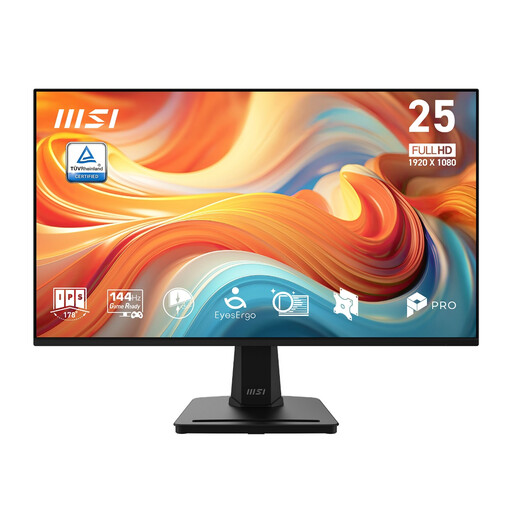
MSI PRO MP251 E14L 24.5-inch Full HD 144Hz monitor
Consider this compact display if 144Hz meets your movement-practice needs and you also want an IPS panel for everyday use.
The product name specifies 1920 × 1080 resolution and Adaptive-Sync. Check your PC's output and the screen position you can achieve at your desk.
View on Joybuy
 No image available
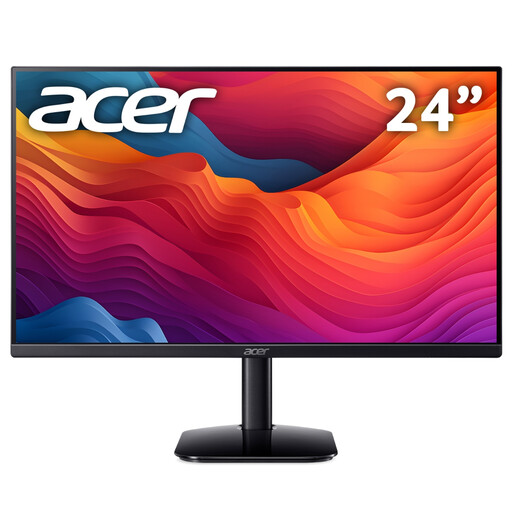
Acer KB2 KB242YP0 23.8-inch Full HD 144Hz monitor
Consider this smaller-format option if 144Hz is sufficient for your practice and a 23.8-inch screen suits your desk.
The product name specifies 1920 × 1080 resolution and FreeSync. Confirm the connection and positioning you intend to use rather than relying on its response-time headline.
View on Joybuy
 No image available
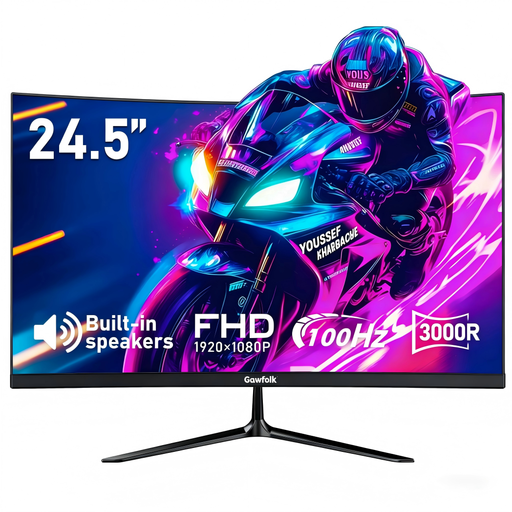
Gawfolk 24.5-inch 3000R curved Full HD 100Hz monitor
Consider this curved compact screen only if its 100Hz specification meets your practice needs; it is a different refresh-rate choice from the higher-Hz esports models.
The product name lists FreeSync, HDMI and 75 × 75 mm VESA mounting. Check the intended input mode, desk fit and mounting arrangement before buying.
View on Joybuy
Frequently asked questions
Is a 24.5-inch monitor sensible for movement practice at a small desk?
A 24.5-inch Full HD monitor is one compact format used by the esports models discussed here, but its size alone does not settle desk fit. Measure the space available with your controls in place; the Health and Safety Executive advises positioning a display about an arm's length away, with its top around eye level.
Do I need DisplayPort to use a monitor's highest refresh rate?
For Dell's Alienware AW2525HM, the listed 320Hz mode uses DisplayPort, while HDMI is listed at 255Hz. Other monitors and source devices can have different limits, so check the exact input modes, PC output and cable path rather than assuming either connector reaches the advertised maximum.
Can VRR and motion-blur reduction run together?
They can on some models, but not in every mode. ZOWIE says DyAc+ must be off to use VRR on the XL2566K, whereas ASUS lists ELMB Sync for use with Adaptive-Sync on the XG259QN. Check the feature combination for the exact monitor you plan to use.


