Choose a portable HDD when you mainly need a sizeable, separate copy of photos and computer files; consider a portable SSD when you regularly move large folders or carry the drive often. A desktop drive suits an archive kept near a power socket, while a USB flash drive makes more sense for transferring a limited set of files. Whichever route you take, check capacity, device connections and file-system compatibility before relying on it for backups.
Who needs which kind of storage?
People backing up growing photo libraries
If photos, documents and laptop files are accumulating, look for enough room to keep a separate copy and repeat the backup as the collection grows. The National Cyber Security Centre advises keeping important data in a separate, safe location.
People moving large folders frequently
If you regularly copy image, video or project folders, transfer time may influence your choice. Which? describes SSDs as faster than HDDs, though the speed of an individual drive depends on its connection and the devices used.
People sharing files across devices
If the same drive must work with Windows, Mac or an iPhone, check its format, connector and power requirements before copying files. Apple sets specific format and partition requirements for storage connected to iPhone.
What matters when choosing a drive?
Decide whether the drive will chiefly hold a recurring backup, move large folders, travel with you or connect to several devices. That primary job helps narrow the storage route before you compare individual models.
Portable HDD
Choose it when: You need a sizeable backup of photos and laptop files that you will carry only occasionally.
Allow for: Slower transfers than the SSD route described by Which?, and careful handling of a drive with moving parts.
Portable SSD
Choose it when: You frequently transfer large folders or want a compact drive to carry.
Allow for: Checking the host and cable before expecting a quoted peak speed; rugged claims also depend on the exact model and test conditions.
Desktop external drive
Choose it when: A large archive can stay at a desk rather than move between locations.
Allow for: Desk space and mains power. Seagate’s Expansion Desktop line, for example, uses a power adapter.
USB flash drive
Choose it when: You need to hand over files or carry a limited selection between compatible devices.
Allow for: Planning capacity and a repeatable routine separately if you intend to use it for backups, rather than treating file transfer as a backup plan.
| Concern |
What to check |
Who this matters to |
| Backup capacity |
Measure the folders to be copied and leave room for future files and repeat backups. |
I want a separate copy of a growing photo library without deciding which folders to leave out each time. Around 36% of consumers would put backup capacity first. |
| Transfer speed |
Check the drive interface, computer port and cable; treat quoted speeds as conditional maximums. |
When I move large photo or video folders regularly, waiting for copies to finish matters more than archive size. Roughly 29% of consumers would prioritise transfer speed. |
| Device compatibility |
Confirm the file system, connector and, for phone use, partition and power requirements. |
I need the same files on different computers or a phone, so the drive must be readable where I use it. Around 21% of consumers would make compatibility their primary concern. |
| Carrying and resilience |
Check the exact model’s size, stated protection tests and warranty exclusions. |
If the drive often travels with me, I want to understand how it should be handled away from a desk. About 14% of consumers would put portability and resilience first. |
Mistakes to avoid
-
Assuming USB-C guarantees speed and compatibility
A connector’s shape alone does not establish the cable’s capability, the host’s supported speed, the drive’s format or whether a phone can power it. Samsung specifies host and cable conditions for the T7 Shield’s rated peak speed.
Check the ports on each device you intend to use, the supplied cable and the drive interface. For phone use, also check whether an adapter or powered hub is needed.
-
Changing the format after filling the drive
Formatting erases existing files. A format chosen for one computer may also need reconsidering before sharing the drive with another device.
Decide which devices must read and write the drive before setting it up, and keep another copy of any existing files before reformatting.
-
Treating a rugged drive as a complete backup plan
A drive can still be lost, damaged or inaccessible. Samsung describes the T7 Shield’s ingress and drop figures as controlled-test claims and excludes liquid, dust and drop damage from its warranty.
Keep important files as a separate copy in a safe location and check that you can open or restore them. Do not rely on a speed rating or protective enclosure alone.
-
Choosing desktop storage for a drive you need to carry
A desktop model needs a suitable place and power connection; Seagate’s Expansion Desktop, for instance, uses an 18W adapter. A portable drive avoids that desk-power arrangement but must still have enough space for the intended files.
Work out where the drive will normally be used, then compare its capacity with both today’s files and the backups you expect to add.
Brands and product lines to consider
Western Digital
The My Passport USB-C portable HDD line is relevant when a carryable, higher-capacity file backup matters more than an SSD-led transfer workflow.
- Western Digital lists 2TB, 4TB, 5TB and 6TB versions of this line, with USB-C connectivity.
- Check the exact model’s format, software features and compatibility with the devices on which you will use it; features of this line do not apply to every Western Digital drive.
Samsung
The portable T7 Shield SSD line is relevant to frequent transfers and to buyers considering a model with stated ingress and drop protection.
- Samsung lists 1TB, 2TB and 4TB versions and rates the T7 Shield at up to 1,050MB/s read and 1,000MB/s write under its specified connection conditions.
- Samsung’s IP65 and drop statements come from controlled tests, not a guarantee against damage; its warranty excludes damage from liquid, dust and drops.
Seagate
The Expansion Desktop line is relevant when a large file archive can remain at a powered desk rather than travel with its owner.
- Seagate lists Expansion Desktop capacities from 4TB to 28TB; the product information describes USB 3.0 connectivity and a supplied power adapter.
- Plan for a power socket and desk space. Seagate says reformatting is necessary for Time Machine compatibility.
Portable drives for these needs
These portable HDDs and SSDs offer different ways to store a separate copy or move files. Choose by the capacity you need, how often you transfer large folders and whether the drive will travel; a fixed-location desktop drive remains another route if you do not need portability.
 Image unavailable
Samsung Portable SSD T7 4 TB, grey
Consider this portable SSD if you need room for a sizeable file collection and regularly move large folders.
The product name specifies 4 TB and USB 3.2 Gen 2. Check your computer’s connection and the format needed by your devices; do not assume it has the T7 Shield’s protective rating.
View on Joybuy
 Image unavailable
Samsung T7 Shield Portable SSD 1 TB, blue
Consider this model if you carry a drive regularly and 1 TB will accommodate the files you intend to keep on it.
The product name specifies USB 3.2 Gen 2. Samsung rates the T7 Shield at up to 1,050MB/s read and 1,000MB/s write with a compatible host, cable and UASP; its controlled-test protection claims do not guarantee against damage, and liquid, dust and drop damage are excluded from its warranty.
View on Joybuy
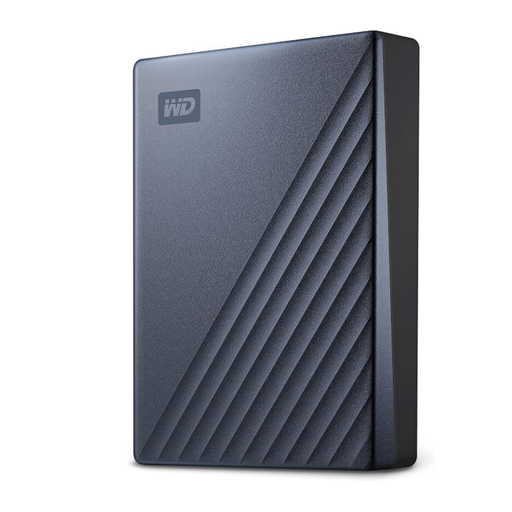 Image unavailable
Western Digital My Passport Ultra 5TB portable HDD, blue
This portable HDD suits a sizeable separate copy of photos and computer files when rapid transfers are less important.
The product name specifies 5TB. Check the format required by your computers before copying files, particularly if you intend to use the drive with a Mac, and handle the HDD carefully while files are transferring.
View on Joybuy
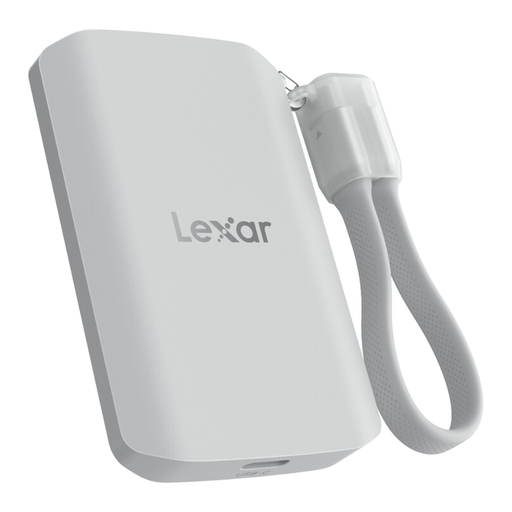 Image unavailable
Lexar ES5 Portable SSD 1TB, USB 3.2 Gen 2x2
Consider this 1TB portable SSD for frequent file transfers if your host supports its connection requirements and the capacity fits your backup plan.
The product name states read and write speeds of up to 2,000MB/s and an IP65 rating; peak speed and protection should be considered under the stated product conditions. Its MagSafe attachment and recording features target specified compatible phones, including iPhone 15/16 Pro and Galaxy S25, so check your exact phone and case before relying on those uses.
View on Joybuy
 Image unavailable
Western Digital Elements portable HDD 4TB, black
This portable HDD is an option when you need a larger separate copy of photos and files rather than an SSD-led transfer workflow.
The product name specifies 4TB and USB 3.0. Check the file system required by each computer you will use, particularly before sharing files with a Mac, and protect the drive from physical shocks.
View on Joybuy
Common questions
Do I need an external drive instead of a USB flash drive for backups?
Not necessarily: the National Cyber Security Centre recognises removable media, including USB sticks and external hard drives, as places to keep a separate backup. For a full laptop or growing photo library, choose a route with enough capacity and a routine you can repeat; a flash drive is more straightforward for moving a limited selection of files between compatible devices.
Which format should I use between Windows and Mac?
For a disk used with both systems, Apple directs Mac Disk Utility users to MS-DOS (FAT) at 32 GB or less and ExFAT above 32 GB. Formatting erases the disk, so copy existing files elsewhere before changing it.
Can I use an external drive with an iPhone?
Yes, if the connection, format and power arrangements meet Apple’s requirements. Apple says connected external storage must have one data partition and a supported format; an external HDD may also need its own power source or a powered USB hub.
Can Windows back up files to an external drive regularly?
Yes. Microsoft says File History can make regular backups to an external drive or network location after setup. Select the drive and check that the folders containing the photos and files you want to protect are included.


