Immersion-first survival explorers
If you spend long sessions exploring open worlds, moving through dark interiors and building bases, screen width, contrast and image detail may matter more to you than the highest advertised refresh rate.


A 27-inch QHD high-refresh monitor is a practical starting point for PC players who want a conventional desk setup; a 34-inch ultrawide better suits players who prioritise a panoramic view and have room for it. Consider a 4K IPS dual-resolution model if detailed exploration and a separate high-refresh mode for faster games both matter. For long sessions, check screen positioning and take breaks, while allowing for OLED panel-care routines if you choose OLED.
If you spend long sessions exploring open worlds, moving through dark interiors and building bases, screen width, contrast and image detail may matter more to you than the highest advertised refresh rate.
If glare, screen position or discomfort becomes noticeable during extended play, consider how the monitor fits your desk and whether you can maintain a routine with breaks. The NHS identifies prolonged screen use without breaks as a dry-eye risk factor.
If you switch between a gaming PC and a PS5 or Xbox Series X, check the resolution, refresh rate and variable refresh rate (VRR) supported through the connection you will actually use, rather than relying on the headline refresh rate.
Choose it when: You want high-refresh PC play and OLED contrast in a conventional desktop format.
Allow for: Static HUDs and paused screens make the manufacturer’s OLED-care instructions important during long sessions.
Choose it when: A wider view for exploration matters more to you than keeping the screen compact.
Allow for: More desk width, greater graphics demands than standard QHD and game-dependent 21:9 presentation.
Choose it when: You want a 4K mode for exploration and a separate lower-resolution, higher-refresh mode for faster games.
Allow for: The Alienware AW2725QF’s 4K 180Hz and FHD 360Hz figures describe different modes, not 4K at 360Hz.
| Concern | What to check | Who this matters to |
|---|---|---|
| Exploration and dark scenes | Compare screen dimensions and resolution with your desk and PC; check 21:9 support in the games you play. | When I spend hours exploring landscapes and dim interiors, I want the screen format and contrast to suit those scenes. Around 40% of consumers put this viewing experience first. |
| Comfort over long sessions | Check stand adjustment and screen reflections in your room; plan for breaks as well as suitable screen placement. | If glare or an awkward screen position makes a long session uncomfortable, I need a setup I can adjust and step away from regularly. Around 30% of consumers make sustained comfort their primary concern. |
| Motion and device compatibility | Check supported resolution, refresh rate and VRR combinations for the intended HDMI or PC connection. | When I alternate between a PC and a console, I need the display to offer the modes I intend to use on each device. For around 30% of consumers, connection and performance flexibility takes priority. |
A refresh-rate figure may apply only to a particular input or mode. Dell UK specifies 4K at 180Hz and FHD at 360Hz as separate modes on the Alienware AW2725QF.
Read the monitor’s input and resolution specifications. For console use, check the intended HDMI and VRR mode; for PC use, consider whether your graphics card can deliver the frame rates you want.
ASUS UK Support warns that prolonged static, high-contrast images can cause OLED image persistence or burn-in. Survival-game HUDs, menus and paused screens deserve particular attention during extended play.
Follow the instructions for your model’s protection and pixel-cleaning features, and avoid routinely leaving an unchanged game screen or desktop visible for long periods.
A 34-inch 3440 × 1440 display needs more desk width and more graphics performance than a conventional 2560 × 1440 display. Individual games can also handle 21:9 views and interfaces differently.
Measure the available desk and stand space, then check 21:9 behaviour in your main games before deciding whether the wider format suits you.
The NHS identifies long periods looking at a computer screen without a break as a dry-eye risk factor. Monitor settings alone do not address an awkward position or an uninterrupted routine.
Position the screen to limit glare and take regular breaks. If dry-eye symptoms persist, seek advice from an optician, pharmacist or GP as appropriate.
The ASUS ROG Strix OLED XG27AQDMGR is a reference point for a conventional-size QHD OLED gaming setup.
Alienware has distinct models relevant to different priorities: the IPS AW2725QF for switchable resolution modes and the QD-OLED AW2725DF for QHD high-refresh play.
The LG UltraGear 34GX90SA-W illustrates the 34-inch ultrawide OLED option for players considering a wider exploration view.
These Joybuy choices cover conventional-size QHD OLED monitors and wider OLED formats for survival-game play. Compare the space each format needs and check your games, connections and OLED-care instructions before settling on a model.
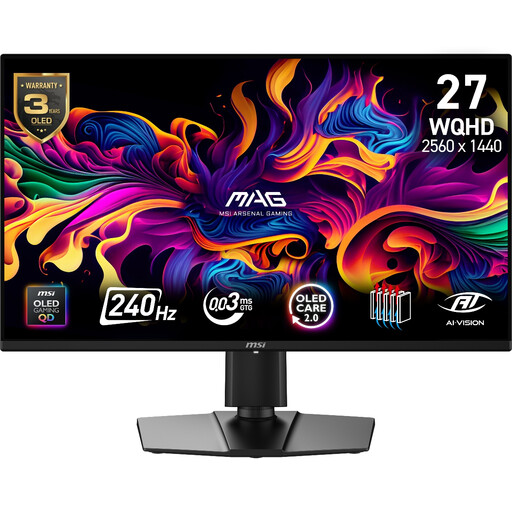 No image available
Consider this conventional-size OLED option if dark-scene play and a high refresh rate matter to you. Its listed specifications include 2560 × 1440 resolution, 240Hz, 0.03ms and Adaptive-Sync. Follow the model’s OLED-care instructions when playing games with persistent static elements.
 No image available
This is another conventional-size OLED choice for players prioritising QHD and high-refresh play. The product name specifies 240Hz and 0.03ms. If you will connect a console, confirm its supported resolution, refresh-rate and VRR modes for that connection; follow the monitor’s OLED-care guidance during extended use.
 No image available
Consider the wider format if exploring large game environments is your priority and your desk can accommodate it. The product name specifies WQHD and 240Hz. Check 21:9 presentation in your main games, and use the model’s screen-protection features as instructed.
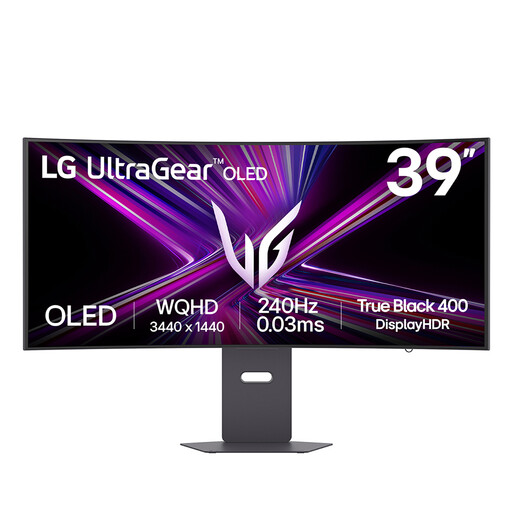 No image available
The larger screen may appeal if you want an expansive exploration setup and have measured enough space for it. The product name specifies QHD and 240Hz. Check how your main games present their 21:9 view and interface, along with the model’s OLED-care instructions.
 No image available
This 32:9 option is worth considering only if you want a particularly wide view and can accommodate a 49-inch screen. Its product name lists an 1800R curve, 240Hz, 0.03ms and AMD FreeSync Premium. Confirm 32:9 game presentation and the refresh mode for your intended input, and follow the model’s OLED-care guidance.
OLED can suit players who prioritise contrast in dark scenes, provided they are willing to follow the monitor’s panel-care guidance. ASUS UK Support warns that prolonged static, high-contrast images can cause image persistence or burn-in, so take particular care with unchanged HUDs, menus and paused screens.
No: monitor features do not replace breaks and sensible screen positioning. The NHS identifies prolonged screen use without breaks as a dry-eye risk factor, while the Health and Safety Executive advises short, frequent breaks rather than less frequent long ones in its guidance for display-screen work.
Check the monitor’s HDMI modes, VRR behaviour and 120Hz support at the resolution you intend to use. PlayStation Support says a PS5 can test 1440p output for SDR and HDR at 60Hz or 120Hz, and VRR where the display supports it; the game and display also need to support the intended 120Hz mode.
Choose a monitor input documented to support the intended 4K 120Hz mode, and check its HDR and VRR behaviour as well as the cable. Xbox Support says the cable supplied with Xbox Series X supports HDMI 2.1 features, including 4K gaming at 120Hz; the monitor and selected settings must support the mode too.