Choose a monitor around the part of dark-room team practice that matters most to you: adjustable viewing comfort for long sessions, a refresh rate your gaming device can deliver for competitive play, or audio connections that suit your desk setup. A monitor alone will not provide team voice chat, so check your headset, microphone and PC or console audio settings separately.
Who this choice affects
Players practising for long sessions
If you practise in a dark room for extended periods, look for usable brightness controls and clearly specified display-comfort features, while considering your desk setup and breaks. The Health and Safety Executive identifies fatigue and eye strain as risks associated with poorly arranged display-screen work.
Competitive team-practice players
If your games depend on quick reactions, compare refresh rates with the frame rates and connections your system can actually use. Dell’s G2725D specifications, for example, give different maximum QHD refresh rates for DisplayPort and HDMI.
Players simplifying a voice-chat setup
If you want fewer connections around your desk, check whether a monitor offers speakers or headphone output. Those features provide playback options; your headset microphone and chat connection still need to work with the PC or console.
What to check before buying
Start with the need that would most affect your practice, then check the exact monitor and the device you will connect to it. Display comfort, game motion and voice-chat routing require different checks.
| Concern |
What to check |
Who this matters to |
| Comfort in a dark room |
Check brightness adjustment and the exact model’s flicker-free or low-blue-light features; consider screen position and breaks as well. |
During long sessions, I need a screen I can adjust without relying on display features alone to make the setup comfortable. Around 45% of consumers put this viewing need first. |
| Competitive motion |
Check resolution, refresh rate by input, adaptive-sync support and the frame rates your PC or console can deliver. |
When practising fast-paced games, I care whether my device can make use of the monitor’s motion settings. For around 33% of consumers, responsive gameplay is the primary concern. |
| Voice-chat connections |
Check speakers or headphone output on the monitor, then confirm where the headset microphone connects and how the device routes chat audio. |
If cables and audio connections complicate team practice, I want a workable path for both listening and speaking. Making that setup simpler comes first for around 22% of consumers. |
Common buying mistakes
-
Assuming the headline refresh rate works through every port
Dell specifies up to 180Hz at QHD over DisplayPort for the G2725D, but up to 144Hz at QHD over HDMI. The connection can therefore change the refresh rate available from that model.
Check the limit for the input you intend to use and match it to your PC or console output.
-
Expecting monitor speakers to handle team chat
Speakers and headphone outputs are playback options. They do not, by themselves, provide the microphone connection needed to speak to teammates.
Trace the full audio path from your game device to your headphones and microphone, including the chat settings.
Your intended arrangement may also need a compatible headset, microphone or audio adapter.
-
Treating display-comfort features as a complete setup
Flicker-free and low-blue-light features do not establish that a monitor will prevent discomfort. The Health and Safety Executive also points to workstation arrangement and breaks when addressing display-screen fatigue and eye strain at work.
Adjust brightness and screen position for your room, and make time for breaks during extended practice.
-
Choosing an extreme refresh rate without checking the PC
Dell lists a 500Hz capability for the Alienware AW2524HF, but a panel specification alone does not establish the frame rates your games and PC will produce.
Check performance in the games and settings you practise with before prioritising a very-high-refresh monitor.
Relevant brands for reference
ASUS
The VA249QG is a model to examine if you want monitor-side comfort controls alongside gaming features.
- ASUS lists a 120Hz IPS display, Adaptive-Sync, speakers, an earphone jack and TÜV Rheinland-certified flicker-free and low-blue-light technologies for the VA249QG.
- Those are VA249QG specifications, not features of every ASUS monitor or a promise to prevent eye strain.
Dell / Alienware
The cited models illustrate distinct choices between a 27-inch QHD display and a smaller, very-high-refresh esports display.
- Dell lists the G2725D as a 27-inch QHD Fast IPS monitor with headphone output and up to 180Hz through DisplayPort. It lists the Alienware AW2524HF as a 24.5-inch Fast IPS model with 500Hz capability.
- Their screen formats differ, and the G2725D’s maximum QHD refresh rate depends on the input used; neither model’s specifications describe the whole range.
BenQ MOBIUZ
The EX240 is worth examining if built-in playback and controls for adjusting dark-scene detail matter to your setup.
- BenQ lists built-in speakers and Light Tuner and Black eQualizer image controls for the EX240.
- These model-specific features do not establish better competitive results or voice-chat quality.
Joybuy monitors for this setup
These monitors offer different screen sizes, display formats and playback options for dark-room team practice. Match their stated features to your device and headset arrangement rather than treating monitor audio as a complete chat solution.
 No image available
Dahua 32-inch 4K 165Hz curved OLED gaming monitor
Consider this larger screen if you want 4K resolution for gaming alongside your team-practice setup.
The listed configuration includes 3840 × 2160 resolution, 165Hz refresh, a curved OLED display and 65W Type-C output. Check whether its connections suit your gaming device and how you will connect your headset microphone.
View on Joybuy
 No image available
CRUA 32-inch 1500R curved QHD 165Hz gaming monitor
This model suits a setup where a large QHD screen and specified flicker-free and low-blue-light features are priorities.
Its title lists 2560 × 1440 resolution, 165Hz, Adaptive Sync, HDMI and DisplayPort. Confirm the refresh rate available through your intended connection, along with comfortable brightness adjustment and your separate voice-chat path.
View on Joybuy
 No image available
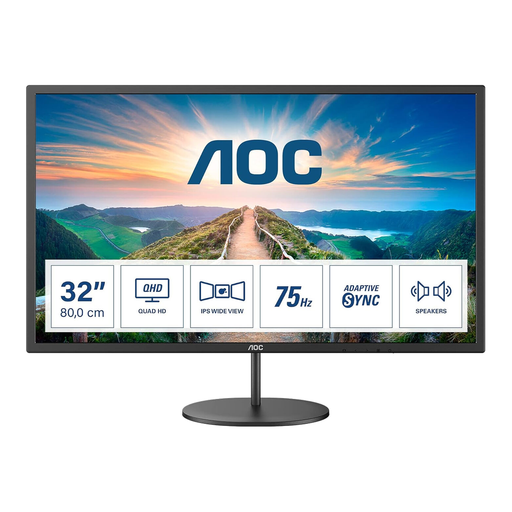
AOC Q32V4 31.5-inch IPS monitor with speakers
Consider this model if a large IPS screen and built-in audio playback matter more to your setup than selecting a stated high-refresh gaming model.
The title lists Adaptive Sync, a 4ms response-time figure and built-in speakers. Check the refresh rate and brightness controls you need, and connect your microphone through a compatible device.
View on Joybuy
 No image available
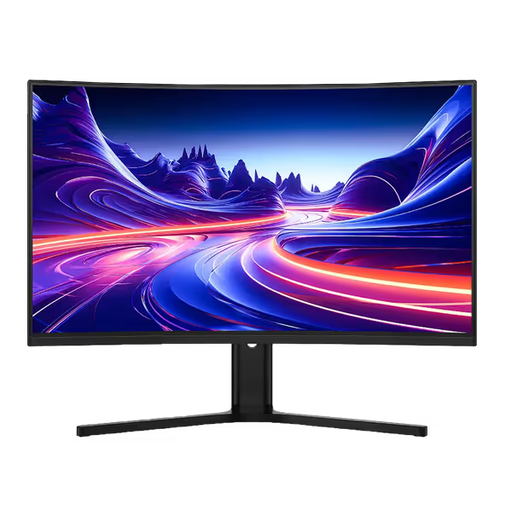
Dahua 32-inch curved QHD 180Hz VA gaming monitor
This is an option to assess if you want a large QHD screen with a stated 180Hz refresh rate for competitive practice.
The title lists 2560 × 1440 resolution, a VA panel, two HDMI inputs and two DisplayPort 1.4 inputs. Confirm the refresh rate through your chosen port, adaptive-sync requirements and headset routing before buying.
View on Joybuy
 No image available
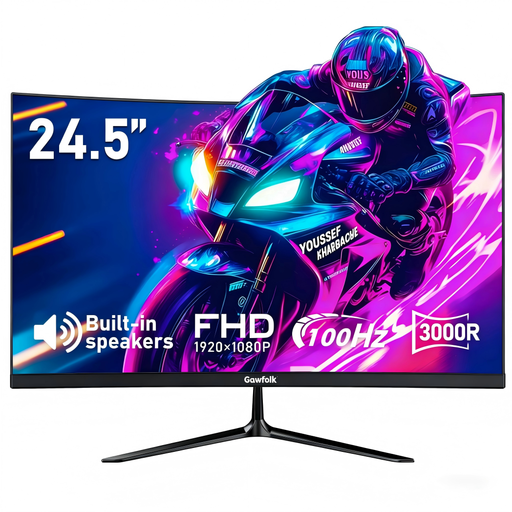
Gawfolk 24.5-inch 3000R curved Full HD 100Hz monitor
This compact screen is worth considering if Full HD gaming and built-in audio playback suit your practice station.
The title lists 100Hz, AMD FreeSync, an anti-glare finish and built-in speakers. Check the refresh rate through your chosen input and confirm the response-time specification, brightness adjustment and microphone connection that your setup needs.
View on Joybuy
Questions about dark-room team practice
Can a gaming monitor provide team voice chat on its own?
No. Monitor speakers and headphone outputs provide playback options, but speaking to teammates requires a microphone or headset connected through a compatible PC or console setup. Check the exact monitor ports and your device’s chat settings.
Should I choose 180Hz QHD or a much higher-refresh Full HD screen?
Choose between them according to the image format you want and the frame rates your system can sustain, rather than the refresh figure alone. Dell specifies up to 180Hz at QHD over DisplayPort for the G2725D but up to 144Hz at QHD over HDMI; its 24.5-inch Alienware AW2524HF offers a different screen format with 500Hz capability.
What can I adjust for a more comfortable dark-room setup?
Start with screen brightness, position and your break routine, then consider the comfort controls available on the exact monitor. Flicker-free or low-blue-light features should not be treated as proof that a display will prevent eye strain.
Do workplace display-screen rules specify a monitor for gaming at home?
No particular gaming-monitor specification follows from the Health and Safety Executive’s workplace display-screen guidance. Its advice on workstation arrangement and breaks may still help you think through an extended practice setup, without turning leisure gaming into a workplace requirement.


