What to check before buying
Start with the sound path and volume controls, then check that the device can be connected and powered. Picture features matter only when the monitor and streaming service can use them too.
| Concern |
What to check |
Who this matters to |
| Sound and volume control |
Check for built-in speakers or a usable audio output. Confirm how the chosen audio device’s volume will be adjusted; streaming-remote control is model-specific. |
If I watch on my own, I need to hear the programme and change its volume without an awkward control setup. About 36% of consumers put that sound-and-volume path first. |
| Connection and setup |
Confirm an available HDMI input, the device’s power instructions, network access and any account requirement. |
When I only stream occasionally, I want the device to connect and start without troubleshooting power or network access. For about 29% of consumers, straightforward setup is the primary need. |
| Sound for shared viewing |
Check the monitor’s speaker provision or audio output and the intended speakers’ input. For an HDMI ARC/eARC soundbar route, verify the matching display port and settings. |
Watching with others, I need sound everyone can hear rather than a headphones-only arrangement. About 21% of consumers place shared-room audio first. |
| Picture and service compatibility |
Match the monitor’s resolution and HDR capability to your plans. For Roku’s documented 4K/HDR setup, check HDCP 2.2 through the connection chain and confirm the service offers the content. |
If 4K or HDR is why I am choosing a device, I need the display, connections and programme to support it. Picture and service compatibility comes first for about 14% of consumers. |
A monitor’s HDMI input is a picture connection, not proof of an audio output or HDMI ARC/eARC. Amazon’s Fire TV Soundbar instructions call for a display ARC/eARC port and configured ARC/CEC settings for that HDMI soundbar route. A monitor with a confirmed 3.5 mm audio output offers a different route to compatible powered speakers.
Streaming brands to consider
These device ranges offer different setup and control options; none establishes compatibility with an unspecified monitor.
Google
Google TV Streamer 4K is an HDMI streaming-box option. Google documents Bluetooth accessory pairing, which is relevant if you plan to listen without using the monitor’s audio.
- Google says one Bluetooth audio device can be connected at a time.
- Google says its remote’s volume, power and input controls may not work with some device models. Check the exact monitor and audio arrangement.
Roku
Roku streaming sticks provide an HDMI route. Roku’s setup guidance covers display connection, power and network setup, with further checks needed if you intend to use 4K or HDR.
- Roku documents automatic display selection during setup.
- Roku’s remote cannot directly control a soundbar or receiver, and TV power and volume control varies by device. Do not assume a monitor will behave like a supported TV.
Amazon Fire TV
Fire TV Stick is an HDMI streaming option. Amazon’s setup instructions call for an available HDMI port, internet access, an Amazon account and the specified power connection.
- Amazon provides equipment-control setup for compatible connected devices, including soundbars.
- Amazon’s HDMI setup for Fire TV Soundbar requires a display ARC/eARC port and configured ARC/CEC settings. A monitor’s ordinary HDMI input does not establish that route.
Joybuy products for monitor streaming
These selections include monitors with stated built-in speakers, monitors whose audio arrangements need checking, and a Roku streaming stick to use with a suitable monitor. Choose the display and sound route as a combination rather than treating any one item as a complete setup.
 No image available
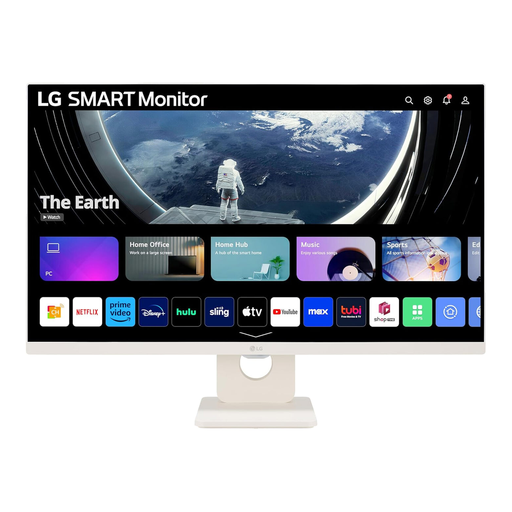
LG Smart Monitor 27U511SA-W, 27-inch Full HD
Consider this if you want streaming apps and speakers in the monitor rather than relying on a separate stick for apps. The product name lists webOS smart TV apps, built-in speakers, Wi-Fi, Bluetooth and a remote control. Check that your chosen apps are available and how the remote controls volume with any external audio device you intend to use.
View on Joybuy
 No image available
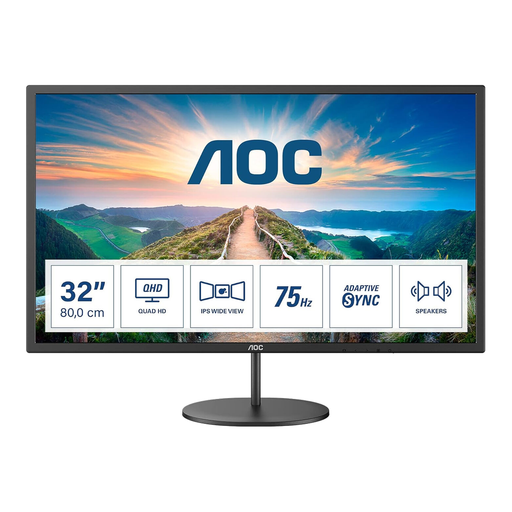
AOC Q32V4 31.5-inch monitor with speakers
Consider this monitor if built-in sound would make occasional viewing simpler. Its product name specifies a 31.5-inch IPS screen and built-in speakers. Before pairing it with a streaming device or external speakers, confirm the ports and volume-control behaviour for the exact setup.
View on Joybuy
 No image available
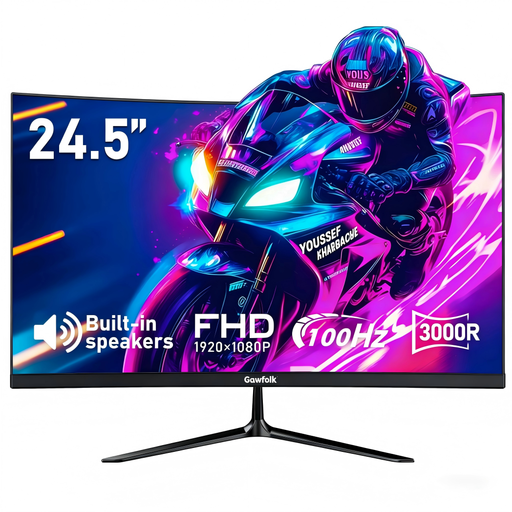
Gawfolk 24.5-inch Full HD curved monitor
This is another monitor to consider for occasional viewing without immediately adding separate speakers. The product name lists an HDMI connection and built-in speakers. If more than one person will listen, check whether its speaker output and controls suit your room; verify the required output before planning external audio.
View on Joybuy
 No image available
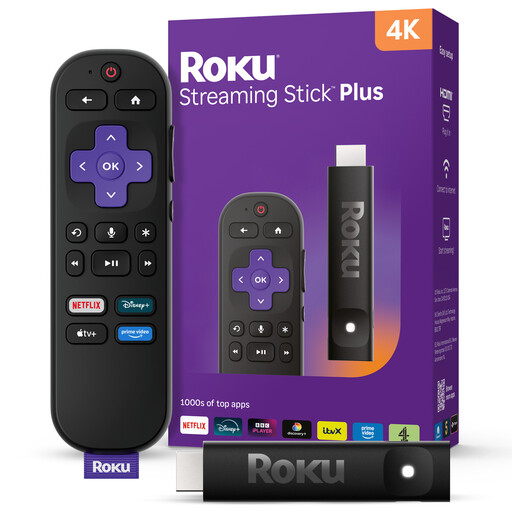
Roku Streaming Stick 4KPlus
Consider a streaming stick if you already have a monitor and want to add streaming through a suitable HDMI connection. Check this model’s power and network instructions, and establish how you will hear and control the sound; verify any intended headphone-audio arrangement before relying on it. If 4K or HDR is important, follow Roku’s guidance on HDCP 2.2 across the connected equipment and check your service’s content.
View on Joybuy
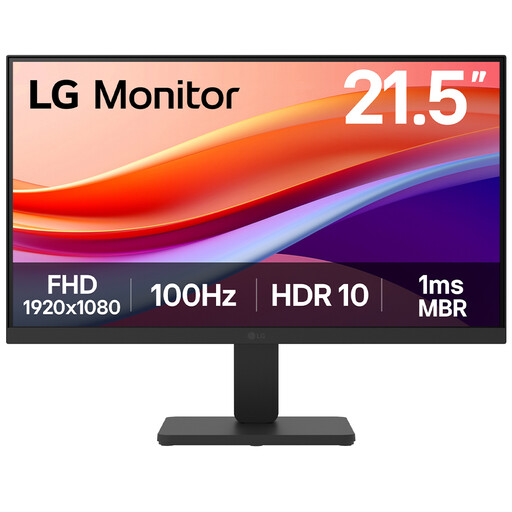 No image available
LG 22U401A-B 22-inch Full HD monitor
Consider this compact monitor if you are prepared to establish the sound route separately for your streaming setup. Its product name specifies HDMI, but the connection alone does not settle how audio reaches headphones or speakers. Check the exact monitor’s audio connections and your intended way of adjusting volume before pairing it with a streaming device.
View on Joybuy
Questions about monitor streaming
Can I use any computer monitor for streaming?
Not automatically. For a separate streaming device, check for an available HDMI input and follow that device’s power, network and account requirements. Amazon’s Fire TV and Roku setup instructions address those connections, but an HDMI input alone does not answer how you will hear or control the sound.
Will a streaming remote control my monitor’s volume and power?
Only if the particular remote and equipment support the functions you need. Google warns that volume, power or input control may not work on some models; Roku also describes limits to TV control and says its remotes cannot directly control a soundbar or receiver. Check the exact combination rather than assuming HDMI-CEC will handle it.
Can I listen through Bluetooth headphones instead of monitor speakers?
Google documents Bluetooth accessory pairing for Google TV and says one audio device can be connected at a time. If you choose another streaming device, confirm that its exact model supports the headphones and connection you intend to use; Bluetooth on a monitor or in a product name does not establish the whole audio route.
Does a soundbar need HDMI ARC or eARC to work with a monitor?
The HDMI audio-return route in Amazon’s Fire TV Soundbar instructions requires a display port supporting ARC or eARC, along with configured ARC/CEC settings. Other soundbar connections depend on the ports available on both products. Check the exact monitor and soundbar rather than treating an ordinary HDMI input as an audio-return port.
Should I power a streaming stick from the monitor’s USB port?
Follow the instructions for the exact stick. Amazon tells Fire TV Stick users to use the supplied wall adapter rather than power the device directly from the display’s USB port. Roku notes that some display USB ports provide insufficient power and advises using a wall adapter if a low-power warning appears.


