Detail-focused railway builders
If you spend long sessions examining scenery, cab instruments or editor panels, a higher-resolution single screen may appeal—provided your PC can run the simulator at the resolution and settings you intend to use.


Choose a 32-inch 4K screen if your PC can run your railway simulator at the settings you want and fine cab and scenery detail matters most; choose 27-inch QHD if a less demanding resolution is the priority. A very wide single panel is another option if your desk has room and the game’s interface works at its aspect ratio. For long sessions with fixed HUD or editor panels, factor the OLED manufacturer’s panel-care instructions into the decision.
If you spend long sessions examining scenery, cab instruments or editor panels, a higher-resolution single screen may appeal—provided your PC can run the simulator at the resolution and settings you intend to use.
If smooth play matters more to you than 4K detail, a QHD screen gives you a different resolution target to assess against your current graphics card. Check performance in the simulator rather than relying on the monitor’s refresh-rate label.
If you want room for a broad driving view or related windows on one display, an ultrawide is worth considering. Dovetail Games Support Center says Train Sim World does not natively support multiple monitors; that does not, by itself, establish how its interface will look on an ultrawide.
Choose it when: your PC is better suited to QHD than 4K and you want a conventional screen shape for driving or building.
Trade-off: you give up the finer pixel detail of 4K and the horizontal space of an ultrawide.
Choose it when: close inspection of cab instruments and scenery matters and your PC can support your intended 4K settings.
Trade-off: the higher rendering demand may require different graphics settings; a 240Hz monitor does not promise 240 frames per second in the game.
Choose it when: a very broad view on one panel matters more to you than 4K vertical resolution.
Trade-off: it needs substantial desk space, and the simulator’s interface needs checking at 32:9.
| Concern | What to check | Who this matters to |
|---|---|---|
| Resolution and PC performance | Compare your graphics card and current simulator performance with the resolution and graphics preset you plan to use. | If I want clearer instruments and scenery, I still need the game to run well on my PC; around 29% of consumers put that performance match first. |
| Dark scenes and reflections | Check the screen finish and where lamps or windows will reflect; consider whether the stand lets you adjust the screen position. | On night routes, I want to see the scene without a distracting reflection from a nearby light. Around 24% of consumers make dark-scene viewing and reflection control their main concern. |
| Single-screen width | Measure desk space and check the game’s interface at the intended aspect ratio, particularly for a 49-inch 32:9 screen. | I would rather have a broad driving view on one display than plan around a span of separate monitors; around 18% of consumers prioritise that single-screen space. |
| Fixed images on OLED | Read the exact model’s instructions for image cleaning, pixel refresh or pixel shifting if HUD or editor panels stay visible for long periods. | My building sessions can leave the same controls on screen for hours, so panel care affects my choice; around 18% of consumers put static-interface use first. |
| Refresh and motion | Check the resolution and refresh rate supported by the PC output, cable and monitor input, alongside your game’s actual frame rate. | When the train is moving, I value smooth-looking motion, but the PC must deliver it; around 11% of consumers make refresh capability their primary concern. |
Dovetail Games Support Center’s Train Sim World guidance sets different hardware expectations for QHD and 4K settings. A monitor’s resolution does not tell you what frame rate your current PC will achieve.
Start with your present in-game resolution and settings. Move to 4K only if your PC can support the experience you want, or if you are willing to adjust those settings.
Otherwise, you may need a graphics-card upgrade or have to reduce the game’s graphics settings.
Dovetail Games Support Center says Train Sim World does not natively support multiple monitors and warns that manually stretching the picture can cause interface problems.
If width is the goal, assess a single ultrawide against your desk and the game’s interface rather than assuming a multi-monitor span will work.
A multi-screen plan may also involve extra displays, mounts and cables.
LG UK Support says leaving the same image on an OLED monitor for a long time may cause faint marks. Panel-care features differ by model and do not make prolonged fixed images irrelevant.
Find the instructions for the exact monitor you are considering and let its recommended care routines run as directed.
A lamp or other light source can still reflect in the screen. The Health and Safety Executive’s workplace screen guidance recommends adjusting screens and lighting to avoid reflections and glare.
Consider the position of your room lights and screen, even when a monitor has an anti-glare treatment.
LG UK lists the 27GS95QE-B as a 27-inch, 2560 × 1440 OLED monitor with a 240Hz refresh rate: a reference point for the conventional QHD route.
Dell UK lists the AW3225QF as a 31.6-inch, 3840 × 2160 QD-OLED monitor with a 240Hz refresh rate and a curved screen: a reference point for the single-screen 4K route.
Samsung Business UK lists the Odyssey OLED G95SD as a 49-inch, 5120 × 1440, 32:9 display: a reference point for a very wide single-screen layout.
These monitors cover QHD, 4K and single-screen ultrawide approaches to a dark-room virtual railway setup. Match the resolution to your PC, and check desk fit and game-interface behaviour before choosing a wider screen.
 No image available
Consider this conventional-size QHD option if your PC is better suited to QHD than 4K. The product title specifies a 27-inch screen, 240Hz refresh rate and 0.03ms response time; check your actual simulator frame rate and the model’s OLED care instructions for long sessions with fixed panels.
 No image available
Consider this single-panel option if you want a particularly wide railway view. Its product title specifies a 32:9 Double Quad HD screen, 1800R curve and 240Hz refresh rate. Measure your desk and check both PC performance and the simulator’s interface at 32:9; also review the model’s OLED care instructions.
 No image available
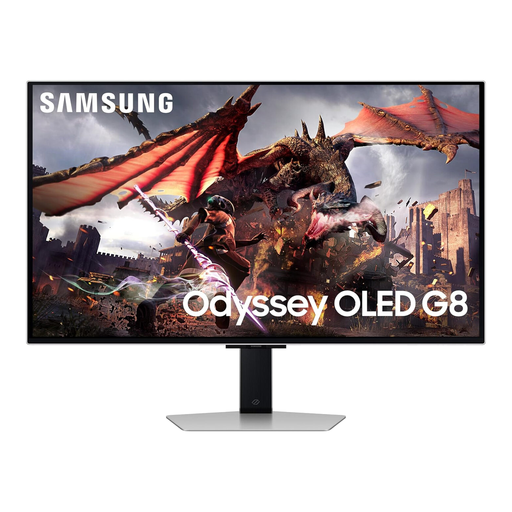
Consider this larger, higher-resolution route if you prioritise cab and scenery detail. The product title identifies a 32-inch Ultra HD screen; check the exact display mode against your PC’s performance at your intended game settings. Review the model’s OLED care instructions if HUD or editor panels will remain fixed.
 No image available
Consider this 34-inch screen if you want to assess an ultrawide layout without moving to the 49-inch format. Its product title specifies OLED WQHD and 240Hz. Check the exact resolution against your PC, the game’s interface at the intended aspect ratio and LG’s care instructions for this model.
 No image available
Consider this QHD option if 4K is not your preferred rendering target. The product title specifies 2560 × 1440 resolution, a 240Hz refresh rate and a 0.03ms response time. Check the screen finish if room lights may reflect on it, and review the model’s OLED care instructions for prolonged static-interface use.
Choose 4K if your PC can run the simulator at the resolution and graphics settings you actually want. Dovetail Games Support Center gives different hardware guidance for its QHD and 4K settings, so check your current performance before making resolution the deciding feature.
Train Sim World does not natively support multiple monitors, according to Dovetail Games Support Center, which also warns of interface issues when the image is stretched manually. A single ultrawide avoids relying on a multi-monitor span, but you should still check how the game’s interface behaves at your chosen aspect ratio.
Follow the care instructions for your exact monitor, particularly when fixed elements remain visible for long periods. LG UK Support says a long-displayed image may leave faint marks on an OLED screen and provides Image Cleaning guidance; care features and instructions vary by model.
Not necessarily: a lamp or another light source may still reflect in the screen. Check its position relative to the monitor and whether you can adjust the screen angle. The Health and Safety Executive’s workplace screen guidance recommends arranging lighting and screens to avoid glare and reflections.