
24/7 Customer Support

Free returns

Same-day & Next-day Delivery

Quality Guaranteed

Unlock Your Welcome Offers: FREE Delivery | Up to 80% OFF | Free 30-day JoyPlus trial
Download the APP
Running out of laptop space, moving large photo libraries or creating a dependable home backup? A WD Elements external hard drive can add substantial storage without opening your computer. However, the range includes compact portable models and larger desktop units, so choosing by capacity alone can lead to an unsuitable purchase.
This guide explains the practical differences between a Western Digital external hard drive, including portability, power, USB connectivity, compatibility and capacity, before matching several options to common UK use cases.
A 3.5-inch desktop external hard drive normally needs a mains adaptor. It is designed to remain beside a PC, workstation or router rather than travel in a laptop bag. Portable models are smaller and powered through USB, but their available capacities are generally more limited than desktop alternatives.
Before buying, consider where the drive will live. A portable drive suits students, photographers working on location and home-office users moving between rooms. A desktop unit is more appropriate for a permanent archive, media collection or multi-computer backup station.
USB 3.0 and USB 3.2 Gen 1 hard drive are commonly used to describe a connection with a theoretical signalling rate of up to 5Gbps. That does not mean a mechanical hard drive will transfer files at 5Gbps. HDD performance depends on the internal mechanism, file size, computer and USB port.
A USB 3.0 connection is still useful for moving large folders, but an SSD is generally more suitable for applications requiring very low latency. WD Elements HDDs are primarily aimed at high-capacity storage, file transfers and backups.
An external hard drive for backup is helpful, but it should not be the only copy of irreplaceable files. Mechanical drives can be damaged by drops, moisture, unstable power or accidental deletion. For important family photographs, business documents and creative projects, consider the 3-2-1 approach: three copies, on two types of media, with one copy stored separately.
Also check whether the stated capacity is decimal. Manufacturers typically define 1TB as one trillion bytes, so the usable space shown by Windows or macOS will be lower after formatting.
A portable external hard drive such as the WD Elements Portable is bus-powered through USB and does not require a separate AC adaptor. The 6TB portable model measures approximately 110.5 x 82.0 x 23.7mm and weighs about 0.23kg, making it suitable for transport.
Desktop drives use a larger 3.5-inch mechanism and external power. They are less convenient to carry but provide a practical route to high-capacity external storage, with available options including 6TB, 8TB, 12TB, 18TB, 20TB, 22TB and 24TB. Keep these drives on a stable, ventilated surface and avoid moving them while active.
Many WD Elements models use USB 3.2 Gen 1 / USB 3.0, with backward compatibility for USB 2.0. A USB 2.0 port can connect to the drive, but transfers will operate at the older interface’s lower rate.
Check the connector included with the model. Portable units commonly use a Micro-B USB 3.0 port on the drive and a USB-A connection to the computer. If your laptop only has USB-C ports, you may need a suitable certified adaptor or hub.
Most listed models are pre-formatted for Windows and support plug-and-play use with Windows 10 or later. You can generally drag and drop files immediately after connection.
A Mac-compatible external hard drive may require reformatting for macOS, depending on the supplied file system. Formatting can erase existing content, so complete this step before storing files. If you need to use the same drive between Windows and Mac computers, choose a compatible format and confirm the requirements of your backup software.
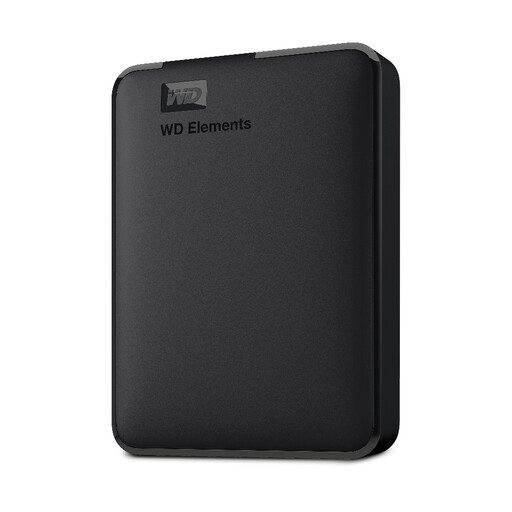
Why This Fits Their Persona: A compact choice for documents, coursework, family photos and everyday file transfers when a modest storage increase is sufficient.
Its 1TB capacity avoids paying for a desktop-sized archive when portability and basic expansion are the priority.
USB 3.2 Gen 1 interface; compact 110.6 x 82.1 x 15mm form factor; USB-powered operation.
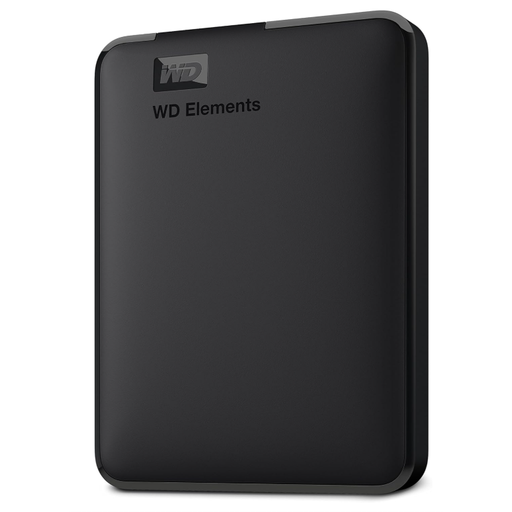
Why This Fits Their Persona: Suitable for photographers, travelling professionals and digital collectors wanting substantial capacity without carrying a desktop power adaptor.
The portable, bus-powered design makes its power requirement clear, while the enclosure is not waterproof or drop-rated.
6TB capacity; 5Gbps USB 3.2 Gen 1 interface; approximately 0.23kg and powered through USB.
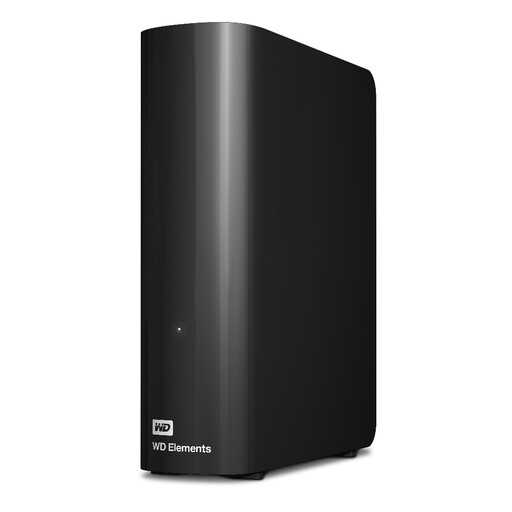
Why This Fits Their Persona: Designed for large video libraries, small businesses, creative workstations and households archiving several computers in one location.
Its desktop format clearly includes an AC adaptor, reducing the risk of expecting a pocket-sized, bus-powered product.
22TB capacity; USB 3.2 Gen 1 connectivity; included AC adaptor and plug-and-play Windows setup.
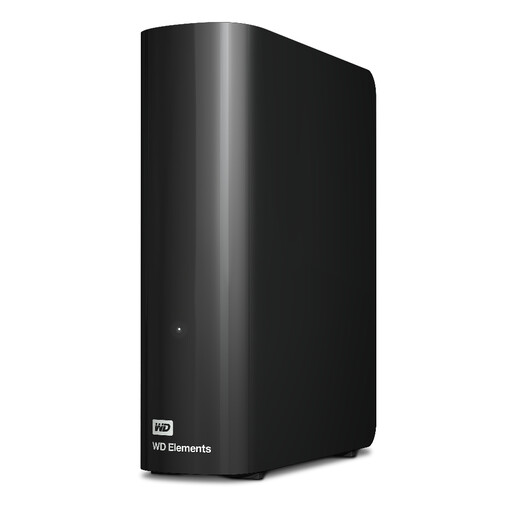
Why This Fits Their Persona: A sensible desktop option for backing up family media, music collections, documents and several connected computers.
The 3.5-inch desktop design and external AC adaptor are stated up front, helping buyers plan a permanent setup.
12TB capacity; up to 5Gbps USB interface; two-year limited warranty listed in the specifications.
It can be used with a Mac, but formatting may be required depending on the model and file system. Reformatting through Disk Utility erases the drive, so complete setup before transferring important files.
WD Elements portable models are powered through USB, so they usually do not need a separate adaptor. Desktop models, including high-capacity 12TB and 22TB options, use an AC adaptor because of their larger 3.5-inch design.
There is no guaranteed lifespan for a mechanical HDD. Usage, heat, movement and storage conditions all matter. Treat the drive as one part of a backup plan, monitor for unusual noises or disconnections and replace it when it shows warning signs or no longer meets your capacity needs.