Windows gamers with limited desk space
You need to add Bluetooth to a PC without leaving a bulky accessory beside its USB port. Adapter size matters, but so does the position of the available port.


For a Windows PC that needs Bluetooth, a nano USB adapter is a compact choice if your controller supports Bluetooth. Choose a controller-focused adapter only when its published list covers your exact controller and host, and check its one-controller limit. For an Xbox Wireless Controller, compare Bluetooth with the separate Xbox Wireless connection route rather than treating the adapters as interchangeable.
You need to add Bluetooth to a PC without leaving a bulky accessory beside its USB port. Adapter size matters, but so does the position of the available port.
You need to match the exact controller, its wireless method and your host system against the adapter maker’s compatibility information before choosing a controller-focused device.
You already have a controller, but pairing or responsiveness is unreliable near crowded USB ports. Port placement, built-in Bluetooth and driver checks may matter more than adapter size.
Choose the controller’s connection method first, then check the space and USB-port arrangement available on your desk.
Choose when: Your Windows PC needs Bluetooth, your controller supports it and a small USB accessory suits the available port.
Bear in mind: A compact body does not establish support for every controller feature or solve interference beside crowded ports.
Choose when: The maker lists your exact Bluetooth controller and host, and you want its stated controller modes or mapping options.
Bear in mind: 8BitDo says its USB Wireless Adapter 2 excludes 2.4 GHz controllers and connects one controller at a time.
Consider when: You have an Xbox Wireless Controller and intend to connect it to a Windows PC using that method.
Bear in mind: Microsoft identifies Xbox Wireless and Bluetooth as separate connection methods; confirm your controller and intended adapter before buying.
| Concern | What to check | Who this matters to |
|---|---|---|
| Size and port placement | Check the adapter’s dimensions, the available USB port and its distance from USB 3.0 equipment. | If a controller shares a cramped desk with other USB devices, I want an adapter that fits without obstructing the port area. Around 40% of consumers put compact placement first. |
| Controller and host compatibility | Confirm the controller’s wireless method and exact model against the adapter’s controller and host-system lists. | With a particular controller and host in mind, I need to know that both appear in the adapter maker’s supported setup. Exact compatibility comes first for around 40% of consumers. |
| Connection stability | Check existing Bluetooth and driver settings, then assess whether the intended port sits beside active USB 3.0 hardware. | When pairing is unreliable, I would rather test the PC setup and adapter position before replacing hardware. Around 20% of consumers prioritise diagnosing connection stability. |
A controller-focused Bluetooth adapter may exclude an unlisted model or a controller that uses a 2.4 GHz receiver. Microsoft also distinguishes Bluetooth from Xbox Wireless.
Find the controller’s full model and connection method, then check the adapter maker’s controller and host lists.
The PC may already have usable Bluetooth. TP-Link says its UB-series adapters can also require built-in Bluetooth to be disabled for recognition.
Check Windows Bluetooth settings, Device Manager and your PC’s specifications before buying; use Windows troubleshooting guidance if pairing fails.
Microsoft and TP-Link identify nearby USB 3.0 devices as a possible source of Bluetooth interference, so an unstable connection need not mean the adapter is faulty.
Try a more separated port or a short extension cable and test the connection before replacing the adapter.
8BitDo states that one USB Wireless Adapter 2 connects one controller at a time.
Count the controllers you intend to connect and check the host’s available ports and support for your intended arrangement.
Connecting more controllers by this route may require additional adapters and USB ports or a suitable hub.
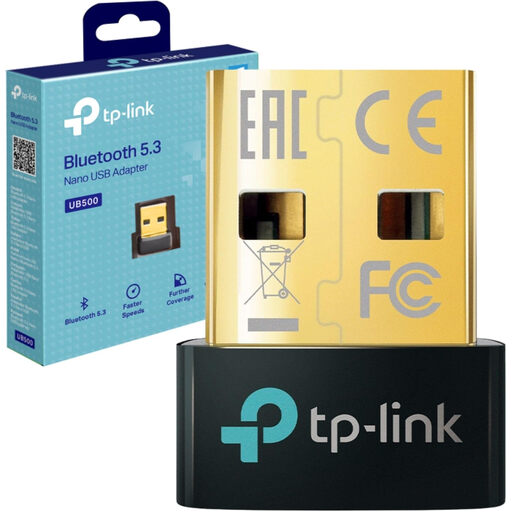
General-purpose Bluetooth USB adapters for Windows PCs, including the low-profile UB500 V2.
Controller-focused adapters for setups covered by the maker’s published controller and host compatibility lists.
A general-purpose Bluetooth USB option for buyers comparing the stated radio and connector specifications of the USB-BT500.
A separate Xbox Wireless connection route to consider for an Xbox Wireless Controller on Windows.
This nano Bluetooth USB adapter is relevant to a space-limited Windows PC setup. Check your controller’s Bluetooth pairing method and the adapter’s compatibility with your Windows version before choosing it.
 No image available
For a compact Windows PC setup that needs Bluetooth, check that your controller supports Bluetooth and that this UB500 version suits your Windows version.
Bluetooth 5.0 nano USB adapter. If the intended port is close to active USB 3.0 equipment, consider a more separated position.
Only if the PC lacks usable Bluetooth and your controller uses Bluetooth for the connection you intend. Microsoft says a USB adapter can add Bluetooth to a Windows device; check the PC’s Bluetooth settings and drivers before buying one.
Turn on Bluetooth in Windows, put the controller into its specified pairing mode and select it in Windows Bluetooth settings. Follow the controller maker’s instructions for its exact pairing sequence.
No. 8BitDo says each USB Wireless Adapter 2 connects one controller at a time. For more controllers, check the number of adapters and ports your intended host arrangement requires.
Yes, nearby USB 3.0 equipment can interfere with Bluetooth operation. Microsoft advises checking device proximity, and TP-Link also identifies USB 3.0 devices as a possible interference source; try a more separated port before replacing the controller or adapter.