Bright-room competitive squads
If you practise in daylight or under strong overhead lighting, assess reflections and the visibility of game information before paying attention to premium image features.


For team practice in a bright room, check screen treatment and everyday brightness against the lighting at your desk before choosing by an HDR badge or refresh rate alone. A 27-inch QHD IPS monitor offers a route for PC practice that needs both detail and speed; a 24.5-inch 360Hz esports monitor puts motion first, while larger Mini-LED and glare-treated OLED models call for closer checks of desk fit, input modes and, for OLED, panel care.
If you practise in daylight or under strong overhead lighting, assess reflections and the visibility of game information before paying attention to premium image features.
If drills depend on tracking fast action, prioritise a refresh mode your PC can deliver and visual settings your team can use consistently.
If sessions move between a PC and console, plan video switching and the separate headset or microphone path before choosing monitor connections.
Start with visibility under the room’s actual lighting, then decide whether motion, device switching or screen space is the main priority. The needs below concern consumers choosing a monitor for bright-room team practice.
| Concern | What to check | Who this matters to |
|---|---|---|
| Reflections and visibility | Check the exact model’s screen treatment and SDR brightness information; assess reflections with your usual window and lighting positions. | If a window or overhead light appears in my view, I need game information to remain readable during practice. Around 36% of consumers put reflection control first. |
| Motion clarity | Separate native refresh from overclocked modes, and match the intended resolution and refresh rate to the source device, port and cable. | For rapid tracking drills, I care most about a fast mode my setup can actually use. Motion clarity comes first for around 29% of consumers. |
| Device and audio workflow | Check the required video inputs and any KVM or audio connections; plan microphone capture and voice chat separately. | When our practice station switches devices, I need a workable route for controls, sound and team chat. Around 21% of consumers make that workflow their primary concern. |
| Detail and desk fit | Measure desk depth and viewing distance, then check whether the PC or console supports your intended QHD or 4K mode. | If we review maps or text together, I want useful detail without a screen that overwhelms the desk. Screen detail and fit lead the choice for around 14% of consumers. |
An HDR peak figure is not a full-screen SDR brightness measurement or proof that window reflections will be manageable. VESA’s DisplayHDR certification describes HDR capability, not the lighting at your desk.
Check the screen treatment and SDR brightness information, then confirm whether the retailer’s return terms allow you to assess the display in its intended position.
Dell UK specifies QHD at 180Hz over DisplayPort for the AW2725DM, but up to 144Hz over its listed HDMI connection. LG UK says the 27GS85Q-B’s 200Hz overclock mode requires a DisplayPort 1.4-capable graphics card and cable.
Check the exact resolution and refresh combination against your PC or console output, monitor input and cable before ordering.
A KVM can help switch keyboard and mouse control, while eARC concerns audio routing; neither establishes that microphone capture or game chat will work through the monitor.
Map the video source, controls, headset or microphone, and chat device. Confirm the direction of each connection on the model you intend to buy.
A 32-inch 4K display changes both the physical fit and the resolution your source device must drive. Those requirements may matter more to a practice station than a headline panel feature.
Measure the desk and viewing distance, then check whether the PC or console supports the 4K mode you want to use.
These lines illustrate different choices: a larger, connected 4K practice station or a smaller motion-focused esports display.
LG UK’s cited 27-inch models offer QHD Nano IPS and OLED routes with different refresh modes and screen treatments.
The AW2725DM is a 27-inch QHD Fast IPS option for a PC-based practice setup.
The 32-inch Odyssey OLED G81SF is a 4K QD-OLED option for teams considering a larger display.
These monitors offer different screen sizes and stated refresh rates for team practice. Match each one to your lighting, desk and connected devices rather than treating the list as a single solution for every setup.
 No image available
Consider this 27-inch QHD model when fast drills and a smaller desk footprint matter. Its title states OLED, 240Hz and a 0.03ms response-time claim; check the applicable input mode, reflections in your room and OLED guidance for static chat elements.
 No image available
Consider this 34-inch WQHD OLED model if you want a wider practice screen and have room for it on the desk. The title states 240Hz; check your source device’s intended display mode, reflections under your lighting and guidance for static on-screen elements.
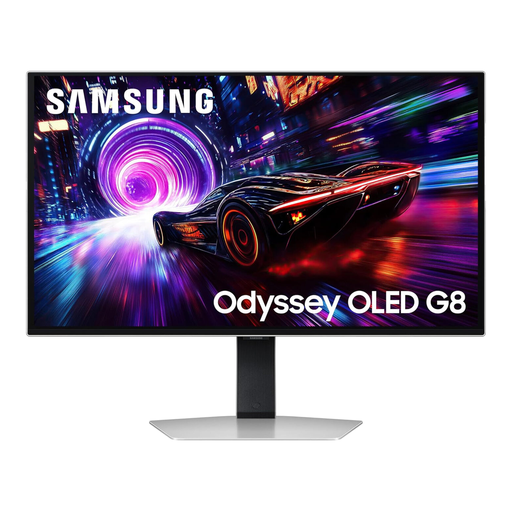 No image available
Consider this larger screen when viewing distance and shared detail matter to the practice setup. Samsung UK lists the corresponding G81SF model as 4K QD-OLED at 240Hz; confirm the input mode your device can deliver, assess room reflections and review OLED care guidance.
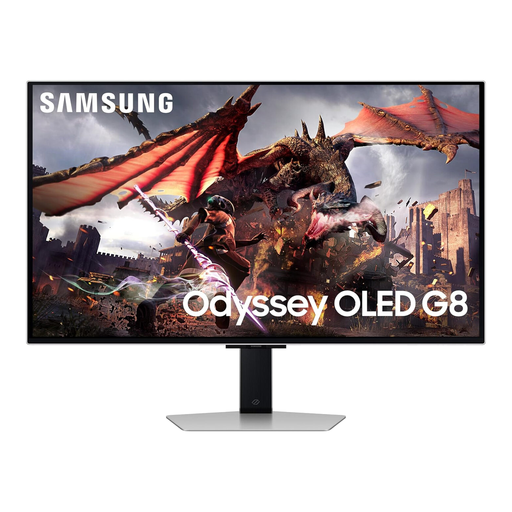 No image available
Consider this 32-inch Ultra HD OLED model if the desk and source device can accommodate a larger, higher-resolution screen. Check the desired input mode, how its screen looks under your room lighting and the model’s care guidance before leaving static team overlays on display.
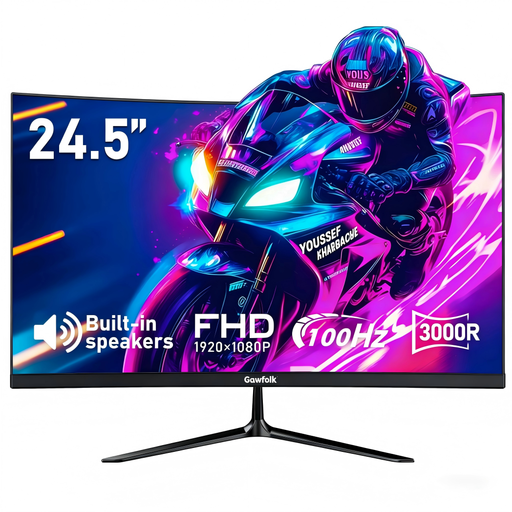 No image available
Consider this compact FHD model if a 24.5-inch screen fits the station and 100Hz meets your practice needs. Its title states a 3000R curve, anti-glare treatment, built-in speakers, HDMI and FreeSync; test reflections in the intended position and plan a separate microphone path for team chat.
An HDR label alone cannot tell you how the screen will handle reflections at your desk. VESA distinguishes tested DisplayHDR tiers from generic HDR claims, but you should also check the model’s screen treatment, SDR brightness information and the retailer’s terms for assessing it at home.
LG UK says the 27GS85Q-B’s 200Hz overclock mode requires a DisplayPort 1.4-capable graphics card and a DisplayPort 1.4 cable. Check that your chosen output and resolution support that mode; the model’s stated native refresh rate is 180Hz.
Monitor video, USB and audio-routing features do not by themselves establish microphone capture or voice-chat compatibility. Plan the headset or microphone and chat device separately, then check how they connect alongside the selected video input.
Check that the supplied power arrangement suits the electrical supply where you will use the monitor. The Health and Safety Executive advises checking that electrical equipment is suitable for its intended use and supply; inspect the equipment and cable before use.